Receivers Service Interface Properties
R2026bConfigure receiver service interface definitions for port elements of In Bus Element blocks
Since R2026b
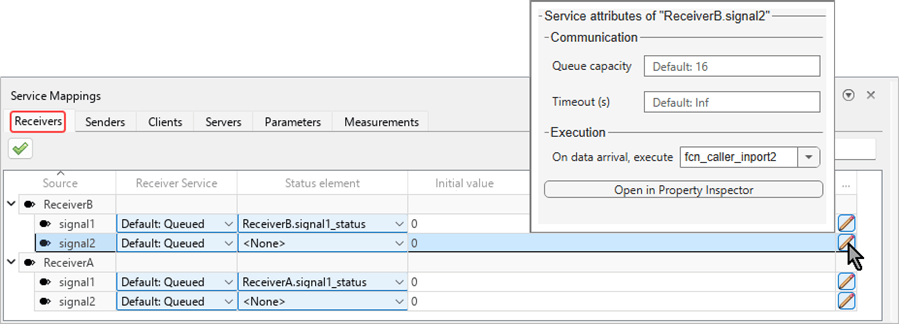
Use the Receivers tab of the Service Mappings editor to map port elements of In Bus Element blocks to receiver service interface definitions
A receiver service is the endpoint of a communication service. It delivers data elements from other components in the system to receiver port elements, which are individual signals of In Bus Element blocks. Receiver service definitions determine how input data elements are delivered to model port elements.
Properties
The table entries in the Receivers tab are organized as parent entries and child entries. Each parent entry corresponds to an In Bus Element block of the top model. Each child entry corresponds to a single port element of the In Bus Element block. Use the table entries to configure receiver service definitions for each port element.
This property is read-only.
Name of the model element that corresponds to the table entry.
Communication
Use these properties to configure communication related service definitions.
Select the type of receiver service for the port element:
LatestValueThe receiver service keeps only the last received data element. Any older data element that has not been delivered to the port element is discarded upon arrival of a new element.
QueuedThe receiver service keeps incoming data elements in a queue, and delivers each of them to the port element in turn.
Default:QueuedorDefault:LatestValueUse the predefined default value,
LatestValueorQueued, as the type of service. Select this option for model elements that need to use the predefined value regardless of its value, for example, when you need your model behavior to be consistent with other models.
An additional, optional port element of the same In Bus
Element block, coupled with the data receiving port element. The
Status element port provides the delivery status of the
port it is coupled with.
From the list, select:
<None>Do not use a status element with this data port element.
<Add Status Element>Create a new port element in the same In Bus Element block. The newly created port element is automatically assigned as the status element. To use this option, first set Status element to
<None>. Then, select<Add Status Element>.- other ports of the same In Bus Element block
The rest of the options in the list are port elements of the same In Bus Element block that are not designated as status elements of other ports and do not have a designated status element.
Fallback value the port delivers before receiving the first data element, specified as one of these values:
0Zero-filled array with same dimensions as the signal of the signal
- scalar
Array with the same dimensions as the signal filled with the specified scalar value
- array
User-specified array with the same dimensions as the signal
Maximum number of data elements in the receive queue. When a data element is received while the queue is full, the oldest element is overwritten.
This property applies only to queued receivers.
The maximum number of seconds allowed without receiving a data element, specified as a positive integer. Specify the timeout with one of these values:
InfWait indefinitely.
- positive scalar
Wait the specified number of seconds.
Execution
AUTOSAR
AUTOSAR
Use this property to combine events from a receiver port with methods from a client port.
Only applies to parent entries.
By default, each In Bus Element block maps to a separate AUTOSAR Adaptive Required port with the same name as the block. This includes both blocks that are mapped to receiver services and blocks that are mapped to client services. To combine the events of a block that is mapped to receiver services with the methods of a block that is mapped to client services onto a shared required port, specify the same required port as the Service port of both blocks. To learn about the AUTOSAR dictionary and required ports in it, see Define AUTOSAR Adaptive Software Component Ports and Interfaces.
To configure this property, click the pencil icon  at the end of the parent entry to open the dialog box. In
the AUTOSAR section, select the service port to use with this port.
at the end of the parent entry to open the dialog box. In
the AUTOSAR section, select the service port to use with this port.

Alternatively, you can select the parent receiver port in the model canvas while the Property Inspector is open. Then, in the Service tab of the Property Inspector, in the AUTOSAR section, select the service port to use with this port.


Version History
Introduced in R2026b

