Create and Run Real-Time Application from Simulink Model on Linux Target Device
R2026bThis example shows how to connect to a Linux target device, build a real-time application from a model that uses the Embedded Coder Support Package for Real-Time Linux, and run the real-time application on a Linux target device.
For more information about the Simulink Real-Time operations in this example, see Apply Real-Time Simulation and Testing Operations (Simulink Real-Time).
Open the Real-Time Model
To open the model, in the MATLAB® Command Window, type:
model = 'slrtlinux_ex_osc';
open_system(model);
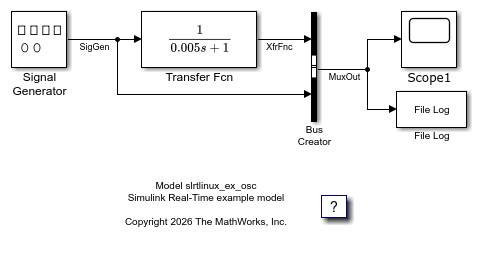
Build Real-Time Application from Model
With a Linux target device that has been configure with the Embedded Coder Support Package for Real-Time Linux connected to your development computer, use Simulink Real-Time to define the Linux target device as your default target computer. Then:
Create a Target object
tgthat represents the Linux target device.Connect Simulink Real-Time to the Target object.
Identify the system target file (STF) that corresponds to the Linux target device.
Configure the model to use the STF for code generation and build the real-time
application MLDATX file from the model.
tg = slrealtime;
connect(tg);
modelSTF = getSTFName(tg);
set_param(model,"SystemTargetFile",modelSTF);
evalc('slbuild(model)');
Run Real-Time Application and View Signal Data
Load and start the real-time application. When the application status changes to stopped, auto import the file log data and view the signal data in the Simulation Data Inspector.
load(tg,model);
start(tg,'AutoImportFileLog',true);
while ~strcmp(tg.status,'stopped')
    pause(5);
end
stop(tg);
Simulink.sdi.view
Close Models
bdclose(model);

