Copy Fault Tree Artifacts
R2026bYou can copy entire fault trees, fault tree gates, and fault tree events. You can add fault tree artifacts to the same or different fault tree documents.
Copy Fault Trees
You can copy fault trees to the same or a different fault tree document. To copy a fault tree:
In the Open Documents pane, expand the fault tree document. The Open Documents pane lists the fault trees in each fault tree document by the labels of the top-level gate.
Right-click the top-level gate label and click Copy Tree.
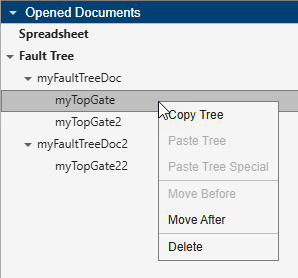
Right-click a fault tree document and paste the fault tree by using one of these options:
Paste — The Safety Analysis Manager creates a copy of the top-level gate, the attached gates, and the attached events. Each copied event has a new failure model.
Paste special — The Safety Analysis Manager creates a copy of the top-level gates, the attached gates, and creates shared events for each event in the original tree. For more information on shared events, see Create Shared Events. You cannot use this option to paste fault trees into a different fault tree document.
Rearrange Fault Trees
To rearrange the fault trees, select the tree and drag it to a new location. You can also move a fault tree by right-clicking the fault tree and selecting Move Before or Move After.
Copy Fault Tree Gates
You can copy gates and add them to other gates in a fault tree document. Gate copies retain the properties of the gate, but have a unique name. To copy a gate:
Cut or copy the gate.
Cut the gate — Right-click the gate and click Cut or click the gate and press Ctrl+X.
Copy the gate — Right-click the gate and click Copy or click the gate and press Ctrl+C.
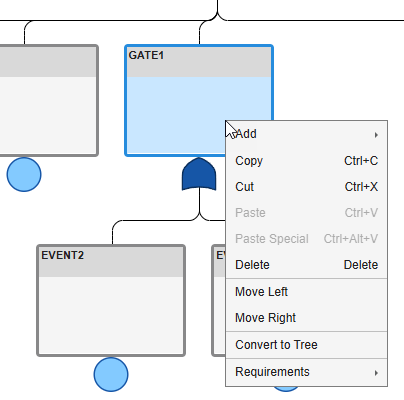
Paste the gate by using one of these options:
Paste — Right-click the gate and click Paste or select a gate and press Ctrl+V. The Safety Analysis Manager creates a copy of the gate and the attached events and gates. Each copied event has a new failure model.
Paste Special — Right-click the gate and click Paste Special or select a gate and press Ctrl+Alt+V. The Safety Analysis Manager creates a copy of the gate, copies the attached gates, and creates shared events for each event attached to the original gate.
Rearrange Gates
To rearrange the gates in a fault tree, right-click the gate and click Move Left or Move Right.
Copy Fault Tree Events
You can copy events and add them to other gates. To copy an event:
Cut or copy the event.
Cut the event — Right-click the event and click Cut or click the event and press Ctrl+X.
Copy the event — Right-click the event and click Copy or click the event and press Ctrl+C.
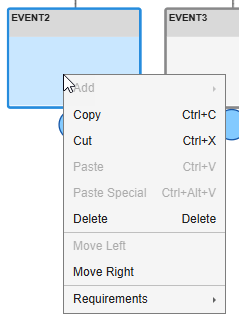
Paste the event. Right-click the gate and click Paste or select the gate and press Ctrl+V. The copied event has a new failure model.
When you paste an event, the new event has the same properties as the original event, but a unique name. When you paste a cut event, the Safety Analysis Manager restores the event at the selected gate.
Rearrange Events
To rearrange the events in a fault tree, right-click the event and click Move Left or Move Right.

