Create a User-Defined Optimization
R2026bOverview
There is a simple worked example provided to show you what you can do by modifying the template file to write your own optimizations. This example demonstrates a simple use of the CAGE optimization feature. The aim of this example is to obtain values of spark (SPK) and air/fuel ratio (AFR) that maximize torque at a given speed (N) and load (L). These values could then be used to fill calibration tables.
An example of a user-defined optimization algorithm is provided.
To see a description of this algorithm, at the command line type
help mbcweoptimizer
mbcweoptimizer is an example of a user-specified optimization
that solves the following problem:
Maximum TQ over (AFR, SPK) at a given
(N, L) point.
The syntax for this example function, mbcweoptimizer, mimics that used in the Optimization Toolbox™ product.
To evaluate this at the command line, type this example:
[bestafr, bestspk] = mbcweoptimizer(@(afr, spk)mbcTQ(afr,...
spk, 1000, 0.2))
The optimization finds values of AFR and spark (the free variables) that give the
maximum output from TQ at the values of speed and load (the fixed
variables) that you specified, in this case speed = 1000, load = 0.2, as shown
below.
bestafr =
12.9167
bestspk =
25
To use this optimization algorithm in CAGE, you need to include the function in a CAGE optimization function script. This worked example modifies the template provided to show you how to use your own algorithms within CAGE.
To view the worked example file, at the command line, type
edit mbcOSworkedexample
The worked example optimization wraps mbcweoptimizer in a
function that can be called by the CAGE optimization feature. When you run your
optimization from CAGE, you can alter the search ranges of the free variables and
the resolution of the search.
Using the Worked Example Optimization
In order to run any optimization, you first need to set up your CAGE session with a model.
For this example, the CAGE session requires
A torque model
A variable dictionary defining required variable ranges and set points (
N,L,AFR, andSPK)A data set defining the (N,L) operating points where you want to run the optimizer
There is a preconfigured session provided that contains the model, variable dictionary, and data set.
Select File > Open Project and load the file
optimworkedexample.cag. This is in thembctrainingfolder.You can look at the variables by clicking the Variable Dictionary button in the Data Objects pane.
You can look at the operating point set by clicking Data Sets in the Data Objects pane. Note you can specify fixed variables for optimizations either directly in the optimization view or import them from a data set or table.
Select File > New > Custom Optimization.
The Optimization Wizard appears.
Select
WorkedExample, and click Next.Associate each pair of inputs and variables, by clicking
afrandAin the left and right lists, and then click the Select button. Similarly associatesparkwithspk. Click Next.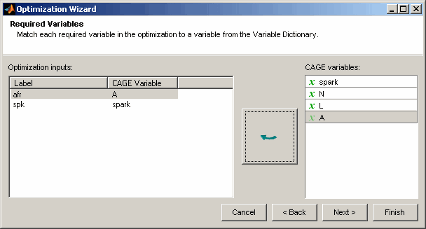
The next screen of the wizard automatically shows the
Torquemodel selected and Maximize chosen; these are specified in the function. Selecttqin the CAGE model list and click the button to match it with theTorqueoptimization model, then click Finish.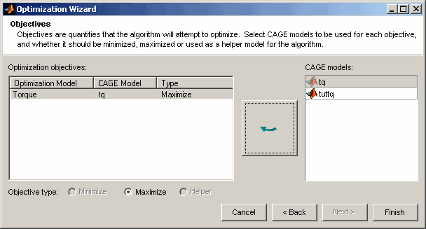
CAGE switches to the Optimization view and the new
Optimizationnode appears in the tree.If you ran the optimization now it would run at one point, the set point of all the variables. You use the free and fixed Variable Values panes to select operating points. You can edit points manually or import them. Select Optimization > Import From Data Set.

The project file contains a data set with N and L values, and these are automatically selected. Click OK to import.
Notice 36 rows appear in both fixed and free variable panes, and operating point values have been imported into the N and L columns in the Fixed Variables pane. The initial values for A and spark for each point are the set points in the variable dictionary.
Click Run Optimization in the toolbar.
When the optimization completes, the view switches to the new
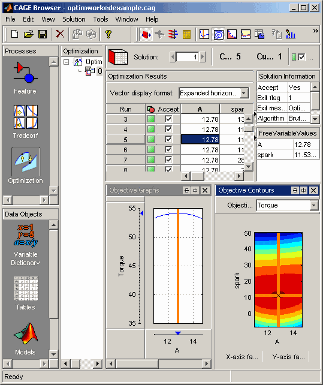
Optimization_Outputnode.The output display should look like the following. The optimization has found the values of
SPKandAFRthat give the maximum model value of torque at each operating point specified. Select different operating points by clicking in the table: the model plots at the selected operating point are shown. There is only one solution per operating point, so you cannot scroll through the solutions.