Run GoogleTest Tests Using Polyspace Platform Projects
R2026bThe Polyspace Platform user interface allows you to run C/C++ tests written using a graphical/tabular format or using C/C++ code. If you write tests in C/C++, you can either write them using the xUnit-based API from Polyspace® Test™ or use an external framework such as GoogleTest. This topic describes how to import GoogleTest tests in the Polyspace Platform user interface.
Example Files
Find the files for this tutorial in the folder <polyspaceroot>\polyspace\examples\doc_pstest\google_test. Copy these files to a writable location and continue the tutorial. Here, <polyspaceroot> is the Polyspace installation folder, for instance, C:\Program Files\Polyspace\R2026b.
The example folder contains the following:
Source file
hUserCode.cpp, which contains two functions,return_zero()andtested_function().Header file
hUserCode.hpp, which contains declarations of the above functions.Test file
hGoogleTest.cpp, which contains tests for the functiontested_function().
To run tests authored using the GoogleTest framework, you also need GoogleTest includes and libraries. You can install all required files from the GoogleTest repository. In this topic, the term <googleTestInstallFolder> refers to the main folder containing GoogleTest files. For instance, if you run this
command:
git clone https://github.com/google/googletest.git -b v1.13.0
googletests subfolder. In this case, <googleTestInstallFolder> is the full path to the googletests subfolder.Set Up Project for External Test Execution
In the Polyspace Platform user interface, create a new project and add the source file hUserCode.cpp to the project. After adding the source:
Add the test file to your project:
Right-click the project node and select Add External Test Files.
Instead of adding individual files, you can also add a folder containing test files. Right-click the project node and select Add External Test Folder.
Navigate to the location of the test file
hGoogleTest.cppand add this file.
To see all test files and folders added to the project, select the Project tab of the Configuration pane. On this tab, you can see the test files and folders explicitly added to the project in the sections External test files and External test folders respectively.
Configure your project to run tests written using the GoogleTest framework. Double-click the Configuration node of the project, and then set these options:
On the Project tab, set the option Include paths as the path to the folder containing the header file
hUserCode.hpp.On the External Tests node of the Project tab, leave the option Use GoogleTest selected.
For more information on running GoogleTest tests with non-default options, see
Use GoogleTest with non-default options.On the Target and Compiler node of the Build tab, set these options:
Option Value Source code language CPPExtra flags for linking If you run your tests on a Linux® host, set this option to
-pthreadto link the POSIX Threads (pthread) library.If you run tests on a Windows® host with the Microsoft® Visual C++® (MSVC) compiler and your tests use a library compiled in debug mode, set this option to
/MTdto link the library.
On the Target & Compiler > External Tests node of the Build tab, specify the following options:
Option Value Include paths for external tests Add the path
<googleTestInstallFolder>\googletest\includeand select Subfolders.Library paths for external tests Add the path
<googleTestInstallFolder>\googletest\build\lib\Release.This folder contains GoogleTest libraries (see next row in table). In your GoogleTest installation, the libraries might be in another folder.
Libraries for external tests Add the names of the libraries that you use to build GoogleTest tests.
For instance, for building the tests, you might add these two static libraries:
Windows:
gtest.libgtest_main.lib
Linux:
libgtest.alibgtest_main.a
macOS:
libgtest.dyliblibgtest_main.dylib
You can build GoogleTest as a standalone project to get the libraries. For more information, see GoogleTest Build Instructions. Make sure that the compiler that you use to build your tests is the same as the compiler used to build the GoogleTest libraries.
If you want coverage results along with test execution results, in the PROFILING section of the Polyspace Platform toolstrip, instead of No Profiling, select Code Coverage.
Run Tests and Review Results
After the initial setup, you are ready to build and run tests written using the GoogleTest API.
On the Projects pane, right-click the External Tests node and select Build Tests.
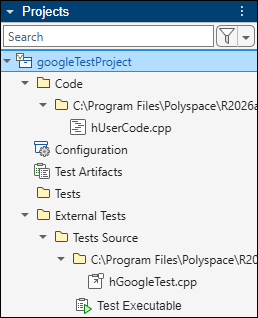
The sources and external tests are built along with the GoogleTest libraries. On the Projects pane, you see a Test Executable node below the External Tests node:
Note that when building with host compilers other than MinGW, the option
-SUBSYSTEM:consoleis automatically added during build.If you run into build errors, see Troubleshoot Building GoogleTest Tests from Polyspace Platform Projects.
On the Projects pane, right-click the External Tests node and select Run Tests.
After the tests execute, on the Results pane, you see a new entry corresponding to the results of test execution. The entry contains two nodes:
Tests corresponding to test execution results.
This example contains one failing test, therefore the overall test execution status shows a failure.
Coverage corresponding to code coverage results.
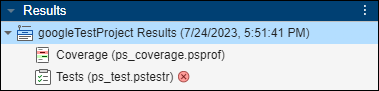
Double-click one of the nodes to open further details of test execution or code coverage results.
Automate Test Execution
You can also run GoogleTest tests in a Polyspace Platform project at the command line. To run all GoogleTest tests in a project:
Open a terminal and navigate to the project location.
Enter the following command to run all GoogleTest tests in a project:
Here,polyspace-test -run -project myProject.psprjx -test External:myProject.psprjxis the name of the Polyspace Platform project.To run a specific test, for instance, the test
myTestin the suitemySuite, enter the following command:polyspace-test -run -project myProject.psprjx -test External:mySuite.myTest
For more information, see polyspace-test -run.
Run GoogleTest Tests on Target
You can also run GoogleTest tests on a registered embedded target. The workflow is the same as running graphical or xUnit tests on a target. To run GoogleTest tests on a target:
Register a target in the Polyspace Platform user interface if you have not already done so. See Run C/C++ Tests on Target in Polyspace Platform User Interface.
In your project configuration, on the Build tab:
Select your target from the Target board name (Testing) list.
Set the option C++ standard version to
cpp11or later. Execution of GoogleTest tests on target is supported only for C++11 or later.
Specify the paths to GoogleTest libraries for the options
Library paths for external testsandLibraries for external tests. Make sure that the GoogleTest libraries are compiled for the target architecture.Build and run your tests as usual.
GoogleTest options such as --gtest_filter, --gtest_shuffle, and --gtest_also_run_disabled_tests are supported for on-target execution, same as for on-host execution. For more information, see Use GoogleTest with non-default options.
Code profiling, including code coverage, execution time, and stack profiling, is also supported for GoogleTest tests running on targets. Note that if you run GoogleTest tests on a target, you can see the start and end time for the entire test execution but not per-test execution time.
See Also
Include paths for external tests | Library paths for external tests | Libraries for external tests | Use GoogleTest | Use GoogleTest with non-default options

