Specify Pointer Targets for C/C++ Test Authoring in Polyspace Platform User Interface
R2026bYou can author tests for a C/C++ function with pointer inputs or a pointer return value in the Polyspace Platform user interface. In C/C++, a pointer passed to a function can point to a single variable or an array of several elements. To assign a value to this pointer input in a test, you have to specify what the pointer points to. In the Polyspace Platform user interface, you can accomplish this task in multiple ways:
Define a variable as a target for the pointer. Once you specify a variable name and how many elements the variable contains, you can see a new pointer target variable with all elements default-initialized. You can then change values of individual elements as needed in your tests.
Manually specify the address that the pointer variable points to. For instance, you can directly enter the address of a global variable, the name of another pointer variable, or a C string.
This topic shows how to specify a pointer target for different kinds of functions with pointer inputs.
Example Files
This tutorial uses the files in the folder <polyspaceroot>\polyspace\examples\doc_pstest\test_functions_with_pointers\src. Here, <polyspaceroot> is the Polyspace® installation folder, for instance, C:\Program Files\Polyspace\R2026b. To continue with this tutorial:
Create a new Polyspace Platform project and add the folder to the project.
Select Parse Code on the toolstrip to analyze the files in the folder.
Create Targets for Pointers
Consider the function initArray():
void initArray(int32_t* arr, uint32_t N) {
    for (uint32_t i = 0; i < N; ++i) {
        arr[i] = (int32_t)i;
    }
}arr points to:
On the Projects pane, right-click
initArrayand select Add Test Case.In the Inputs section of the first test step, specify a target for the pointer variable
arr.Right-click the cell in the Value column of the variable
arrand select Add Pointer Target.In the Add Pointer Target box:
Specify Pointer Target Name as
input_target_arr.Set Pointer Target Size to
4.
Click OK. The Test Data section at the beginning of the test shows the target variable
input_target_arr, with all elements initialized to0. Leave the default values unchanged. Note that the Test Data section is above the test step since the pointer targets are global to the test and can be used from any step.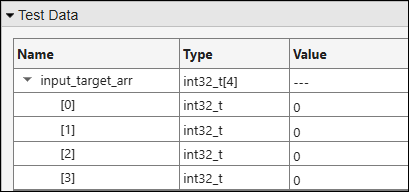
The variable that you define as a pointer target is used for testing only and does not actually exist in your source code. The variable is defined in the generated test code and used during test execution.
Note that:
For aggregates such as arrays and structures, instead of entering individual member values in each row, you can enter their values all at once in a C-style initializer list. Right-click the row containing the aggregate and select Fill Using Initializer List. For more information, see Fill Aggregates Using C-Style Initializer Lists.
You can resize a pointer target after the initial target creation. To resize a target, right-click the root node corresponding to the target, for instance,
input_target_arrin the previous example, and select Resize Test Data.Instead of the menu item Add Pointer Target, if you used the item Add Test Data, it would create a new pointer in the Test Data section instead of an array. The new pointer has the same type as the input pointer and effectively acts a pointer local to the test, accessible from all test steps. For an example illustrating use of test data, see Multistep Tests Using Test Data Element for Data Exchange.
In this example, the second input parameter
Nrepresents the number of array elements. Since you created a four element-array as pointer target, enter4uin the Value column for this parameter.In the Assessments section of the first test step, create a second four-element target variable
assessment_target_arrfor the pointerarrusing the same steps as before.Right-click the cell in the Value column of the variable
arrand select Add Pointer Target.In the Add Pointer Target box:
Specify Pointer Target Name as
assessment_target_arr.Set Pointer Target Size to
4.
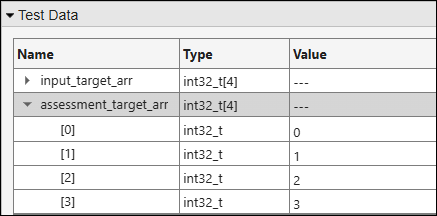
Click OK. The Test Data section shows the target variable
assessment_target_arrwith all elements initialized to0. Change the element values to0,1,2, and3, the expected array values after the functioninitArray()is invoked.
You can now build and run the test, and see passing test results. For more information, see Build and Run Tests in Polyspace Platform User Interface.
Point to Existing Memory Locations
Instead of creating a target variable for a pointer input, you can initialize a pointer with the address of a memory location. For instance, you can:
Point to a global variable in your code.
Point to the same location as another pointer input defined earlier in the graphical test case.
Point to a C string.
In this section, you create tests where you directly enter a value for pointer inputs or assessments.
Point to Global Variable
Consider the function getRefToStoredValue():
int32_t* getRefToStoredValue(int32_t whichValue) {
    if (!whichValue)
        return &storedValue0;
    else
        return &storedValue1;
}getRefToStoredValue() returns the address of the global variable storedValue0 when the argument whichValue is set to 0.
On the Projects pane, right-click
getRefToStoredValueand select Add Test Case.In the Inputs section of the first test step, enter the value of
whichValueas0. Leave the default values ofstoredValue0andstoredValue1.In the Assessments section of the first test step, in the Value column for the return variable
pst_call_out, enter&storedValue0.
You can now build and run the test, and see passing test results. For more information, see Build and Run Tests in Polyspace Platform User Interface.
Point to Same Array as Existing Pointer
Consider the find() function:
int32_t const* find(int32_t const* begin, int32_t const* end, int32_t itemToFind) {
    int32_t const* it = begin;
    int32_t const* point32_terToItem = NULL;
    while (it < end && *it != itemToFind) {
       ++it;
    }
    if (*it == itemToFind) {
        point32_terToItem = it;
    }
    return point32_terToItem;
}begin and end point to the beginning and end of the same array. Write a test that calls the function find() with a value for the input parameter itemToFind and verifies that the function returns a pointer to the first location in the array where the input value is found.
On the Projects pane, right-click
findand select Add Test Case.In the Inputs section of the first test step, specify these values for the inputs:
begin: Create a pointer target for this parameter.Right-click the cell in the Value column and select Add Pointer Target.
In the Add Pointer Target box:
Specify Pointer Target Name as
input_target_begin.Set Pointer Target Size to
5.
Click OK. The Test Data section shows the target variable
input_target_beginwith all elements initialized to0. Change the element values to1,4,2,3, and6.
end: Enter the valuebegin + 4. This implies that the pointerendpoints to the same array as the pointerbeginbut points to the last element of the array (which occurs four elements past the beginning of the array).itemToFind: Enter the value4. The second element of the arrayinput_target_begincontains this value.
In the Assessments section of the first test step, in the Value column for the return variable
pst_call_out, enterbegin + 1. Since the second array element contains the value4, the functionfind()is expected to return a pointer to the same array as the pointerbegin, but one element past the beginning of the array.
You can now build and run the test, and see passing test results. For more information, see Build and Run Tests in Polyspace Platform User Interface.
Point to Array with C String
Consider this function:
int startsWithA(const char* str) {
    if (str[0] == 'A') {
        return 1;
    } else {
        return 0;
    }
}startsWithA() returns 1 when given a C string starting with the character A.
On the Projects pane, right-click
startsWithAand select Add Test Case.In the Inputs section of the first test step, in the Value column for the input
str, enter the C string value,"A test input".In the Assessments section of the test, in the Value column for the return variable
pst_call_out, entertrue.
You can now build and run the test, and see passing test results. For more information, see Build and Run Tests in Polyspace Platform User Interface.

