Test Functions with Undefined Callees in Polyspace Platform User Interface
R2026bWhen authoring a test for a C/C++ function, you can work around undefined variables and undefined functions that the function under test calls (its callees) by replacing them with stubs. A stub for an undefined function has the same signature as the function but a different function body, often an empty one. If the callee definitions are not relevant for your tests, stubbing does not affect the test results.
There are two different types of stubs you can use in a Polyspace® Platform project:
Project-specific stubs are stubs that you can create from the user interface or the Polyspace Python® API and save in the
.psprjxproject file. From the Polyspace Platform user interface, you can generate empty project-specific stubs for all undefined functions and variables with a single click or create each stub individually. If an empty stub is not sufficient, you can edit the stub and provide a custom implementation.External stubs are stubs that you define outside the project in a
.cor.cppsource file. You provide your stub implementations for one or more undefined symbols in that source file and add the file to the project as a test artifact. External stub files allow you to reuse existing stubs, share stubs across similar projects, and write more complex stub implementations.
Why Stub Undefined Callees
When you compile and execute a complete C/C++ program, all functions and variables in the program must be defined. However, when you run unit tests for a single function, all callees of the function need not be defined. In fact, in a large project, not all callees of a function are defined when you write and run unit tests for the function. To build your tests despite undefined functions and variables, create stubs.
For instance, if a function prints messages using library functions in addition to returning a value and you write a test for the return value, the library functions might be irrelevant for that test and their definitions need not be available. You can stub the library functions during testing.
Stubs are for working around undefined functions and variables. If you are looking to override the definition of a function, use mocks. See Differences Between Stubs and Mocks When Testing C/C++ Functions.
Identify Undefined Callees to Stub
To find all the undefined symbols in your project:
Add your source files to the project. Click Parse Code on the toolstrip to perform an initial code analysis.
See Parse Source Code for Auto-Populating Test Information in Polyspace Platform User Interface.
After the code analysis is complete, click the Code Explorer
 button on the toolstrip.
On the Code pane, you see undefined functions and variables under the Undefined Symbols node. The undefined symbols appear with a warning icon  next to them. For instance, the function
 printError() and the variables maxValue and minValue are undefined in this project:
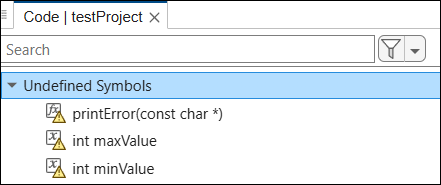
Alternatively, you can also locate undefined functions in the full call graph of the project. After parsing the code, click Call Graph on the toolstrip. Undefined functions appear in orange with a warning icon. For instance, the function printError() is undefined in this call graph:
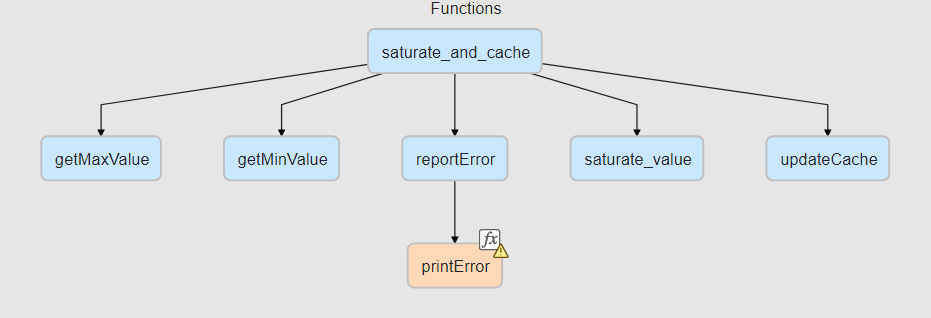
To see undefined variables in the call graph, click the Show Variables button in the Call Graph toolstrip.
Stub Undefined Callees from the User Interface
Once you identify the undefined functions and variables in your project, you can create stubs for them individually or by generating empty stubs for all undefined symbols. After you stub an undefined symbol, a test that calls it can build without errors.
Instead of stubbing a function or variable, you can mark it as externally defined. For more information, see External symbols.
Generate Stubs for All Undefined Symbols
You can generate project-specific stubs with empty bodies for all undefined functions and variables in your project with a single click from one of these locations in the Polyspace Platform user interface:
On the Code pane showing all symbols in the project, right-click the node Undefined Symbols and select Generate All Stubs.
On the Call Graph pane showing the full call graph of the project, click Generate Stubs on the toolstrip.
You now have an empty stub for each undefined symbol. To edit the stub and provide a custom implementation, right-click the Stub node under the variable or function in the Code pane and select Edit Stub/Mock.
Stub Individual Undefined Callees
To stub a single undefined function or variable from the Polyspace Platform user interface:
Right-click the undefined symbol and select Create Stub. The right-click option is available anywhere you see undefined symbols:
On the Code pane below the Undefined Symbols node.
On the Call Graph pane, which shows the full call graph of the project. To show variables in the call graph, select Show Variables in the toolstrip.
For functions, add valid C/C++ code in the stub body in the Function Editor window, or leave the stub body empty. For variables, enter a valid value in the Variable Editor window, or leave that field empty.
To add code that goes outside the stub body, such as global variable declarations, type definitions or header file inclusions, expand the Mock Preamble section and enter code in this section.
Click Apply. The newly stubbed symbol appears on the Code pane along with its stub. You can edit or delete the stub by right-clicking the stub node.
Stub Undefined Callees Using External Files
Another way to stub undefined functions and variables is using external C/C++ stub files that you add to the project as test artifacts. This example shows how to stub undefined symbols using a C source file. For information about working with external stub files in the Polyspace
Python API, see polyspace.project.Stubs.
Example Files
This example uses the files in the folder <polyspaceroot>\polyspace\examples\doc_pstest\getting_started_test_manager. Here, <polyspaceroot> is the Polyspace installation folder, for instance, C:\Program Files\Polyspace\R2026b.
Create Project and Parse Code
To continue with this example:
Create a new project.
Add the source files
algo.candsaturate.c, and add the include path to the header filesalgo.handsaturate.hin the project configuration.Parse the code.
Identify undefined symbols by opening Code Explorer from the toolstrip. On the Code pane, expand the Undefined Symbols node to see a list of all undefined functions and variables that require stubbing.
Add External Stub File
To workaround the undefined symbols, add the external stub file to the project. The file myStub.c in the stubs subfolder of the project folder contains these definitions for the undefined variables and functions:
/* Stub Definitions for Undefined Callees */

/* Header Dependencies */

/* Variable Definitions */
int minValue = -2;
int maxValue = 2;

/* Function Definitions */
void printError(const char *ErrorMsg) {}
You can add external stub files to the project individually or specify a path to the folder that contains the stub files. Add the external stub file myStub.c to your project in one of these ways:
In the Prepare section of the toolstrip, click Add Source Folder > Add Stub Source Folder or Add Source File > Add Stub Source File and provide the path to the
stubsfolder or to themyStub.cfile directly.In the Projects pane, right-click the Test Artifacts node and select Add Stub Source File or Add Stub Source Folder.
In the project configuration, navigate to the Project tab and add your stub sources under Stub Source Files or Stub Source Folders.
Parse Code to Verify Undefined Symbols Are Successfully Stubbed
To verify that the undefined functions and variables are successfully stubbed, parse the code again and return to the Code pane. All successfully stubbed functions and variables appear under the Stubbed Symbols node. Any remaining undefined functions or variables appear under the Undefined Symbols node.
See Also
polyspace.project.Project | polyspace.project.Stubs | polyspace.project.FunctionStub | polyspace.project.VariableStub

