Build PBPK Model from Organ Submodels using SimBiology Model Builder
R2026bThis example shows how to build a multiorgan physiologically-based pharmacokinetic (PBPK) model using SimBiology Model Builder. You import an organ submodel, copy it to create additional organs, modify one to represent the lung, declare shared quantities as equivalent, and simulate. The model uses illustrative parameter values adapted from [1] and is not meant to reflect exact physiology.
Enter the following command to open the app and get the necessary supporting file for the example.
openExample('simbio/BuildPBPKModelUsingSimBiologyModelBuilderExample');
On the Home tab, select Model > Create New Blank Model. Name the model as PBPK. Delete the unnamed compartment that was created by default.
Import Generic Organ Submodel
On the Home tab, select Model > Load Model from File. Select generic_organ.sbproj in the current example folder. In the Import Model from Project dialog box, select GenericOrgan. In the Browser pane, the GenericOrgan model appears as a top-level model alongside PBPK.
Drag GenericOrgan onto the PBPK model so that GenericOrgan becomes a submodel.
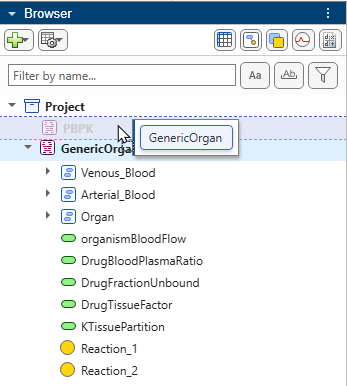
On the Move Confirmation dialog box, click Yes. The GenericOrgan model now appears as a submodel under PBPK. The diagram shows the GenericOrgan submodel as a block inside the PBPK diagram.
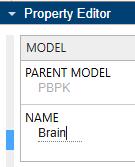
Change the submodel name to Brain in the Property Editor.
By default, the app shows the Components tab at the bottom of the Diagram tab. You can close it, drag it, or use different tiling options to rearrange as needed.

Create Heart Submodel by Copying Brain
In the Browser pane, right-click Brain and select Copy. Right-click the diagram canvas outside the Brain submodel block and select Paste. The app creates a copy named Brain_1.
In the Property Editor pane, change the submodel name to Heart.
Create and Modify Lung Submodel
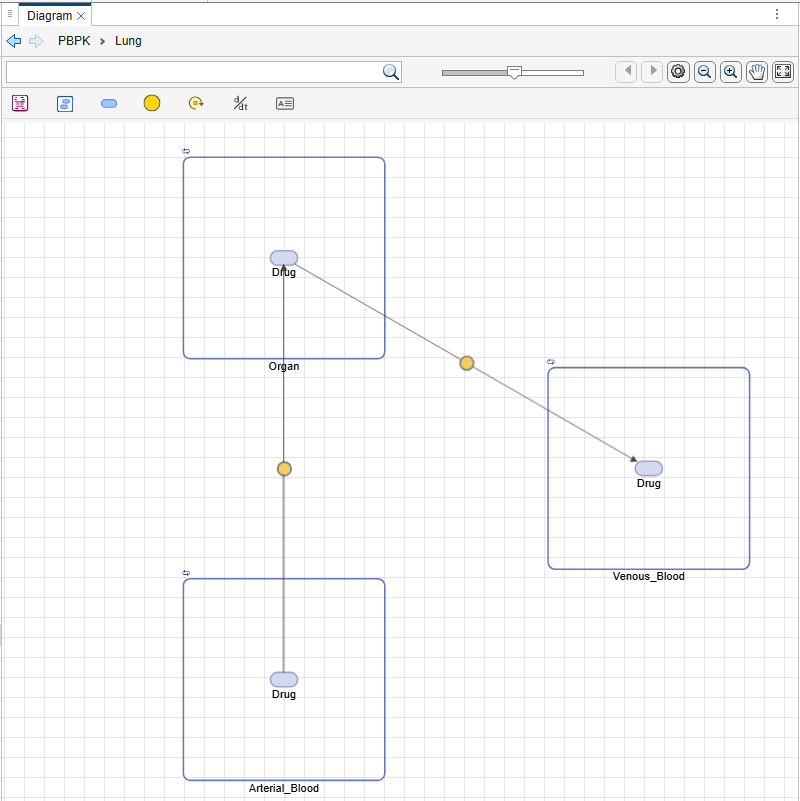
The lung differs from the brain and heart because blood flows in the opposite direction (from the venous pool through the lung into the arterial pool), and the lung includes a systemic elimination reaction.
Create another copy of the brain submodel and rename it to Lung.
To modify a submodel, you must first open its diagram. Double-click the Lung block to open its diagram. The diagram now shows only those model components in the lung submodel and the model navigation bar above the diagram updates to PBPK > Lung,
Modify Lung Reactions
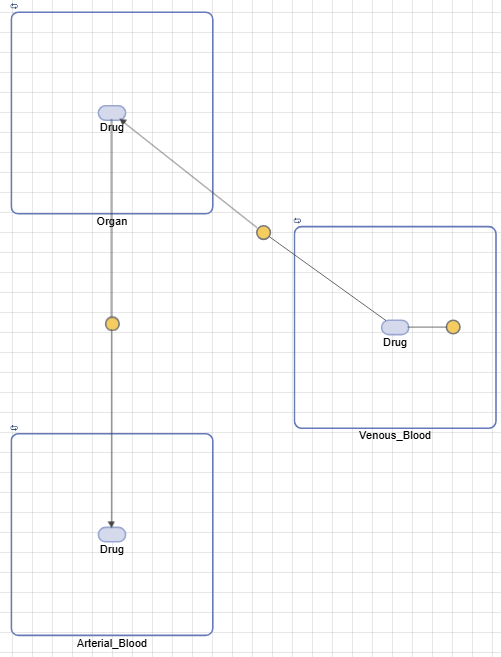
Unlike the brain and heart, the lung receives blood from the venous pool and delivers it to the arterial pool.
Click the reaction between Organ and Venous_Blood. In the Property Editor, update its properties as follows:
Reaction:
Venous_Blood.Drug -> Organ.DrugReactionRate:
1/Organ*(organismBloodFlow * Venous_Blood.Drug)
Click the reaction between Organ and Arterial_Blood. In the Property Editor, update its properties as follows:
Reaction:
Organ.Drug -> Arterial_Blood.DrugReactionRate:
1/Organ*(organismBloodFlow*Organ.Drug*DrugBloodPlasmaRatio/(DrugFractionUnbound*KTissuePartition*DrugTissueFactor))
Add Elimination Reaction
Add a third reaction to represent systemic elimination of the drug from the venous blood pool.
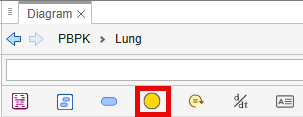
Drag the reaction icon onto the diagram, near or inside the Venous_Blood compartment.
In the Property Editor, update its properties as follows.
Reaction:
Venous_Blood.Drug -> nullReactionRate:
CLsystemic * Venous_Blood.Drug / Venous_Blood
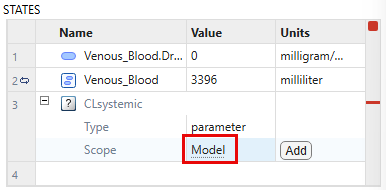
In the States table, add the CLsystemic parameter with the Scope set to Model.
Update the Value to 9940 and Units to milliliter/hour.
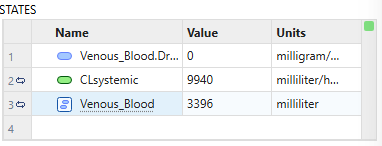
In the Browser pane, under Lung, delete the parameter kf which is no longer used.
In the diagram, the lung submodel is shown as follows:
Update Parameter
In the Browser pane, under Lung, click organismBloodFlow. Change the value from 42000 to 314000 in the Property Editor.
Create Equivalence Sets
The venous blood, arterial blood, and corresponding drug species represent shared biological entities across organ submodels. An equivalence set groups quantities in different models that represent the same biological entity. During simulation, the app designates one quantity in the equivalence set as the resolved quantity and uses that quantity in place of the other equivalent quantities. For details about equivalence sets, see Model Hierarchy and Equivalence Sets.
Below the Browser pane, expand the Equivalences pane and click Auto-Match.
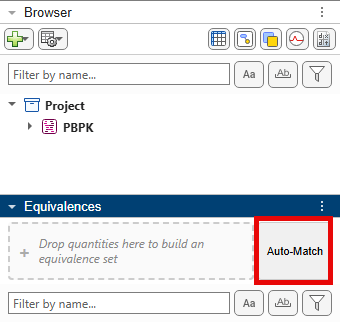
By default, the app finds equivalence sets for quantities that share the same name across submodels. For species, because multiple compartments can contain a species with the same name, the app uses the qualified name — the compartment name combined with the species name. For example, Venous_Blood.Drug refers to the Drug species in the Venous_Blood compartment. The app groups Venous_Blood.Drug from all three submodels into one equivalence set, Arterial_Blood.Drug into one, and Organ.Drug into another.
Tip: If you have designated labels or tags for model quantities, you can also match by Tag.
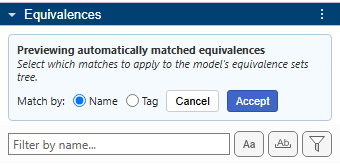
The proposed equivalence sets for compartments, species, and parameters are listed as separate groups. For instance, the Match 1 group includes Venous_Blood compartments from all three submodels. The resolved quantity is the Venous_Blood compartment from the PBPK.Brain submodel. The Match 1 node label contains such information.
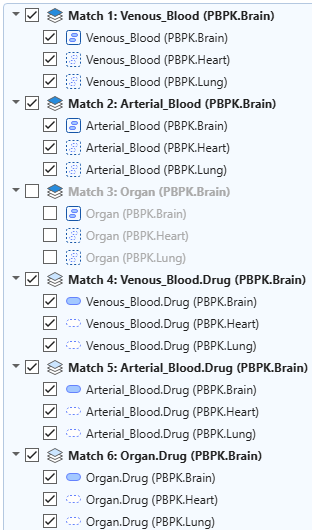
Before you accept the proposed matches, clear:
Parameter matches (such as
organismBloodFlow). Although these parameters share the same name, they represent organ-specific values that might differ across submodels.Organ compartment matches as they represent different organs.
Tip: You can use the filter options to filter the list to show based on the quantity type.

After clearing, you are left with the following equivalence sets. Click Accept.
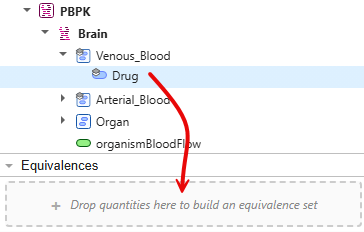
Tip: You can also drag model quantities from the model hierarchy to the Equivalences pane to build an equivalence set manually.
Change Resolved Quantities
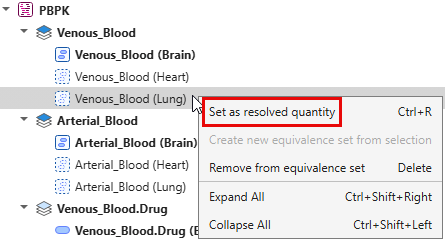
You can also change the resolved quantities. For example, change the resolved quantities to the lung submodel versions because the lung physiologically bridges the venous and arterial blood pools.
For each equivalence set, right-click the quantity and select Set as resolved quantity.
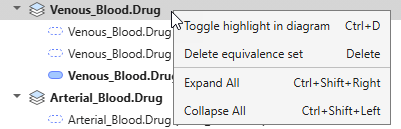
To visualize a resolved quantity or other quantities in equivalence sets in the diagram, you can highlight them by double-clicking the quantity name.
Alternatively, right-click the equivalence set node and select Toggle highlight in diagram.
Simulate Submodel in Isolation
You can simulate a submodel in a complete isolation from the rest of the model hierarchy. For instance, you can simulate just the brain submodel and check its model dynamics, excluding the dynamics from other models outside of this model (and its descendant models if any).
First, add an intravenous (IV) bolus dose targeting the Drug species in the Venous_Blood compartment of the brain submodel.
In the Browser pane, right-click Brain and select Add > Repeat Dose. In the Property Editor or the Doses tab, configure the dose as follows:
TargetName:
PBPK.Brain.Venous_Blood.DrugTip: You can type
"Drug"and then select from the prepopulated list.
Amount:
100AmountUnits:
milligramTimeUnits:
second
The target name is specified as the fully qualified name (FullyQualifiedName) of the Drug species that is in the Venous_Blood compartment of the brain submodel. The name encodes the dot-separated path from the top-level model through each submodel and the owning compartment to this species.
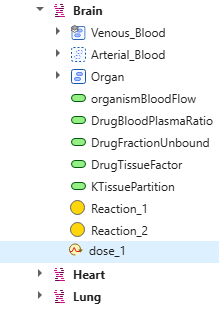
The app adds the dose under Brain, indicating that you can apply this dose when you simulate this submodel.
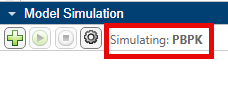
Below the Property Editor pane, expand the Model Simulation pane. By default, the whole PBPK model is set to simulate.
To simulate just the brain submodel, set it as the current model.
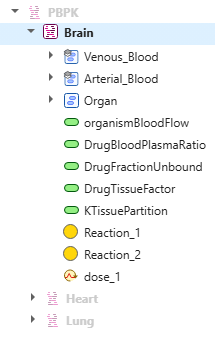
In the Browser pane, right-click Brain and select Set as current model. Only Brain and its model components are visible now and other submodels become dimmed.
You can also check the model equations which shows ODEs specific for this submodel.
Click the Show model equations icon to open the Equations tab.
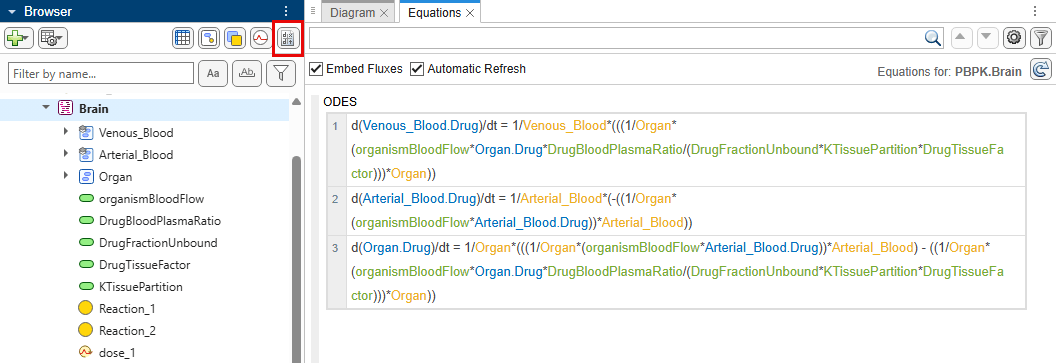
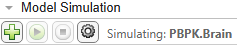
The Model Simulation pane now shows that Brain is being simulated.
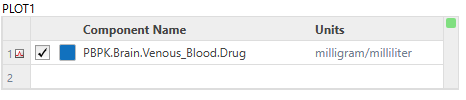
To add a plot, click the green plus icon. Enter "Drug" in the Component Name column and select the Drug species from Venous_Blood.
To update the simulation settings, click the gear icon and select Define Stop Time for Simulation. This simulation settings apply only to the lung submodel simulation.
Set Stop Time to 10.
Set Time Units to
second.Set Unit Conversion to
on.
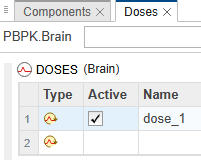
Next click the gear icon again and select Define Active Doses for Simulation. In the Doses tab, select the Active checkbox for dose_1. Only active doses that directly belongs to the current model will be applied during simulation.
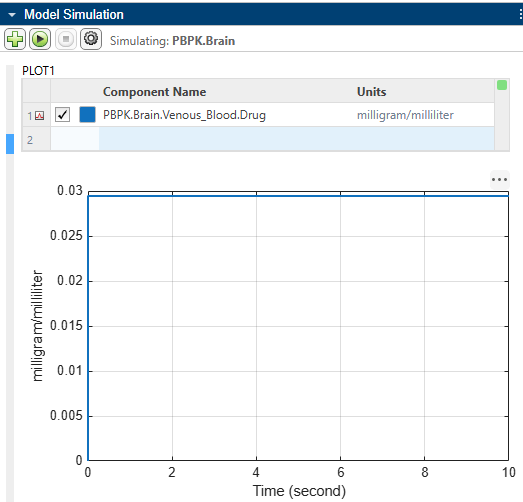
Click the green run icon to simulate Brain. Note that there is no elimination of the drug in the venous blood pool because the elimination happens in the lung submodel, which is not part of this brain submodel simulation.
Simulate Full Model
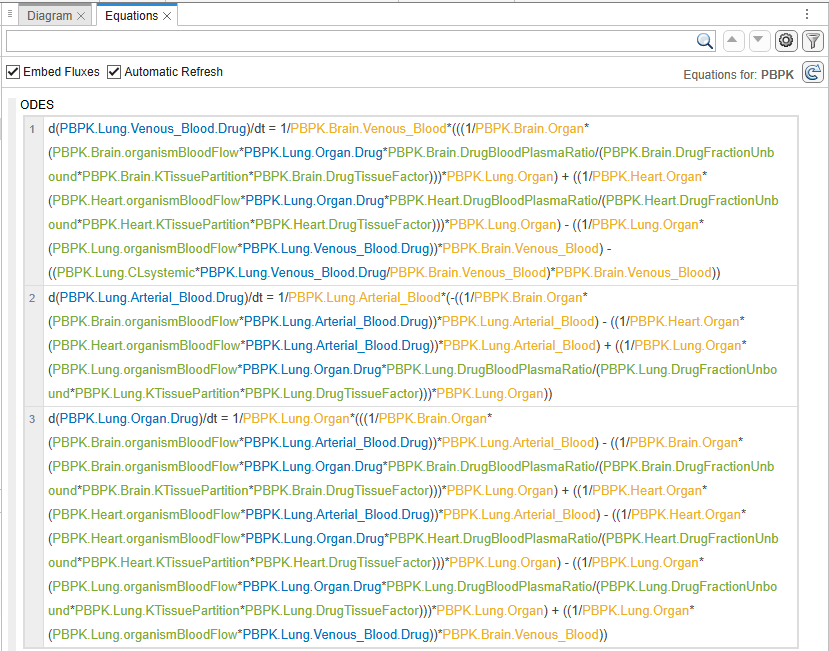
In the Browser pane, double-click PBPK to set it as current model. You can check the model equations view that shows that the entire model hierarchy is consolidated into a single system of OEs.
In the Model Simulation pane, click the gear icon and update the Simulation Settings to be the same as the previous Brain settings. Keep the same drug species to plot.
Click the green play icon to simulate again. The plot shows a flat line. The dose defined in Brain is visible to that submodel. When you simulate at the PBPK level, the app does not automatically apply doses from submodels. You must add a dose at the same level from which you simulate.
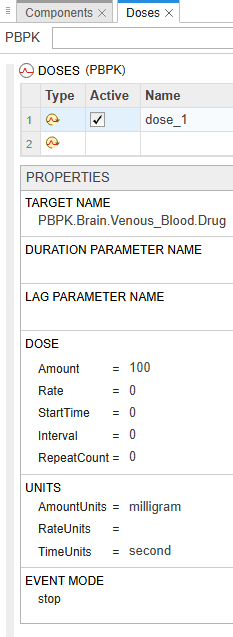
Add an IV bolus dose to the PBPK model as you did for Brain. Use the same dose settings as before. Select the Active checkbox as well.
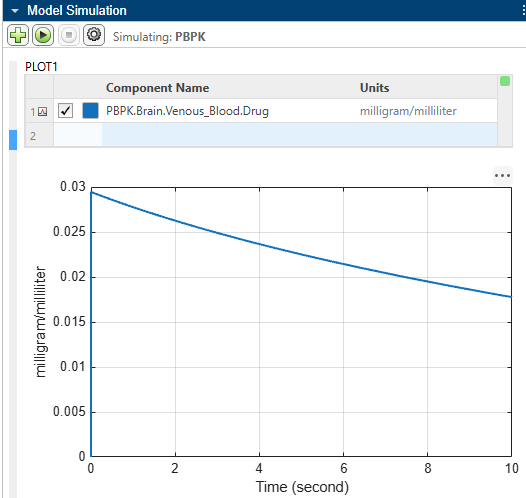
Simulate again. The plot now shows the elimination of the drug because the simulation covers the whole model, including the lung submodel which has the elimination reaction for the drug.
References
[1] Sven Mesecke (2026). Physiologically-based Pharmacokinetic (PBPK) model for SimBiology (https://www.mathworks.com/matlabcentral/fileexchange/37132-physiologically-based-pharmacokinetic-pbpk-model-for-simbiology), MATLAB Central File Exchange. Retrieved August 14, 2026.

