Component-Based Modeling with Model Reference
R2026bThis example takes you through simulation and code generation of a model that references another model multiple times. In this example, Simulink® generates code for accelerated simulation, and Simulink® Coder™ generates code that you can deploy in standalone applications.
If you typically use subsystems to manage model complexity, consider the advantages of model references. For example:
A referenced model does not load until it is needed. The process of loading referenced models only when they are needed is called incremental loading. Incrementally loading models speeds up parent model load times.
The first time you simulate a referenced model in accelerator mode, the software creates binaries to use in simulations. When you simulate or compile models that use the binaries, the software does not regenerate the referenced model binaries if the referenced model and its dependencies are unchanged. The process of generating code for referenced models only when needed is called incremental code generation. Using binaries improves model update and simulation performance and increases modularity in code generation.
Generating code for a model reference hierarchy also takes advantage of incremental code generation.
For help defining and choosing among model components, such as subsystems and referenced models, see Component-Based Modeling in Simulink.
Model Reference Hierarchy
This example uses the ModelReference project, which opens the MultiCounter model at startup.
openProject("ModelReference");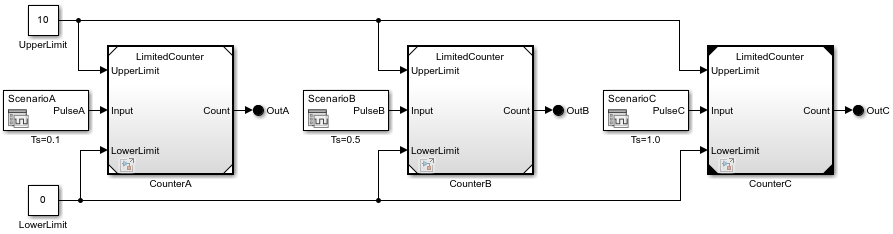
The MultiCounter model is the top model in the model hierarchy and contains Model blocks named CounterA, CounterB, and CounterC. Each Model block references the LimitedCounter model. The referenced model is a standalone model and not a subsystem of MultiCounter.
Incremental Loading
To determine what model, library, and subsystem files are loaded in memory, use the find_system function.
find_system(type="block_diagram")ans = 2×1 cell
{'SignalEditorBlockLib'}
{'MultiCounter' }
The MultiCounter top model is listed because open models are loaded in memory. The LimitedCounter referenced model is not listed because referenced models do not load when their parent models load.
Inherited Sample Times
To help visualize inherited sample times, the MultiCounter model displays sample time colors and annotations after you update it. In the Simulink Toolstrip, on the Debug tab, click Update Model.
set_param("MultiCounter",SimulationCommand="update")
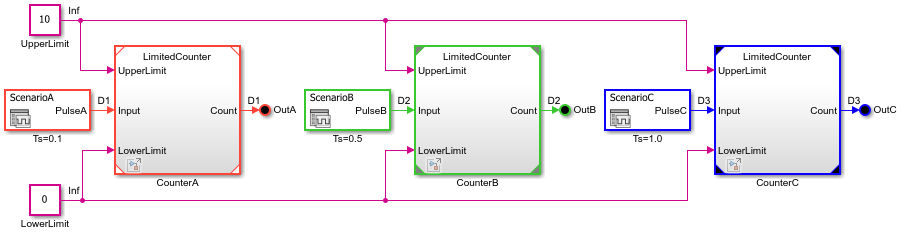
Each Model block inherits a different sample time from the signal connected to its Input port. The LimitedCounter referenced model does not explicitly specify a sample time and satisfies the conditions for inheriting sample times described in Referenced Model Sample Times.
Signal Logging in Model Reference Instances
The LimitedCounter referenced model has the UpdatedCount signal marked for logging. To mark additional signals for logging, select a signal. Then, open the action bar by pausing on the ellipsis. From the action bar, select Log Selected Signal. Alternatively, select multiple signals. Then, on the Simulation tab, select Log Signals.
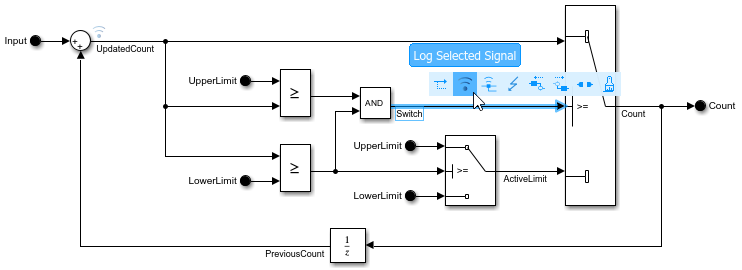
Simulations can log any of the signals that a referenced model marks for logging.
To configure the signals to log in a model hierarchy:
On the Modeling tab, click Model Settings. The Configuration Parameters dialog box opens for the top model.
On the Data Import/Export pane, click Configure Signals to Log.
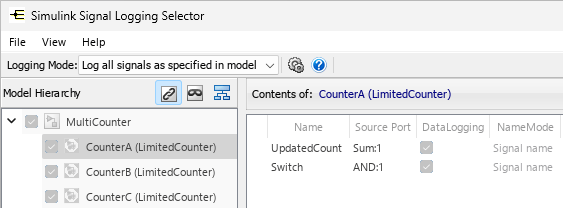
The Simulink Signal Logging Selector provides two logging modes for signals in referenced models:
To honor logging settings in the referenced models, set Logging Mode to
Log all signals as specified in model.To override logging settings in the referenced models, set Logging Mode to
Override signals. This option lets you disable logging for signals in the referenced model or configure properties of logged signals, such as decimation and name.
Simulation for Model Reference Hierarchies
When you simulate the top model in normal mode, the Model block Simulation mode parameter controls how the referenced model simulates.
When the Model block Simulation mode parameter is set to
Normal, the referenced model simulates in interpreted mode.When the Model block Simulation mode parameter is set to
Accelerator, the referenced model simulates through code generation. This process uses a binary file called a model reference simulation target for each unique referenced model that simulates in accelerator mode. Generating a simulation target does not require a Simulink Coder license.
When you choose between normal and accelerator mode, you make a tradeoff between flexibility and speed. Normal mode supports more Simulink and Stateflow® features in referenced models, such as debugging tools. Accelerator mode supports fewer features in referenced models, but simulates model hierarchies faster. For help choosing simulation modes, see Choose Simulation Modes for Model Hierarchies.
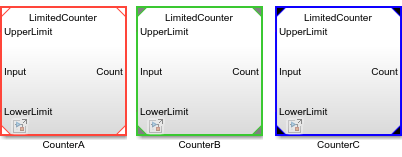
In this example, CounterA and CounterB are configured to simulate in normal mode and CounterC is configured to simulate in accelerator mode.
Model blocks that simulate in normal mode have white or gray corners on the Model block icons. The Model block that has white corners is the instance that supports all data visualizations. For example, scopes and port value labels display data for only the instance with white corners.
Model blocks that simulate in accelerator mode have black corners on the Model block icons.
To simulate the model hierarchy, on the Simulation tab, click Run.
out = sim("MultiCounter");### Searching for referenced models in model 'MultiCounter'. ### Total of 1 models to build. ### Model reference simulation target for LimitedCounter is up to date. Build Summary 0 of 1 models built (1 models already up to date) Build duration: 0h 0m 0.55878s
When you simulate the model hierarchy, the simulation uses the existing simulation target for LimitedCounter. In this example, when you compile the model hierarchy to display sample time colors and annotations, you also generate the simulation target for LimitedCounter. Subsequently simulating or recompiling the model hierarchy does not rebuild the simulation target for LimitedCounter unless LimitedCounter or its dependencies have changed.
Viewing Signals for Model Reference Instances
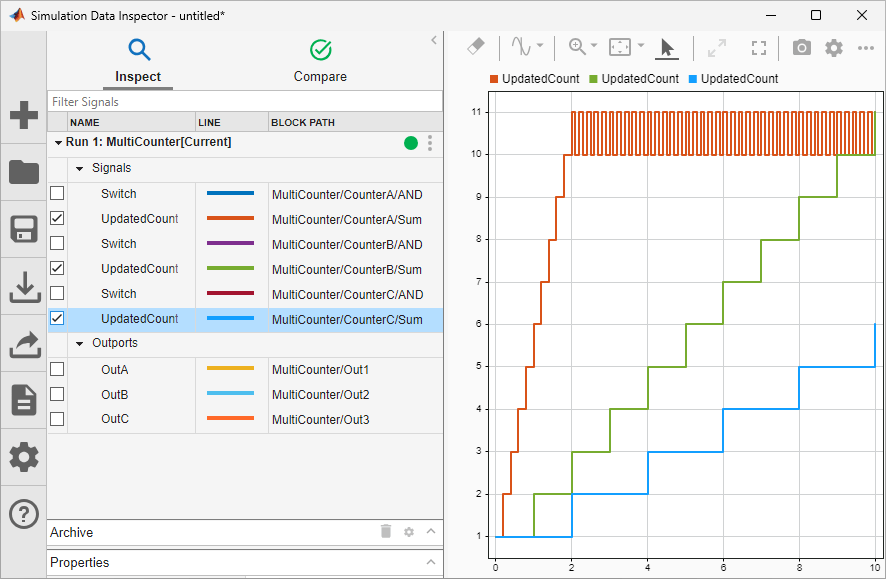
To view and compare the logged signals, use the Simulation Data Inspector. To open the Simulation Data Inspector, in the Simulink Toolstrip, on the Simulation tab, under Review Results, click Data Inspector. To identify the model reference instance that corresponds with each signal, click the gear icon in the left bar. Then, add the Block Path column to the Inspect table.
When you select UpdatedCount for each model reference instance, the Simulation Data Inspector shows that the count in CounterA increases more rapidly than the count in CounterB. This behavior is expected because the pulse signal that drives CounterA runs at a faster rate than the pulse signal that drives CounterB. Similarly, the pulse signal that drives CounterB runs at a faster rate than the pulse signal that drives CounterC. During the simulation, both CounterA and CounterB reach the upper limit of the counter, while CounterC remains below the upper limit.
Code Generation for Standalone Applications (Requires Simulink Coder)
When you create a standalone executable for MultiCounter, the build first generates the code and binaries for the model reference coder target of LimitedCounter. Generating a model reference coder target requires a Simulink Coder license.
To build the standalone executable for MultiCounter and the model reference coder target for LimitedCounter, on the Apps tab, click Simulink Coder. On the C Code tab that opens, click Build.
slbuild("MultiCounter")### Searching for referenced models in model 'MultiCounter'. ### Total of 2 models to build. ### Starting serial code generation build. ### Starting model reference code generation target build for: LimitedCounter ### Successfully updated the model reference code generation target for: LimitedCounter ### Starting top model code generation target build for: MultiCounter ### Successful completion of build procedure for: MultiCounter Build Summary Model reference code generation targets: Model Build Reason Status Build Duration ====================================================================================================== LimitedCounter Target (LimitedCounter.c) did not exist. Code generated and compiled. 0h 0m 6.2448s Top model targets: Model Build Reason Status Build Duration ================================================================================================== MultiCounter Target (MultiCounter.c) did not exist. Code generated and compiled. 0h 0m 10.3s 2 of 2 models built (0 models already up to date) Build duration: 0h 0m 18.029s
When the model reference coder target for LimitedCounter exists, building MultiCounter does not rebuild the model reference coder target for LimitedCounter unless LimitedCounter or its dependencies have changed. Instead, the build reuses the code for LimitedCounter.
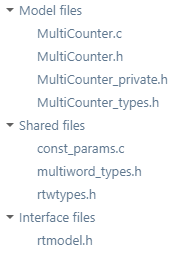
A code generation report for MultiCounter opens. The report lists the generated files.
To view the code generation report for LimitedCounter, click the arrow next to Current model. Then, select LimitedCounter.
Additional Capabilities
Model references help you speed up simulation and code generation.
To reuse model reference simulation and coder targets generated by continuous integration systems, use Simulink cache files. For more information, see Share Simulink Cache Files for Faster Simulation and Simulink Cache Files for Incremental Code Generation (Simulink Coder).
To reduce model compilation and build overhead, publish models that you are not actively developing. Simulink skips rebuild checks for published models. For more information, see Publish Models to Speed Up Simulation and Code Generation (Simulink Coder).
To speed up simulations of model hierarchies that contain referenced models that operate on different time scales, use local solvers. For an example, see Improve Simulation Performance by Using Local Solvers.
To use parallel builds for referenced models that simulate in accelerator mode, see Reduce Update Time for Referenced Models by Using Parallel Builds.
Model references help you verify the behavior of your component by providing an isolated environment for testing.
You can test a referenced model independently by simulating the referenced model as a top model, isolating its behavior. You can also create a test harness that exercises the referenced model in a test environment with various test scenarios. Unit testing can eliminate retesting for unchanged components and reduce the cost of verification. For more information, see Component Verification.
To test whether the generated code produces the same results as a normal mode simulation, you can use SIL equivalence testing. This testing uses an Embedded Coder® license and an ERT system target file. For an example of equivalence testing, see Back-to-Back Equivalence Testing (Simulink Test).

