Promote Block Parameters to a Mask
R2026bYou can promote block parameters to a block mask or parameters from blocks within a subsystem to a subsystem mask. Promoting parameters to a mask enables you to expose one or more of these parameters while hiding others. By promoting parameters from the block dialog box to the mask you can:
Simplify the user interface by moving the required Block Parameters dialog box for each block from the block dialog box to the mask dialog box.
Reuse a library block at different instances of a model. For each instance of the library block, you can create individual mask dialog box by promoting parameters for each block.
These options are available for promoting parameters:
Promote one-to-one: Create a one-to-one correspondence between block parameters and the mask parameters.
Promote many-to-one: Create a single mask parameter that corresponds to multiple block parameters.
Explore the Model
The model slexMaskParameterPromotionExample contains two subsystem blocks: one for promoting on-to-one parameters, Selective Promotion of Parameters and one for promoting many to one parameters, Promote Many to One. The subsystem Promote Many to One comprises three Gain blocks that share a common Gain value. The three Gain parameters of the underlying Gain blocks are promoted to a single parameter in the subsystem mask. The subsystem Selective Promotion of Parameters comprises three Gain blocks. The value of the Gain parameter for one of the Gain blocks is fixed while the other two can be modified by the user. To simplify the user interface, the parameters of the variable Gain blocks are promoted to the subsystem mask. The value of the fixed Gain parameter is set in the mask initialization code.
open_system('slexMaskParameterPromotionExample.slx');
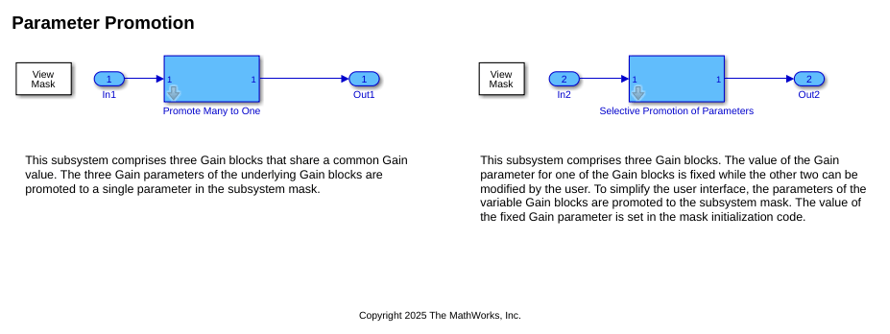
Promote One-to-One
You can create an one-to-one correspondence between mask parameters and the underlying block parameters.
Consider a model with a subsystem like Selective Promotion of Parameters that contains three Gain blocks. The value of one of the Gain blocks is fixed. To simplify the user interface, promote the Gain parameters of the other two Gain blocks to the subsystem mask.
1. Open the Mask Editor of Selective Promotion of Parameters. Select Parameters & Dialog tab, and then in the Controls panel, click Promote One-to-One.
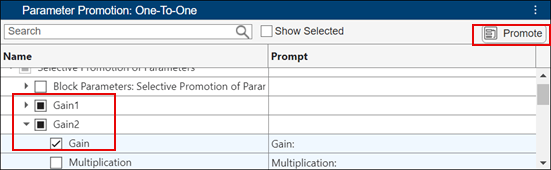
2. In the Parameter Promotion panel, select the Gain parameters in the Gain blocks you want to promote, and then click Promote.
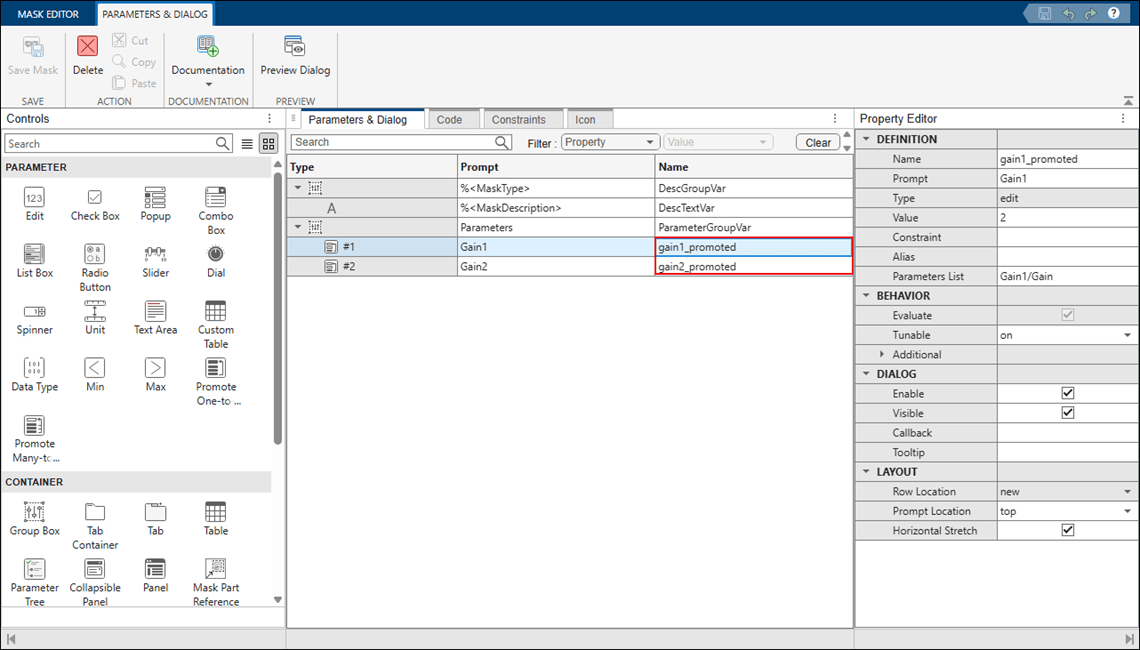
3. Rename the promoted parameter. Parameter name must be unique in the mask hierarchy. You can also modify the prompt of the promoted parameter.
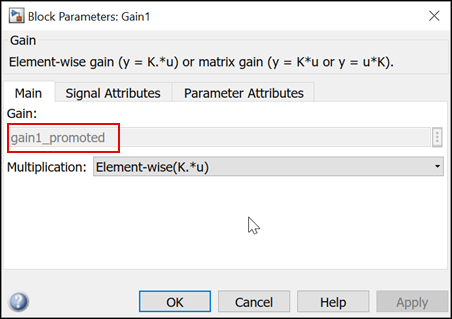
4. Save the mask. Open the Block Parameters dialog box for the Gain1 block. Note that the value of the Gain parameter has the value gain1_promoted, which is taken from the Gain1 parameter in the mask.
5. Open the mask dialog box. The promoted parameters Gain1 and Gain2 appear in the dialog box, but the Gain parameter for the fixed Gain block does not.
Promote Many-to-One
You can create a many-to-one correspondence between multiple underlying block parameters and a single mask parameter. Consider a model with a Subsystem block like Promote Many to One that has three Gain blocks. The variable K represents the Gain parameter for these Gain blocks. To allow the Gain blocks to share a single parameter value, promote the Gain parameters of all three Gain blocks to the mask as a single mask parameter.
1. Open the Mask Editor of Promote Many to One. Select Parameters & Dialog tab, and then in the Controls panel, click Promote-Many-to-One.
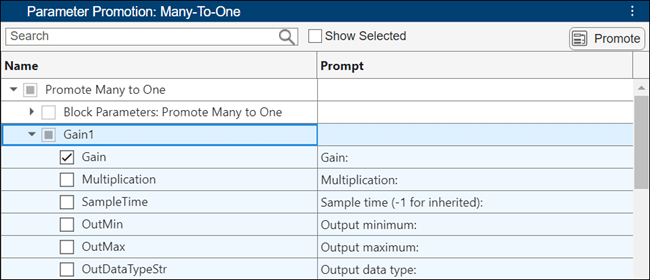
2. In the Parameter Promotion panel, select the Gain parameters of all the three Gain blocks and click Promote.
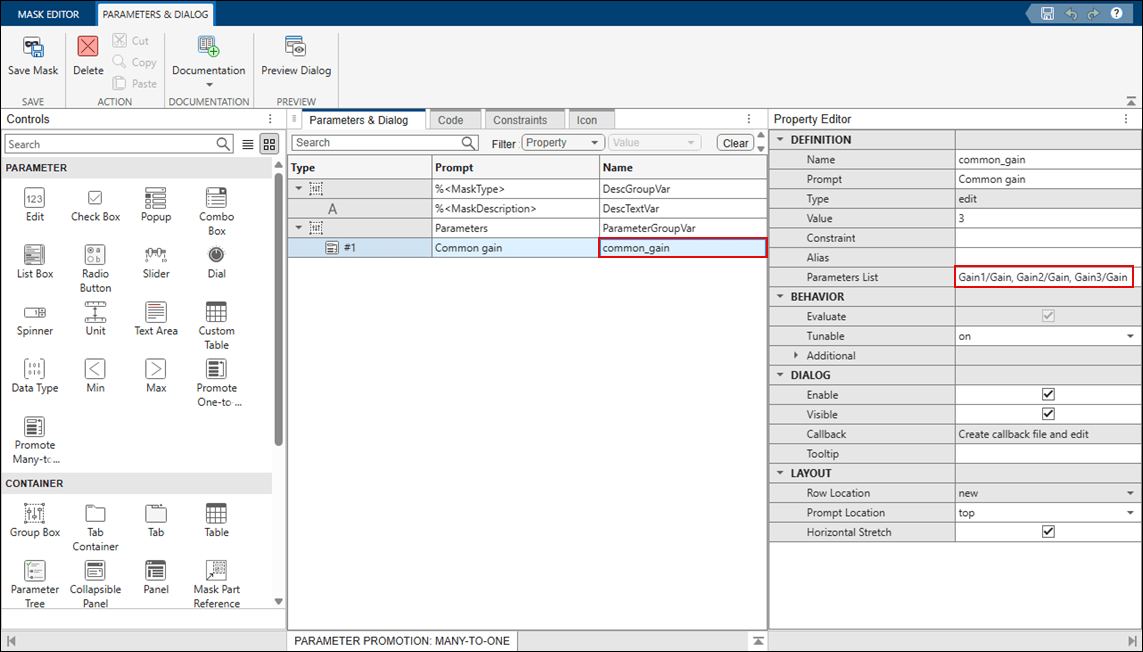
3. Rename the promoted parameter. Parameter name must be unique in the mask hierarchy. You can also modify the prompt of the promoted parameter.
4. Simulate the model. Notice that the value 4 is passed from the mask to the underlying blocks Gain1, Gain2, and Gain3. In this case, the output shows 64.
Limitations
Promoted parameters cannot be set in the Block Parameters dialog box of the underlying block or at the command line. Set the value of a promoted parameter only in the mask dialog box.
A promoted parameter cannot be promoted again to another mask.
Because the Evaluate attribute of a promoted parameter is inherited from the underlying block parameter, it cannot be modified.
The Tunable attribute of a promoted nontunable parameter cannot be modified.
Parameters of a masked or linked child block cannot be viewed or promoted from the Mask Editor.
Callbacks associated with a block parameter are promoted to the block mask but not to the subsystem mask. User-defined callbacks are sequentially executed after the dynamic dialog callbacks execute.
If the parameter is of data type popup or DataType, the options must also be the same for the parameters to be promoted.
The
Evaluateattribute must be the same for all the promoted parameters.
You can also change the attributes of a promoted parameter. For example, you can make a promoted parameter read-only or hidden. For more information on attributes, see Property Editor.

