Author Parameter and Port Constraints Using Standalone Constraint Manager
R2026bYou can use constraints to validate parameter values and port signals. Reuse these constraints by creating and saving them in an XML file and sharing them across masks of different blocks in the same model or different models.
When multiple shared constraint files are linked to different blocks, opening the Mask Editor for each block to author or modify shared constraints can be inefficient. Instead, use the standalone Constraint Manager to author or modify shared constraints independently of a block context. For more information, see Share Parameter Constraints Across Multiple Block Masks and Share Port Constraints Across Multiple Masked Blocks.
To manage multiple shared constraint files independently of a block context, open a
standalone Constraint Manager by using the Simulink.ConstraintManager.open method. Because you author constraints without a
block context, you must make the associations at the individual block level through Mask
Editor.
Author Constraints Without Block Context
To author parameter and port constraints without associating them to a block mask:
Open the standalone Constraint Manager. In the MATLAB® Command Window, enter
Simulink.ConstraintManager.open.Create a new shared constraint file by clicking New. Enter the name of the file as
automotiveValidation. Click OK.To create a parameter constraint, click Parameter in the Constraint Gallery. In the Constraint Editor, specify the Constraint Name as
speedand select the necessary rules for the constraint.To create a port constraint, click Port. Specify Constraint Name as
portDatatypeand select rules for the port constraint. For parameter conditions, the parameters are not autopopulated because there is no associated block mask. You can manually specify Parameter Name and Parameter Values.To save the constraints to the XML file, click Save Constraints.
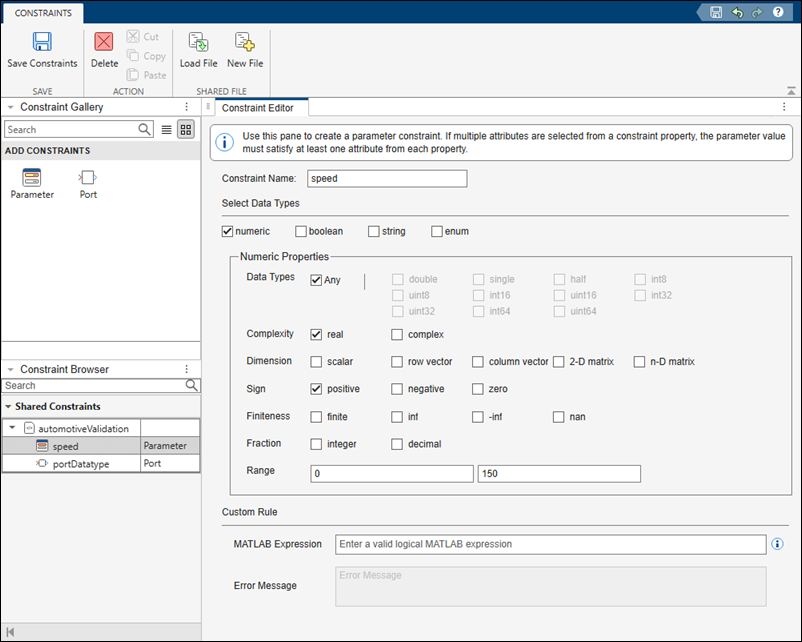
Associate Shared Constraints to Parameters and Ports of Block Mask
To associate shared constraints to parameters and ports of a masked block:
Create a Subsystem block in a model and add a mask to the block. Create the required parameters and dialog controls on the block mask.
In the Mask Editor, navigate to the Constraints tab, and in the toolstrip, click Load. Navigate to the XML file
automotiveValidation. Click Open.To associate a parameter constraint, in the Associations pane, select the corresponding parameter from the dropdown. You can also associate a parameter to a parameter constraint from the Parameters & Dialog tab by selecting
automotiveValidation:speedfrom the Constraints list.To associate a port constraint:
In the Associations pane, click Define Ports. This action opens the Port Identifiers pane at the bottom.
Create a port identifier. Click Add
 to add a new row.
Enter the name for the port. Set Type as either
InputorOutput.Specify the Identifier Type as
nameorindex.If you specify Identifier Type as
name, enter the name of the port in Identifier(s).To associate the port constraint, select the port identifier
pi_1in the Associations pane.

See Also
Simulink.ConstraintManager | Simulink.ConstraintManager.open | Create Custom Constraint for Mask Parameters | Use Port Constraints to Validate Input and Output Signals

