Create and Delete Actor During Simulation Using Simulink
R2026bThis example shows how to create and delete actors dynamically during a simulation using the Simulation 3D Actor block. The model demonstrates using a Simulation 3D Scene Configuration block to create a 3D environment with a plane actor and then dynamically generating and removing ball actors based on signal values.
To create and delete actors during simulation using MATLAB®, see Create and Delete Actor During Simulation Using MATLAB.
Open and Explore Model
Open the Simulink model.
open_system("CreateAndDeleteActors");The model includes a Simulation 3D Scene Configuration block and two Simulation 3D Actor blocks. The Simulation 3D Scene Configuration block implements a 3D simulation environment. You can use the block to configure the view of the 3D environment or define a custom viewpoint. You must include the configuration block when building Simulink models with Simulation 3D Actor blocks.
The Simulation 3D Actor block named Create Plane creates a plane actor in the 3D environment. Double-click the block to open the Block Parameters dialog box. The Initialization script of the actor block builds a plane using the createShape function.
The Simulation 3D Actor block named Create And Delete Ball creates and deletes ball actors. Double-click the block to open the Block Parameters dialog box. For this example, to create an actor dynamically during simulation, on the Main tab, set Operation to Create at step. This setting creates the input port Instance. The block generates actors during simulation based on the value at the Instance port. When the Instance value is positive, the block creates an actor with 'Actor name + Instance value'. For more details, see Operating Modes.
The script in Initialization script of the Create And Delete Ball block builds a sphere shape using the createShape function. You can use the Properties to set the properties of the ball actors in the Initialization script. Set the initial translation of each actor in the Transform tab.
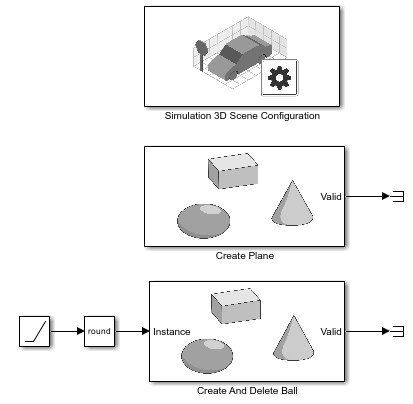
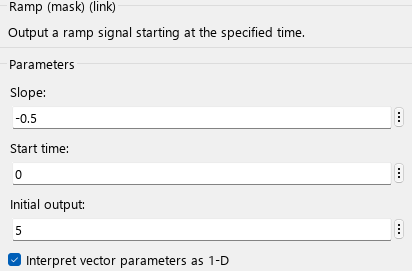
To create the ball actors, connect the Instance port to a Ramp block with its initial output set to a positive value. You can configure the slope so that the ramp transitions from a positive to a negative value during the simulation. Use a round block so that the Instance port receives only integer values. A positive instance value creates an actor, and a negative value deletes an actor.
Simulate Model
Simulate the model and view the 3D environment in the Simulation 3D Viewer.
sim("CreateAndDeleteActors");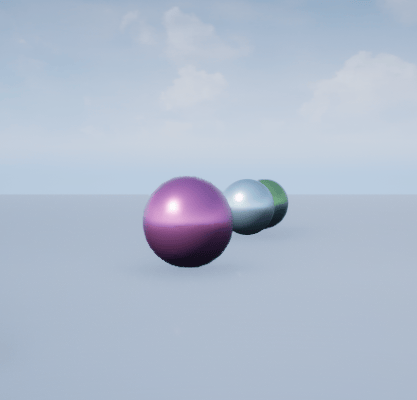
You can see the ball actors being created and deleted from the world during simulation.
See Also
Simulation 3D Actor | Simulation 3D Scene Configuration

