SUMO Traffic Simulation with RoadRunner Scenario
R2026bThis example shows how to synchronize the Eclipse™ SUMO™ traffic simulator with RoadRunner Scenario to model, control, and visualize traffic across both SUMO and RoadRunner Scenario simulation platforms.
Introduction
Eclipse SUMO Traffic Simulator is an open source traffic simulation package designed to model and simulate large-scale road networks. SUMO supports importing road networks from various formats, such as OpenDRIVE®, and can integrate with other traffic simulators. For more information about Eclipse SUMO Traffic Simulator, see SUMO User Documentation.
RoadRunner Scenario is an interactive editor for designing and simulating automated driving scenarios. It enables you to place vehicles, define paths and interactions, visualize scenarios with in-editor playback, and connect to simulators like MATLAB® and Simulink™ for cosimulation.
Integrating SUMO with RoadRunner Scenario combines the traffic simulation capabilities of SUMO with the 3D visualization environment of RoadRunner, enabling synchronized traffic flow, coordinated ego vehicle behavior, and realistic automated driving scenario development. This example demonstrates how to use the SUMO traffic simulation blocks from the Automated Driving Toolbox™ Interface for Eclipse SUMO Traffic Simulator support package to perform cosimulation by adding and synchronizing traffic between both SUMO and RoadRunner Scenario simulation platforms, maintaining consistent ego vehicle control, and visualizing real-time interactions between traffic generated in SUMO and RoadRunner.
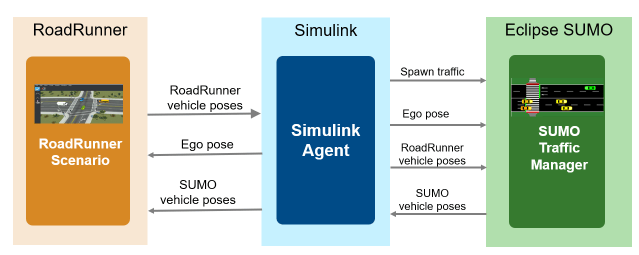
In this example, you:
Set Up Environments — Configure MATLAB to interact with SUMO and RoadRunner Scenario.
Explore Scenario — Explore the scenario, and spawn SUMO traffic.
Simulate SUMO Traffic with RoadRunner Scenario — Simulate the scenario, and observe the synchronization of SUMO and RoadRunner Scenario.
Set Up Environments
This section shows how to set up the SUMO and RoadRunner environments.
Set Up SUMO Environments
To run this example you must
Download and install the Automated Driving Toolbox Interface for Eclipse SUMO Traffic Simulator.
Download and install SUMO Version 1.20.0 on your system. The Automated Driving Toolbox Interface for Eclipse SUMO Traffic Simulator supports cosimulation with SUMO Version 1.20.0 on Windows® and Linux® platforms.
This example requires the Automated Driving Toolbox Interface for Eclipse SUMO Traffic Simulator support package. Check if the support package is installed.
helperCheckSUMOSupportPackageInstalled
Set Up RoadRunner
Start RoadRunner interactively using the roadrunnerSetup
rrApp = roadrunnerSetup;
The roadrunner object rrApp enables you to interact with RoadRunner from the MATLAB workspace.
This example uses these files that you must add to the RoadRunner project.
StraightRoadForSUMO.rrscene— Straight road scene for SUMO cosimulation.SUMOControlledTrafficWithRR.rrscenario— RoadRunner Scenario file that contains RoadRunner actors and SUMO traffic in theStraightRoadForSUMOscene.SUMOControlledTrafficWithRR.rrbehavior.rrmeta— Behavior file that associates the ego behavior and SUMO controlled traffic behavior, implemented using Simulink, to the ego vehicle in the RoadRunner scenario.SumoEmpty.rrbehavior.rrmeta— Behavior file that associates the empty MATLAB System object™ behavior to the SUMO-controlled vehicle in the RoadRunner scenario.
Copy these files to the RoadRunner project.
copyfile(fullfile("StraightRoadForSUMO.rrscene"),fullfile(rrApp.status.Project.Filename,"Scenes"),"f")
copyfile(fullfile("SUMOControlledTrafficWithRR.rrscenario"),fullfile(rrApp.status.Project.Filename,"Scenarios"),"f")
copyfile(fullfile("SUMOControlledTrafficWithRR.rrbehavior.rrmeta"),fullfile(rrApp.status.Project.Filename,"Assets","Behaviors"),"f")
copyfile(fullfile("SumoEmpty.rrbehavior.rrmeta"),fullfile(rrApp.status.Project.Filename,"Assets","Behaviors"),"f")
Explore Scenario
Open the StraightRoadForSUMO.rrscene scene in RoadRunner. The scene includes a straight road with four lanes.
openScene(rrApp,"StraightRoadForSUMO.rrscene");

To generate the corresponding SUMO road network, first export the RoadRunner scene to an OpenDRIVE file using the exportScene
exportScene(rrApp,fullfile(pwd,"StraightRoadForSUMO.xodr"),"OpenDRIVE");
Then, use the exported .xodr file as input to the SUMO netconvert tool to create a SUMO road network file. The generated scenario.net.xml network file is attached to this example as a supporting file.
Next, open the SUMOControlledTrafficWithRR.rrscenario scenario. This scenario consists of one ego vehicle and one RoadRunner-controlled vehicle moving in opposite directions.
openScenario(rrApp,"SUMOControlledTrafficWithRR.rrscenario");
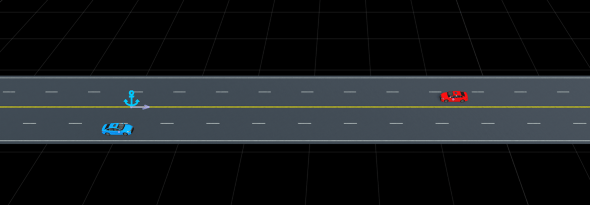
Connect to the RoadRunner Scenario server for cosimulation by using the createSimulation function.
rrSim = createSimulation(rrApp);
You can use the ScenarioSimulation object rrSim to set variables and read scenario-related information.
This example spawns traffic in SUMO during the simulation using SUMO blocks. To keep SUMO and RoadRunner synchronized, the helperSpawnVehicleInRR function spawns corresponding traffic vehicles in RoadRunner, and SUMO controls these spawned vehicles. The helperSpawnVehicleInRR function randomly generates traffic vehicles in RoadRunner and returns their Actor IDs. Specify for the function to spawn 10 vehicles.
SpawnedVehicleIDs = helperSpawnVehicleInRR(rrSim,NumSpawnVehicles=10);
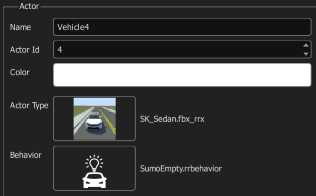
Because SUMO controls the behavior of the vehicles in this scenario, the helperSpawnVehicleInRR helper function assigns the empty MATLAB behavior SumoEmpty.rrbehavior.rrmeta to each vehicle it generates.
Simulate SUMO Traffic with RoadRunner Scenario
This example uses the SUMOControlledTrafficWithRR model to define the ego vehicle control behavior and manage the exchange of traffic information between SUMO and RoadRunner. Open the Simulink model.
modelName = "SUMOControlledTrafficWithRR";
open_system(modelName)
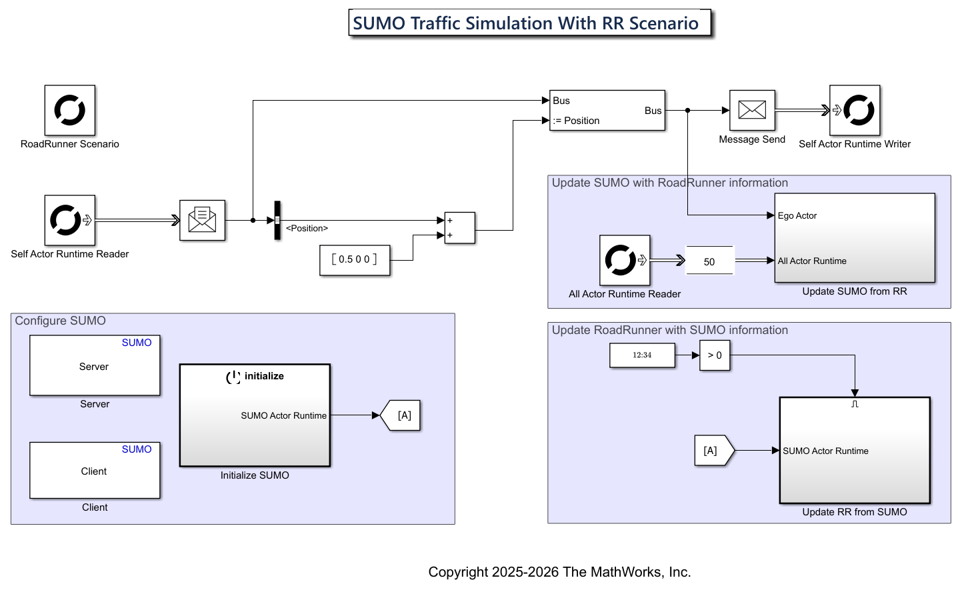
The model reads vehicle states from SUMO and updates their positions in RoadRunner while also sending RoadRunner vehicle information back to SUMO. The model performs these key tasks:
Configures SUMO
Updates RoadRunner with SUMO information
Updates SUMO with RoadRunner information
Configure SUMO
The Server block configures Eclipse SUMO traffic simulator as a server for cosimulation with Simulink. This block selects the SumoScenario.sumocfg configuration file, which contains details about the SUMO scenario to simulate.
The Client block configures Simulink as a client for cosimulation with the Eclipse SUMO Traffic Simulator.
The Initialize SUMO subsystem uses the Actor and Writer blocks to initialize SUMO by spawning the traffic and defining the actor positions, respectively. Open the Initialize SUMO subsystem.
open_system("SUMOControlledTrafficWithRR/Initialize SUMO");
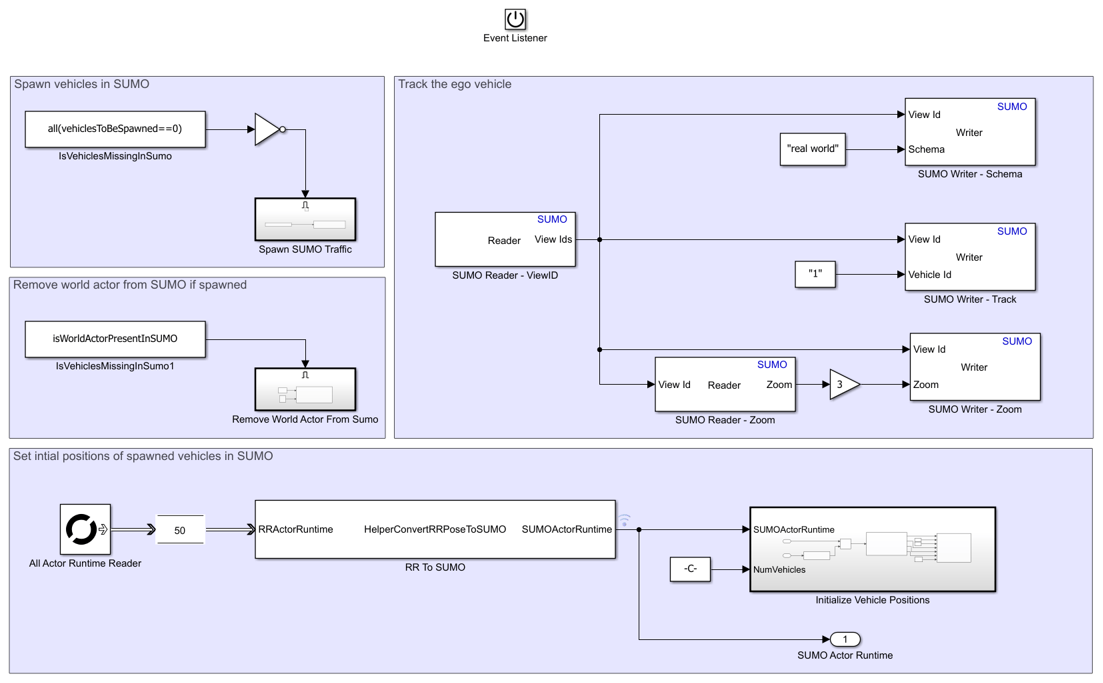
In this example, all SUMO vehicles use the same ID as in RoadRunner. The Actor Id of the ego vehicle in RoadRunner is 1, so the corresponding vehicle in SUMO has a Vehicle Id of ActorID "1". The Spawn Traffic subsystem spawns the RoadRunner vehicles in SUMO using the Actor block with Actor Id values of the vehicles. This process spawns vehicles randomly in SUMO. For more details, see Actor. Open the Spawn Traffic subsystem, located within the Spawn SUMO Traffic subsystem..
open_system("SUMOControlledTrafficWithRR/Initialize SUMO/Spawn SUMO Traffic/Spawn Traffic");
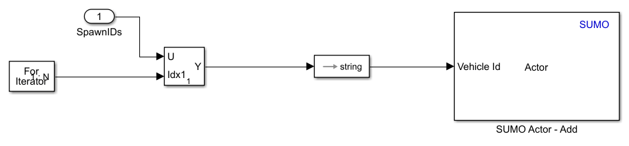
RoadRunner considers the vehicle with an Actor Id of 0 to be the world actor. To maintain the parity of actor IDs between RoadRunner and SUMO, any vehicle in SUMO with a Vehicle Id value of "0" is removed.
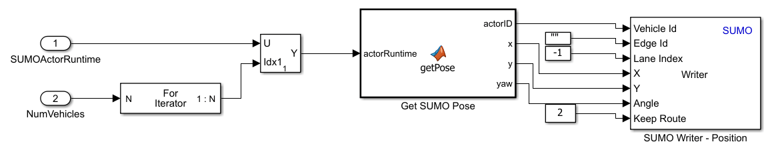
After randomly spawning the vehicles in SUMO , the model sets their initial positions by getting their spawned positions from RoadRunner. SUMO uses the front bumper point of each vehicle as its position reference, whereas RoadRunner references positions as the center of each vehicle. The HelperConvertRRPoseToSUMO System object transforms vehicle coordinates from the RoadRunner frame to the SUMO frame. The Initialize Vehicle Positions subsystem uses the transformed positions to set the spawned traffic locations in SUMO using the Writer block and the For Iterator block. This ensures that the initial spawn position matches in both RoadRunner and SUMO. Open the Initialize Vehicle Positions subsystem.
open_system("SUMOControlledTrafficWithRR/Initialize SUMO/Initialize Vehicle Positions");
You can also use the Writer block to track the ego vehicle and set the zoom factor of the visualization view of the SUMO GUI during simulation. For details on configuring these parameters, see Writer.
Update RoadRunner with SUMO Information
SUMO takes control of the spawned vehicles, and updates their positions in RoadRunner. Open the Update RR from SUMO subsystem.
open_system("SUMOControlledTrafficWithRR/Update RR from SUMO");

The Reader block retrieves the IDs of the spawned vehicles. The HelperUpdateUnspawnedVehiclesInRR System object moves unspawned vehicles away from the scene in the RoadRunner scenario. Open the Update RoadRunner subsystem.
open_system("SUMOControlledTrafficWithRR/Update RR from SUMO/Update RoadRunner");
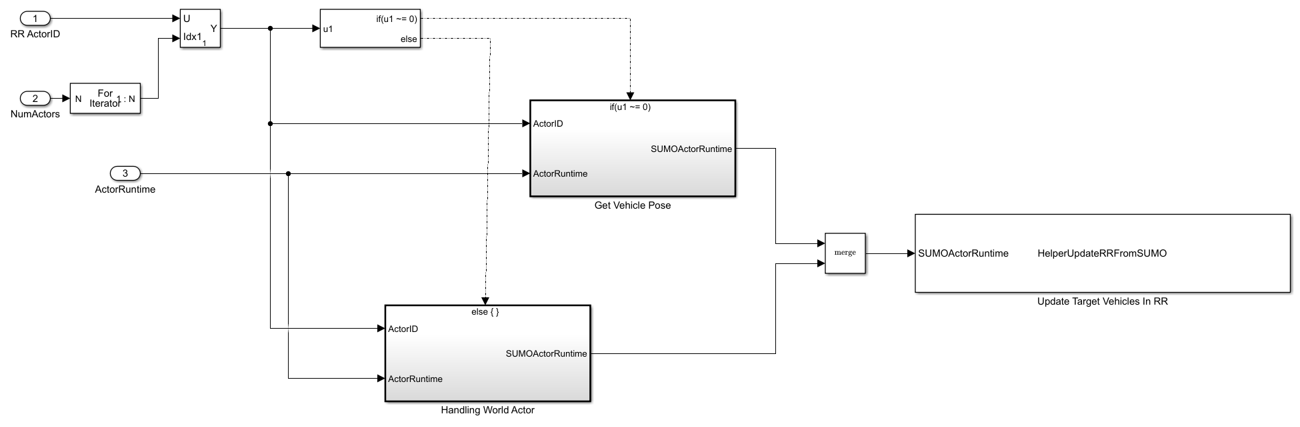
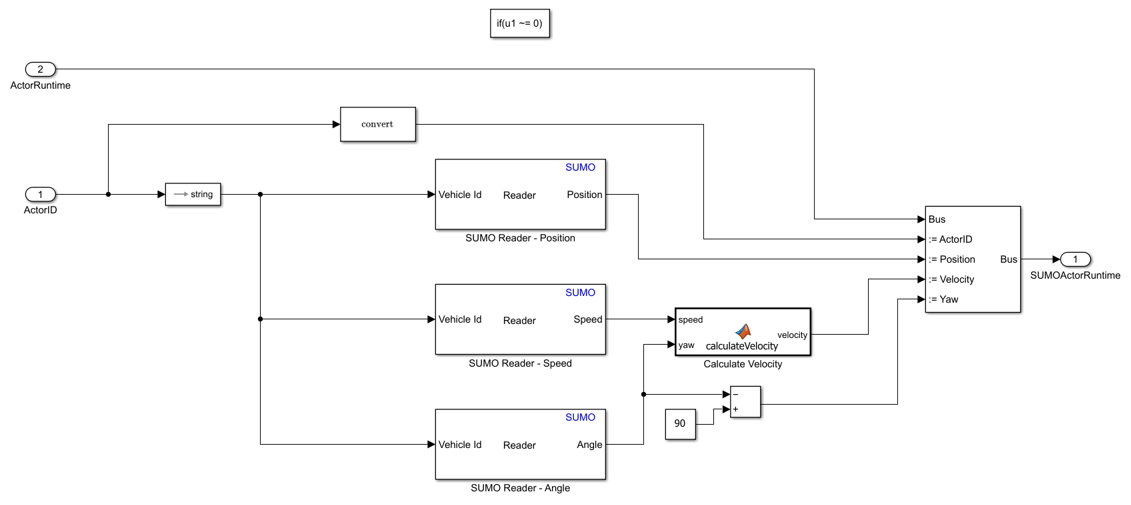
For all SUMO vehicles, the Reader block converts the Actor Id value from RoadRunner to a string scalar, and uses that value to read position, speed, and angle of the corresponding vehicle in the SUMO simulation.. The HelperUpdateRRFromSUMO System object uses the ActorSimulation object to write these values to RoadRunner. Open the Get Vehicle Pose subsystem.
open_system("SUMOControlledTrafficWithRR/Update RR from SUMO/Update RoadRunner/Get Vehicle Pose");
Update SUMO with RoadRunner Information
The Writer block updates ego vehicle information in SUMO. Open the Update SUMO from RR subsystem.
open_system("SUMOControlledTrafficWithRR/Update SUMO from RR");
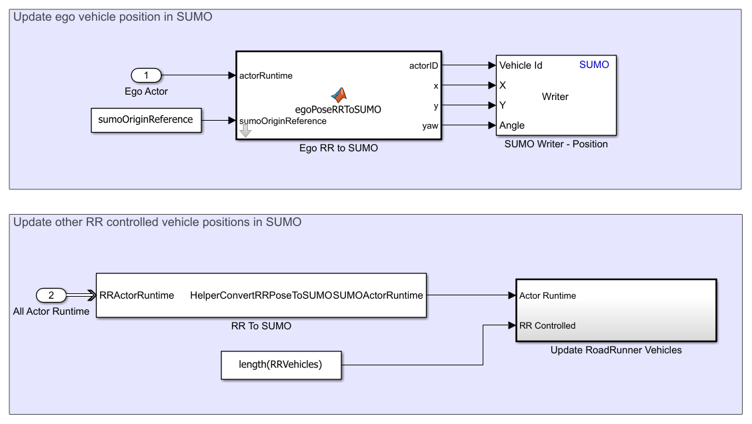
The HelperConvertRRPoseToSUMO System object converts the positions of RoadRunner vehicles to the SUMO coordinate system, and the Update RoadRunner Vehicles subsystem updates them in SUMO. Open the Update RoadRunner Vehicles subsystem.
open_system("SUMOControlledTrafficWithRR/Update SUMO from RR/Update RoadRunner Vehicles");
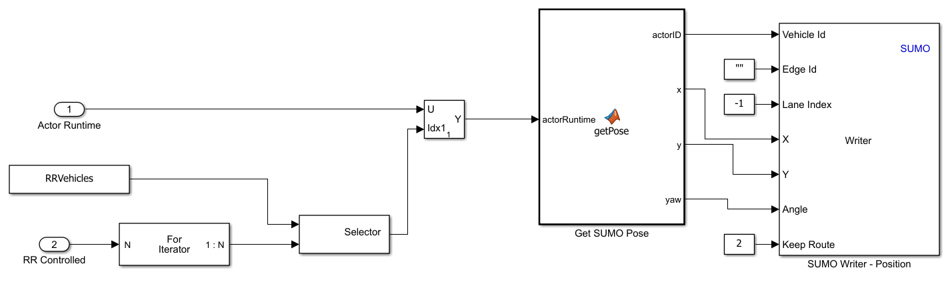
The Writer block updates the positions of all the vehicles from RoadRunner in SUMO.
Simulate SUMO Traffic
Initialize the parameters of the test bench model using the helperSUMOAndRRCosimSetup helper function. Specify the ScenarioSimulation object rrSim to the function, and specify the SUMONetworkFile and SUMORouteFile name-value arguments as the names of the SUMO network file and SUMO route file, respectively.
helperSUMOAndRRCosimSetup(rrSim,SUMONetworkFile="scenario.net.xml",SUMORouteFile="scenario.rou.xml");
Run the simulation, and observe the synchronized cosimulation of RoadRunner and SUMO.
set(rrSim,SimulationCommand="Start");
while strcmp(rrSim.get("SimulationStatus"),"Running")
    pause(1);
end
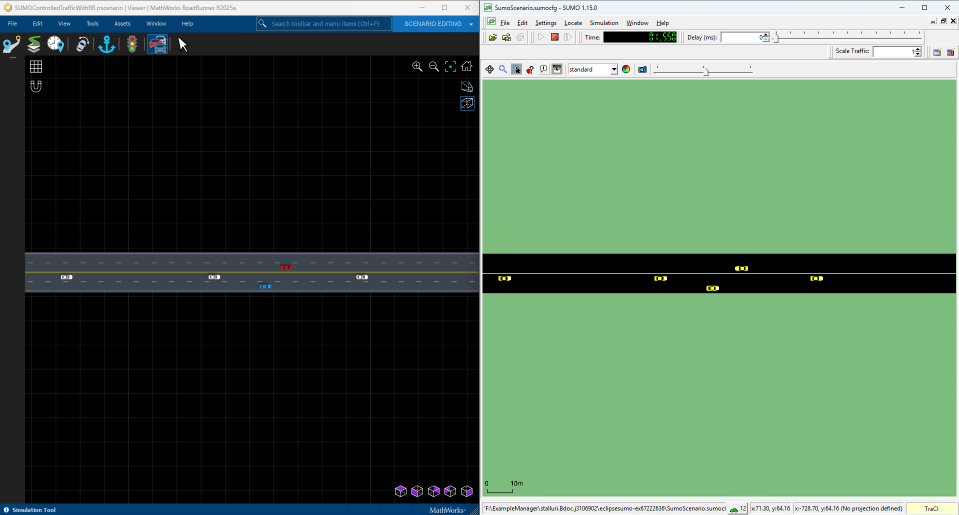
During the simulation, SUMO controls the traffic vehicles while RoadRunner visualizes their positions in real time. The ego vehicle behavior remains synchronized across both environments.
You can extend this example by adding custom traffic routes in SUMO, such as by updating the route definitions in the SUMO route files to add new traffic paths, or modifying ego vehicle behavior in RoadRunner, such as by changing the ego vehicle parameters.
See Also
Blocks
Objects
Functions
roadrunnerSetup|openScene|openScenario|open_system(Simulink)

