Digital Filter Implementations
R2026bUsing Digital Filter Blocks
DSP System Toolbox™ provides several blocks implementing digital filters, such as Discrete FIR Filter and Second-Order Section Filter.
Use these blocks if you have already performed the design and analysis and know your desired filter coefficients. You can use these blocks to filter single-channel and multichannel signals, and to simulate floating-point and fixed-point filters. Then, you can use the Simulink® Coder™ product to generate highly optimized C code from your filters.
To implement a filter, you must provide the following basic information about the filter:
The desired filter structure
The filter coefficients
Note
Use the Digital Filter Design block to design and implement a filter. Use the Discrete FIR Filter and Second-Order Section Filter blocks to implement a pre-designed filter. Both methods implement a filter in the same manner and have the same behavior during simulation and code generation.
Implement a Lowpass Filter in Simulink
Use the Discrete FIR Filter (Simulink) block to implement a lowpass filter:
Define the lowpass filter coefficients in the MATLAB® workspace by typing
lopassNum = [-0.0021 -0.0108 -0.0274 -0.0409 -0.0266 0.0374 0.1435 0.2465
              0.2896 0.2465 0.1435 0.0374 -0.0266 -0.0409 -0.0274 -0.0108 -0.0021];
Open Simulink and create a new model file.
From the DSP System Toolbox Filtering>Filter Implementations library, click-and-drag a Discrete FIR Filter block into your model.
Double-click the Discrete FIR Filter block. Set the block parameters as follows, and then click OK:
Coefficient source =
Dialog
                  parameters
Filter structure =
Direct form
                  transposed
Coefficients =
lopassNumInput processing =
Columns as channels (frame
                  based)
Initial states =
0
Note that you can provide the filter coefficients in several ways:
Type in a variable name from the MATLAB workspace, such as
lopassNum.Type in filter design commands from Signal Processing Toolbox™ software or DSP System Toolbox software, such as
fir1(5, 0.2, 'low').Type in a vector of the filter coefficient values.
Rename your block Digital Filter - Lowpass.
The Discrete FIR Filter block in your model now represents a lowpass filter. In the next topic, Implement a Highpass Filter in Simulink, you use a Discrete FIR Filter block to implement a highpass filter. For more information about the Discrete FIR Filter block, see the Discrete FIR Filter (Simulink) block reference page. For more information about designing and implementing a new filter, see Digital Filter Design.
Implement a Highpass Filter in Simulink
In this topic, you implement a highpass filter using the Discrete FIR Filter (Simulink) block.
If the model you created in Implement a Lowpass Filter in Simulink is not open on your desktop, open the equivalent model ex_filter_ex1.
Define the highpass filter coefficients in the MATLAB workspace by typing:
hipassNum = [-0.0051 0.0181 -0.0069 -0.0283 -0.0061 ...
0.0549 0.0579 -0.0826 -0.2992 0.5946 -0.2992 -0.0826 ...
0.0579 0.0549 -0.0061 -0.0283 -0.0069 0.0181 -0.0051];
From the DSP System Toolbox Filtering library, and then from the Filter Implementations library, click-and-drag a Discrete FIR Filter block into your model.
Double-click the Discrete FIR Filter block. Set the block parameters as follows, and then click OK:
Coefficient source =
Dialog parametersFilter structure =
Direct form transposedCoefficients =
hipassNumInput processing =
Columns as channels (frame based)Initial states = 0
You can provide the filter coefficients in several ways:
Type in a variable name from the MATLAB workspace, such as
hipassNum.Type in filter design commands from Signal Processing Toolbox software or DSP System Toolbox software, such as
fir1(5, 0.2, 'low').Type in a vector of the filter coefficient values.
Rename your block 'Digital Filter - Highpass'.
You have now successfully implemented a highpass filter. In the next topic, Filter High-Frequency Noise in Simulink, you use these Discrete FIR Filter blocks to create a model capable of removing high frequency noise from a signal.
Filter High-Frequency Noise in Simulink
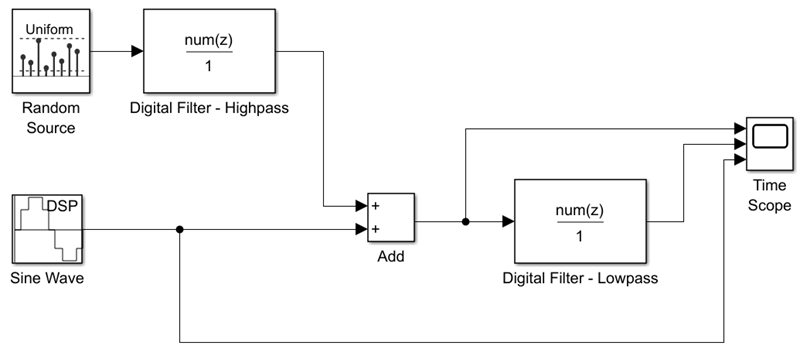
In the previous topics, you used Discrete FIR Filter (Simulink) blocks to implement lowpass and highpass filters. In this topic, you use these blocks to build a model that removes high frequency noise from a signal. In this model, you use the highpass filter, which is excited using a uniform random signal, to create high-frequency noise. After you add this noise to a sine wave, you use the lowpass filter to filter out the high-frequency noise.
If the model you created in Implement a Highpass Filter in Simulink is not open on your desktop, open the equivalent model ex_filter_ex2.
If you have not already done so, define the lowpass and highpass filter coefficients in the MATLAB workspace by typing
  lopassNum = [-0.0021 -0.0108 -0.0274 -0.0409 -0.0266 ...
  0.0374 0.1435 0.2465 0.2896 0.2465 0.1435 0.0374 ...
  -0.0266 -0.0409 -0.0274 -0.0108 -0.0021];
  hipassNum = [-0.0051 0.0181 -0.0069 -0.0283 -0.0061 ...
  0.0549 0.0579 -0.0826 -0.2992 0.5946 -0.2992 -0.0826 ...
  0.0579 0.0549 -0.0061 -0.0283 -0.0069 0.0181 -0.0051];
Click-and-drag the following blocks into your model file.
Add block from the Simulink/Math Operations library
Random Source block from the Sources library
Sine Wave block from the Sources library
Time Scope block from the Sinks library
Set the parameters for the rest of the blocks as indicated in the following table. For any parameters not listed in the table, leave them at their default settings.
Add block:
Icon shape =
rectangularList of signs =
++
Random Source block:
Source type =
UniformMinimum = 0
Maximum = 4
Sample time = 1/1000
Samples per frame = 50
Sine Wave block:
Frequency (Hz) = 75
Sample time = 1/1000
Samples per frame = 50
Time Scope block:
Click Scope > Settings.
Under Time, set Time span to
One frame period.
Connect the blocks as shown in the following figure. You may need to resize some of your blocks to accomplish this task.
In the Modeling tab, click Model Settings. The Configuration Parameters dialog opens.
In the Solver pane, set the parameters as follows, and then click OK:
Start time = 0
Stop time = 5
Type =
Fixed-stepSolver =
discrete (no continuous states)
In the Simulation tab of the model toolstrip, click Run. The model simulation begins and the Scope displays the three input signals.
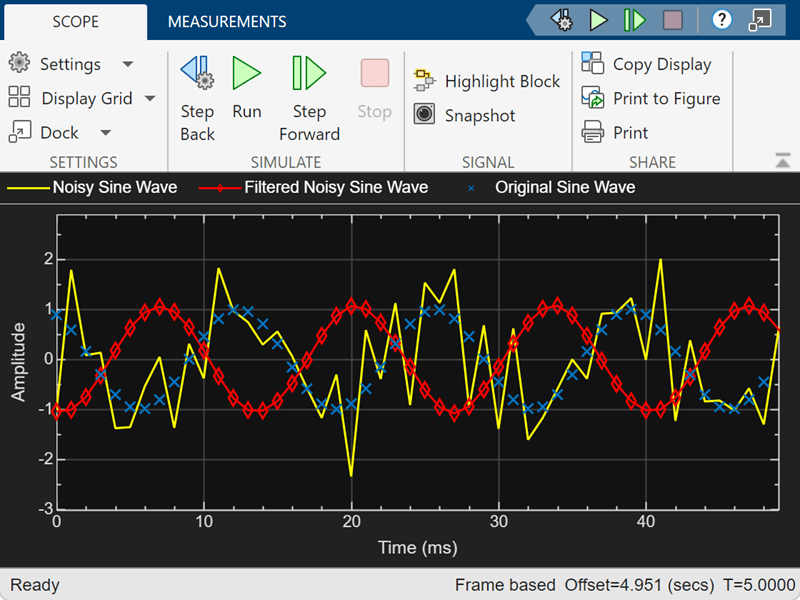
To view the legend, in the Scope tab of the Time Scope toolstrip, click the Settings dropdown arrow, and select Legend. The legend appears in the Time Scope window. You can click-and-drag it anywhere on the scope display. To change the channel names, double-click inside the legend and replace the current numbered channel names with the following:
Add =
Noisy Sine WaveDigital Filter - Lowpass =
Filtered Noisy Sine WaveSine Wave =
Original Sine Wave
In the next step, you will set the color, style, and marker of each channel.
In the Scope tab of the Time Scope window, click Settings, and set the following under Line Style:
Set Line to Noisy Sine Wave
Style: -
Marker: none
Color: Yellow
Set Line to Filtered Noisy Sine Wave
Style: -
Marker: diamond
Color: Red
Set Line to Original Sine Wave
Style: NONE
Marker: x
Color: Blue
The Time Scope display should now appear as follows. You can see that the lowpass filter filters out the high-frequency noise in the noisy sine wave.
You have now used Discrete FIR Filter blocks to build a model that removes high frequency noise from a signal.
To view an equivalent model with these settings, open ex_filter_ex2_equivalent.slx.
Specify Static Filters
You can specify a static filter using the Discrete FIR Filter (Simulink) or Second-Order Section
Filter block. To do so, set the Coefficient source parameter
to Dialog parameters.
For the Discrete FIR Filter, set the Coefficients parameter to a
row vector of numerator coefficients. If you set Filter structure to
Lattice MA, the Coefficients parameter
represents reflection coefficients.
For the Second-Order Section Filter, set the Numerator (Mx3) and Denominator (Mx3) to an M-by-3 matrix, where M is the number of sections in the second-order section filter. Set Scale Values to a scalar or vector of M+1 scale values used between SOS stages.
Tuning the Filter Coefficient Values During Simulation
To change the static filter coefficients during simulation, double-click the block, type in the new filter coefficients, and click OK. You cannot change the filter order, so you cannot change the number of elements in the matrix of filter coefficients.
Specify Time-Varying Filters
Time-varying filters are filters whose coefficients change with time. You can specify a time-varying filter that changes once per frame. You can filter multiple channels with each filter. However, you cannot apply different filters to each channel; all channels use the same filter.
To specify a time-varying filter using a Second-Order Section Filter block or a Discrete FIR Filter block:
Set the Coefficient source parameter to
Input port(s), which enables extra block input ports for the time-varying filter coefficients.The Discrete FIR Filter block has a
Numport for the numerator coefficients.The Second-Order Section Filter block has
NumandDenports rather than a single port for the SOS matrix. Separate ports enable you to use different fraction lengths for numerator and denominator coefficients. The scale values port,g, is optional. You can disable thegport by clearing the Specify scale values parameter.
Provide matrices of filter coefficients to the block input ports.
For Discrete FIR Filter block, the number of filter taps, N, cannot vary over time. The input coefficients must be in a 1-by-N vector.
For Second-Order Section Filter block, the number of filter sections, M, cannot vary over time. The numerator coefficients input,
Num, must be an M-by-3 matrix. The denominator input coefficients,Den, must be an M-by-2 matrix. The scale values input,g, must be a scalar or a vector of M+1 elements.
Specify the SOS Matrix (Biquadratic Filter Coefficients)
Use the Second-Order Section Filter block to specify a static biquadratic IIR filter (also known as a second-order section or SOS filter). Set the following parameters:
Filter structure —
Direct form
              I
, orDirect form I transposed, orDirect form II, orDirect form II transposedNumerator (Mx3) and Denominator (Mx3)
The numerator and denominator coefficient matrices are M-by-3 matrices, where M is the number of sections in the second-order section filter. Each row of the coefficient matrices contains the numerator and denominator coefficients (bik and aik) of the corresponding section in the filter, respectively.
Scale values Scalar or vector of M+1 scale values to be used between SOS stages
If you enter a scalar, the value is used as the gain value before the first section of the second-order filter. The rest of the gain values are set to 1.
If you enter a vector of M+1 values, each value is used for a separate section of the filter. For example, the first element is the first gain value, the second element is the second gain value, and so on.


