Event Communication Between AUTOSAR Adaptive Applications Using Periodic Reception
R2026bThis example shows how to deploy two AUTOSAR adaptive applications that use events to communicate with each other in periodic (rate-based) reception mode.
AUTOSAR Blockset supports event-driven and periodic reception approaches to access event data. In the periodic reception approach, data is read at each time step regardless of when new data arrives. This is suitable for real-time applications that require deterministic execution with minimal jitter, because the cyclic activation is driven by a real-time timer and avoids unnecessary context switches. In Simulink®, you can model periodic reception behavior with rate-based or export function model architecture.
AUTOSAR Adaptive applications use service-oriented communication (ara::com). The communication between the sender and receiver is established at runtime through SOME/IP middleware service discovery. During code generation, a ServiceInstanceManifest.json file is generated for each application. This manifest contains the service binding information, including the ServiceID, InstanceID, EventID, and EventGroupID. Connecting the port from the sender component to the receiver component in the System Composer architecture model automatically ensures that the service interface ID and service instance ID match between the connected ports.
When the sender application starts, it offers its service by registering with the SOME/IP Service Discovery (SOME/IP-SD). When the receiver starts, it finds available services by subscribing to the corresponding service through SOME/IP-SD, matching the ServiceID, InstanceID, and version. Once a match is found, SOME/IP connects the sender to the receiver. In this example, the sender application transmits the data of a sine wave periodically based on the sample time. The receiver application periodically reads available data at each time step and receives messages when they are available.
Open the Architecture Model
This example uses the adaptive_arch_polling_comm architecture model, which contains two components: adaptive_sender and adaptive_polling_receiver.
The adaptive_sender component sends the data of a sine wave and uses an ara::log block to log the data.
The adaptive_polling_receiver component receives the data of a sine wave and uses an ara::log block to log the received data.
open_system('adaptive_arch_polling_comm');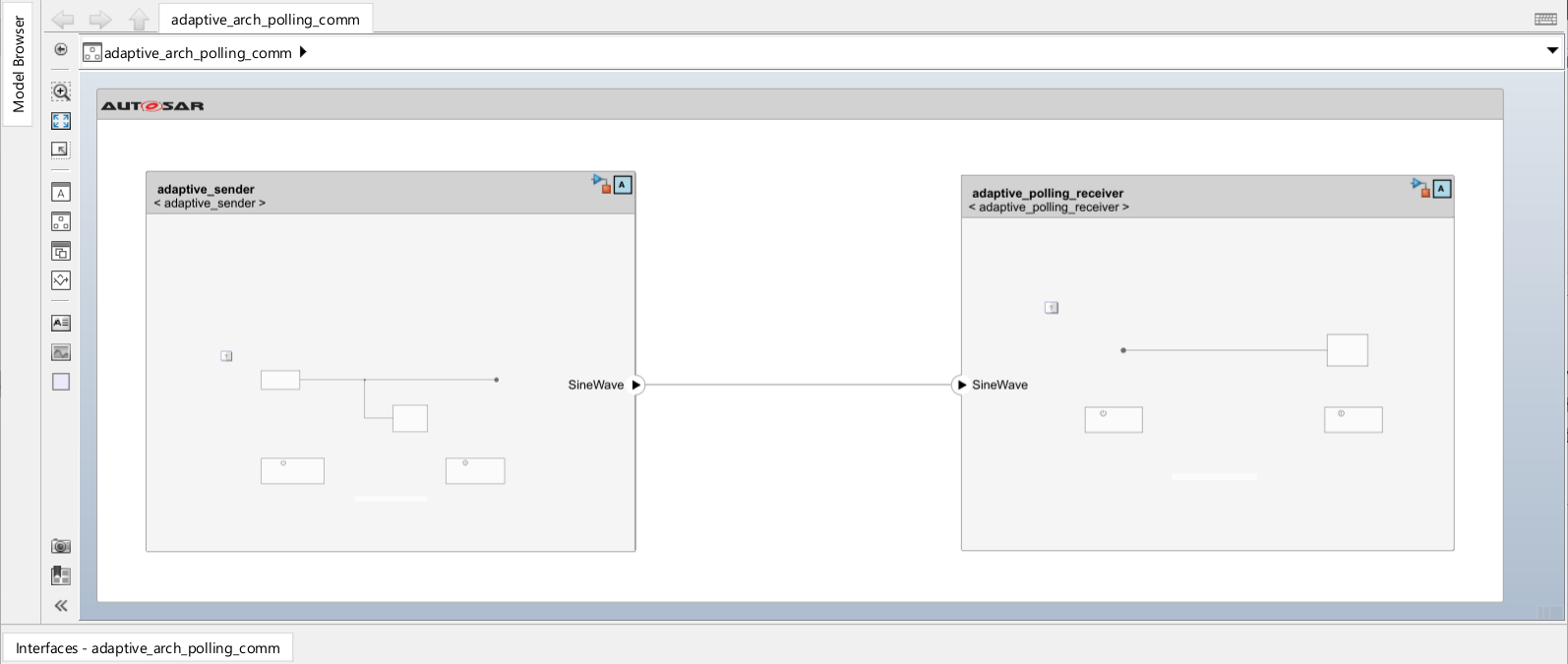
Configure the Architecture Model
Connecting a port from the sender component to the receiver component in the architecture model automatically matches the service interface ID and service instance ID between the ports. To view or override the deployment settings for each component, select the service port on the component you want to configure. In the Property Inspector, expand the Parameters section, then expand the Deployment subsection to view and edit the service binding parameters such as ServiceID, InstanceID, EventID, and EventGroupID. These values determine how applications discover and connect to each other at runtime through SOME/IP middleware.
Deploy the Architecture Model
Open the Linux Runtime Manager application by clicking Apps > Linux Runtime Manager from the model toolstrip.
Connect to a Linux target computer by following instructions in Set Up Linux Target Computer.
Deploy the architecture model on a Linux target computer by following instructions in Build Simulink Model and Deploy Application.
When you build the architecture model, the code generator creates a ServiceInstanceManifest.json file for each component alongside the executables. These files are deployed to the target and read at application startup to configure the SOME/IP middleware for service discovery.
After you deploy the architecture model, the Linux Runtime Manager app displays both component application names (adaptive_sender and adaptive_polling_receiver) in the Targets Tree pane.
Select the
adaptive_senderapplication and click Linux Target > Run On Target > Start Application to start the application on the target.Select the
adaptive_polling_receiverapplication and click Linux Target > Run On Target > Start Application to start the application on the target.
The app displays ara::log messages that the deployed applications generate in the Log Viewer pane, which indicates that the applications are communicating.
To stop the
adaptive_senderapplication, select it and click Linux Target > Run On Target > Stop Application.To stop the
adaptive_polling_receiverapplication, select it and click Linux Target > Run On Target > Stop Application.
Clean Up
close_system('adaptive_arch_polling_comm', 0);See Also
deployApplicationPackage | Linux Runtime
Manager

