Create and Select Custom Callbacks for Safety Analysis Manager Spreadsheets
R2026bYou can customize the code that executes in Safety Analysis Manager spreadsheet callbacks by specifying custom callbacks. You create the callback, enable or disable it, and add the code.
Create Custom Callbacks
To create a custom callback that optionally executes when you analyze your spreadsheets:
Open or create a new Safety Analysis Manager spreadsheet. For more information on creating spreadsheets, see Create Spreadsheets in the Safety Analysis Manager.
In the Analyze section, click Edit Callbacks. The Callbacks Editor window opens.
In the Callbacks Editor window, point to the AnalyzeFcn callback and click the Add a new custom callback button .
To edit the name, double-click the callback and enter the new name. You must use a name that follows the naming conventions for variables in MATLAB®.
Write the callback code. For more information on writing callbacks, see Write Callbacks to Analyze Safety Analysis Manager Spreadsheets.
To execute the callback, expand Analyze Document and select the custom callback. When you click Analyze Document again, the Safety Analysis Manager runs the custom callbacks that you select.
Programmatically Create Custom Callbacks
You can also create and modify custom callbacks programmatically. To add a callback:
Retrieve the
Spreadsheetobject from the Safety Analysis Manager by using thesafetyAnalysisMgr.getOpenDocumentsorsafetyAnalysisMgr.openDocumentfunctions, or use thesafetyAnalysisMgr.newSpreadsheetfunction to create a newSpreadsheetobject.Add the custom callback by using the
addCallbackfunction.Assign code to the custom callback by using the
setCallbackfunction.Enable or disable the callback by using the
enableCallbackfunction.
For example, to assign a callback to a spreadsheet that simulates a model named
myModel, open only one spreadsheet and then run this code:
mySheet = safetyAnalysisMgr.getOpenDocuments;
addCallback(mySheet,"myNewCallback")
setCallback(mySheet,"myNewCallback","sim(""myModel"")")
To retrieve the names of the existing callbacks, use the
getCustomCallbackNames function (since R2026b).
myCallbacks = getCustomCallbackNames(mySheet);
Add Flags by Using Multiple Analysis Callbacks
This example shows how to use custom callbacks in a Safety Analysis Manager spreadsheet. The spreadsheet has two custom callbacks. You can enable or disable either callback.
Prepare the Model
To perform the analysis, the spreadsheet links to a model that represents a fuel control system for a gasoline engine. For more information on the model, see Evaluate Fault Combinations on a Fault-Tolerant Fuel System. Open the sldemo_fuelsys_fault_analyzer model and set up the faults, conditionals, and links by using the fuelSysFaultSetupCC helper function.
mdlName = "sldemo_fuelsys_fault_analyzer";
open_system(mdlName)
fuelSysFaultSetupCC
Open the Spreadsheet
Open the FuelSysFMEACC spreadsheet in the Safety Analysis Manager. The spreadsheet is a Failure Mode and Effects Analysis (FMEA) for the fault-tolerant fuel control system. The links in the Failure Mode column link to the faults in the model, and the links in the Detection Method columns link to model artifacts.
fuelSysFMEADoc = safetyAnalysisMgr.openDocument("FuelSysFMEACC.mldatx");
safetyAnalysisMgr.openManager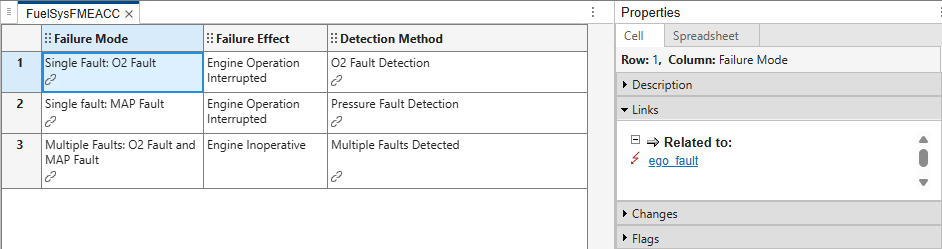
Inspect the Callbacks
View the custom callbacks. In the Analyze section, click Edit Callbacks. The Callbacks Editor displays the two custom callbacks, LinkCheck and SimValidate. The LinkCheck callback runs the code in the checkFuelSysFMEALinks custom MATLAB® function. The function checks if the cell in the third row of the Failure Mode column has at least two links, and if the other cells in the Failure Mode column and Detection Method column have at least one link. If the cells have the minimum number of links, the Safety Analysis Manager adds a check flag to the cell, and adds a warning flag otherwise.
The SimValidate callback runs the code in the validateFuelSysFMEAUsingSimulation custom MATLAB function. For each row of the spreadsheet with one or more linked faults in the Failure Mode column, the function activates those faults and simulates. The function then checks if the linked model artifact in the Detection Method column is active during simulation. If the fuel mode is not LOW at the end of the simulation, the function adds a check flag to the cell in the Detection Method column. In this example, only the LinkCheck callback is enabled.
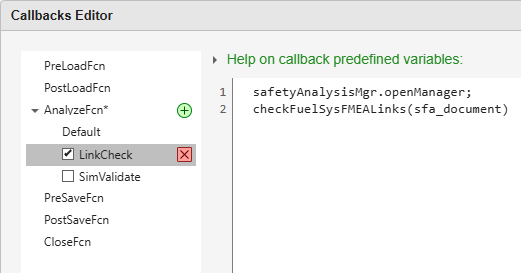
You can view the callback code by opening the checkFuelSysFMEALinks and validateFuelSysFMEAUsingSimulation MATLAB functions.
Analyze the Spreadsheet
Analyze the spreadsheet to execute the custom callback. Because only the LinkCheck callback is enabled, the analysis executes only the checkFuelSysFMEALinks function. In this example, the cells have the minimum specified links.
runAnalysis(fuelSysFMEADoc)
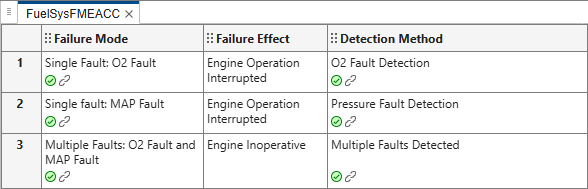
To enable the SimValidate callback, in the Analyze section, expand Analyze Document and select SimValidate.

