Generate a Basic Standalone FMU from C/C++ Code
R2026bGenerate standalone co-simulation FMU from simple existing C/C++ functions using the Code to FMU tool. You can integrate your code, define FMU algorithm, and customize the FMU package using the Code to FMU tool.
Export C/C++ Function Defining a Brake Model as a Standalone Co-Simulation FMU
This example shows how you can export a simple C/C++ function as a standalone Functional Mockup Unit (FMU). In this example, the Code to FMU tool is used to integrate C/C++ code, specify interface for the FMU, configure tunable parameters, and customize the FMU package.
Create Code to FMU Project
Create a new Code to FMU project or open an existing project. To create a new project, on the HOME tab of the MATLAB® toolstrip, click Simulink. This opens the Simulink Start Page. Click Code to FMU from the Simulink FMU Builder section.
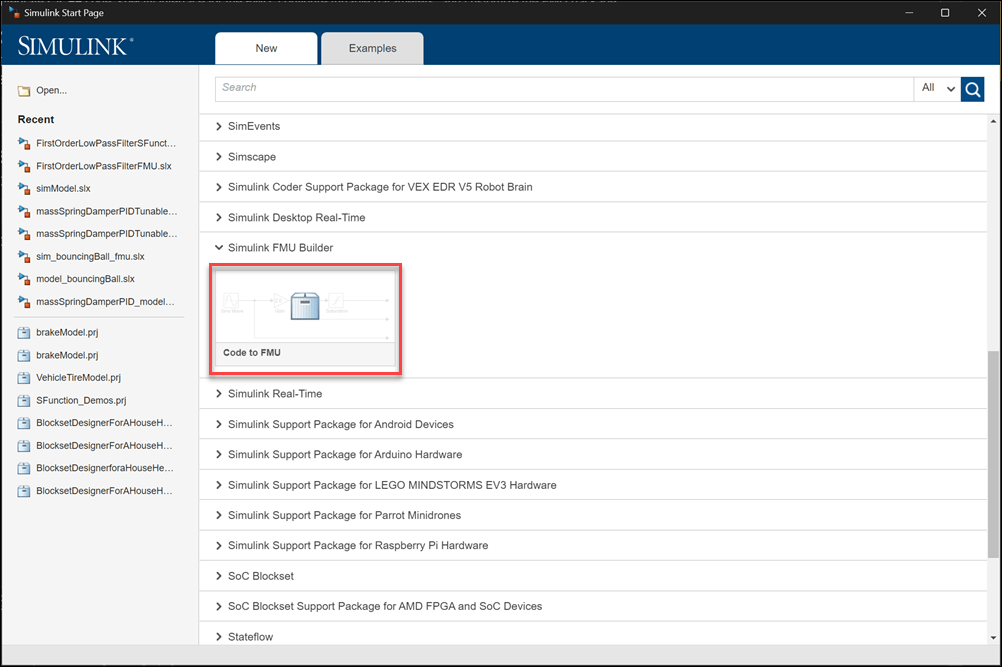
Doing so opens the Create Project dialog box. Specify the name and folder for your project and click OK. This opens a project in MATLAB along with a blank Code to FMU window.
You can also open and access the Code to FMU window from the Project tab in the MATLAB toolstrip.

Integrate C/C++ Source Code into Code to FMU
This example integrates an existing C/C++ function that defines a simple brake model. The model is defined by the following equations:
where:
is the brake torque
is the line pressure
is the pressure deadband
is the maximum brake torque
is the friction coefficient
is the number of pads
is the effective piston area
is the effective rotor radius
Specify the C/C++ header file calculateBrakeTorque.hpp for this brake model.
#ifndef BRAKE_MODEL
#define BRAKE_MODEL

extern double brakeTorque(
double pressureInput,
double pressureDeadband,
double pistonArea,
double frictionCoefficient,
double effectiveBrakeRadius,
int numberOfBrakePads,
double maxTorque
);

#endif
Specify the C/C++ source file calculateBrakeTorque.cpp for the brake model.
#include "calculateBrakeTorque.hpp"

double brakeTorque(
    double pressureInput,
    double pressureDeadband,
    double pistonArea,
    double frictionCoefficient,
    double effectiveBrakeRadius,
    int numberOfBrakePads,
    double maxTorque
    )
{
    if (pressureInput <= pressureDeadband || frictionCoefficient <= 0.0
        || pistonArea <= 0.0 || effectiveBrakeRadius <= 0.0 || numberOfBrakePads <= 0.0)
    {
        return 0.0;
    }

    double torque {frictionCoefficient*numberOfBrakePads*pistonArea*(pressureInput - pressureDeadband)*effectiveBrakeRadius};

    if (torque < maxTorque)
        return torque;
    else
        return maxTorque;
}
You can create and organize these files into src and include directories in the project. To create a new folder in the project, right click the project pane, select New and click Folder.
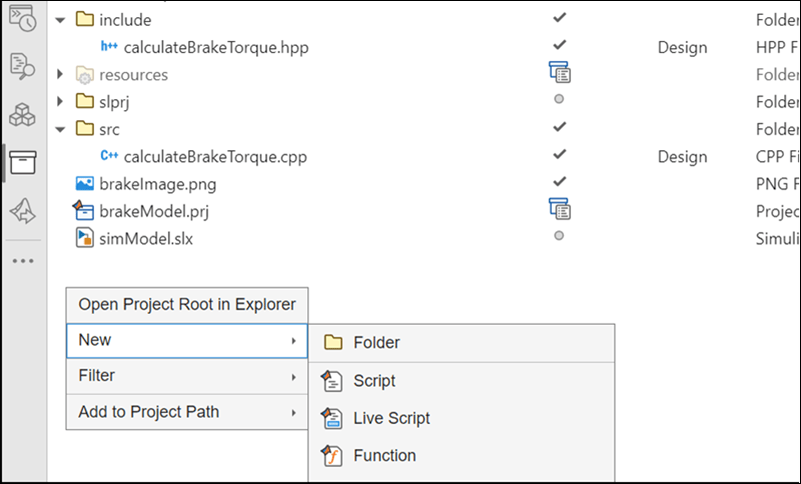
Create an include folder to store calculateBrakeTorque.hpp and src folder to store calculateBrakeTorque.cpp.
Open the Code to FMU window from the Project tab in the MATLAB toolstrip.

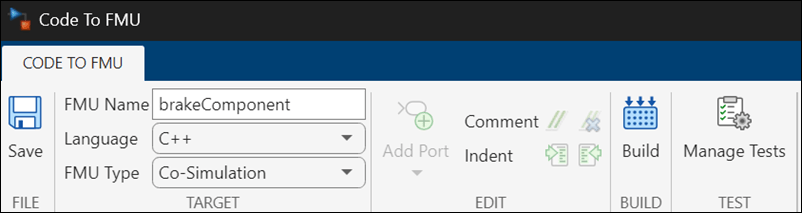
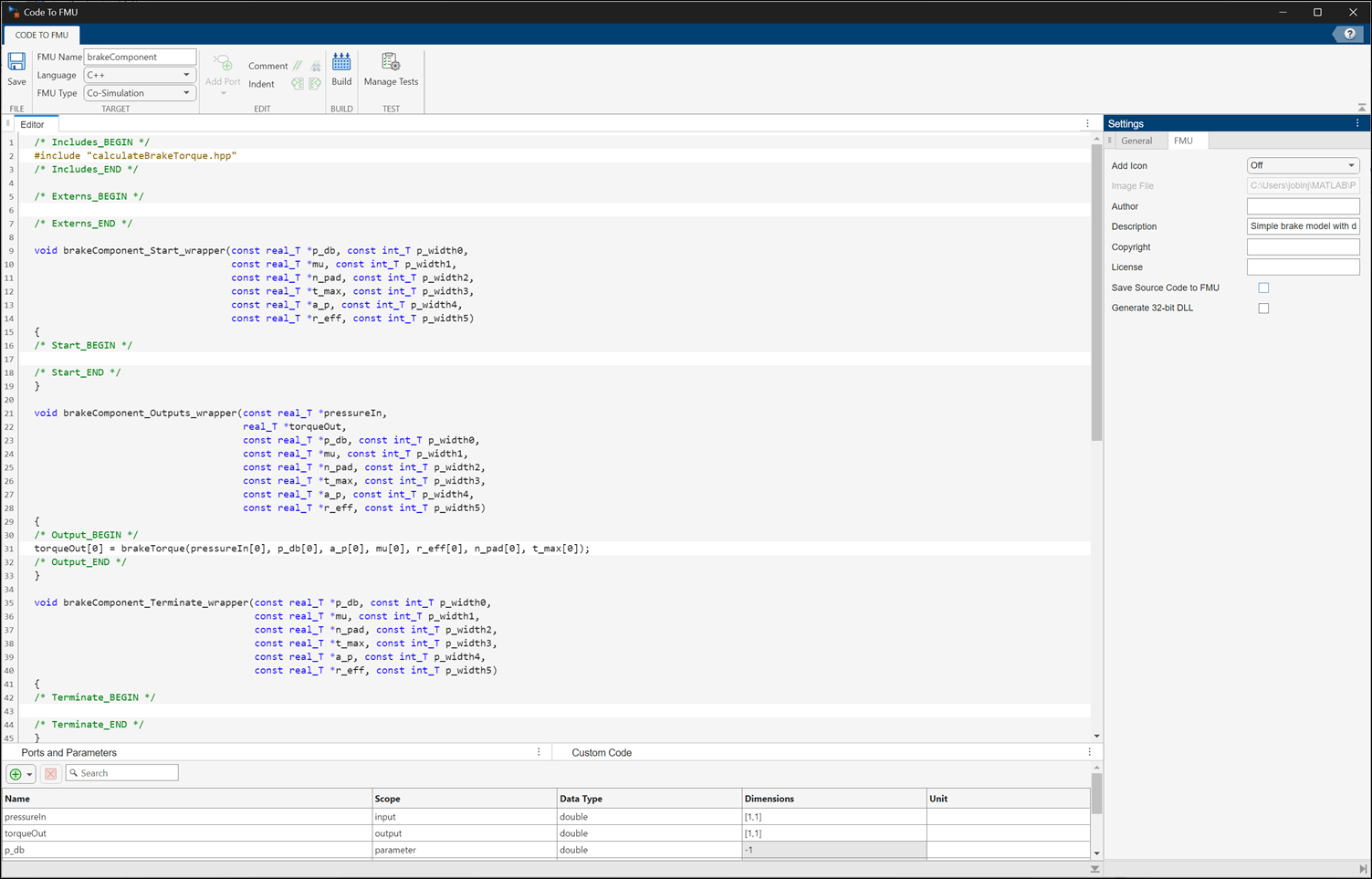
Specify the FMU Name, Language, and FMU Type in the CODE TO FMU toolstrip.
Add the library and source directories to the Custom Code table in the Code to FMU window. Click the  button to add items to the table. Specify the source directory, source file, include directory, and library file.

Configure the input and output ports and specify desired tunable parameters for the FMU block. Click the  button to add these elements to the Ports and Parameters table.
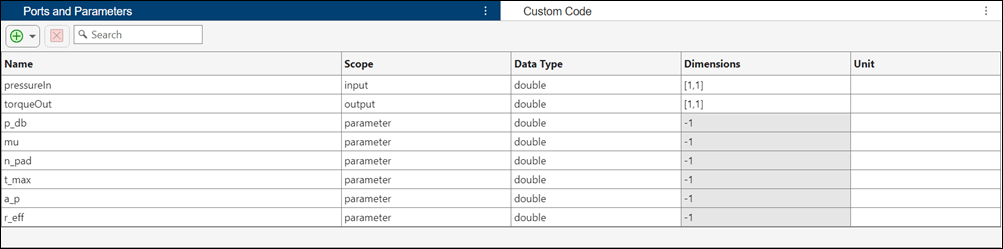
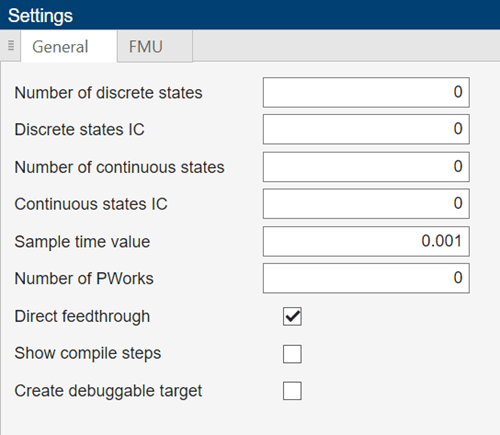
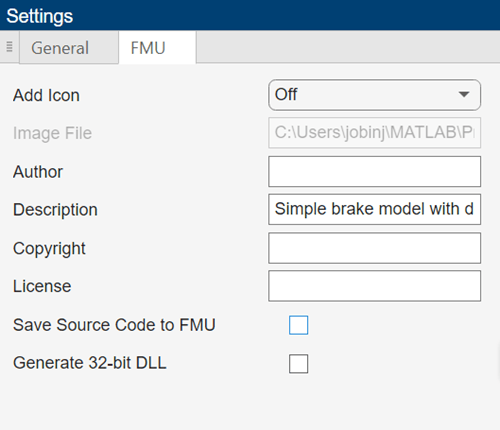
Specify General and FMU settings in the Settings pane.
Define the required FMU algorithm that uses the imported C/C++ functions within the callbacks in the Code To FMU Editor pane. In this example, the brakeComponent_Outputs_wrapper callback is defined as:
torqueOut[0] = brakeTorque(pressureIn[0], p_db[0], a_p[0], mu[0], r_eff[0], n_pad[0], t_max[0]);
Generate FMU
To the generate the FMU, click Build on the CODE TO FMU toolstrip.
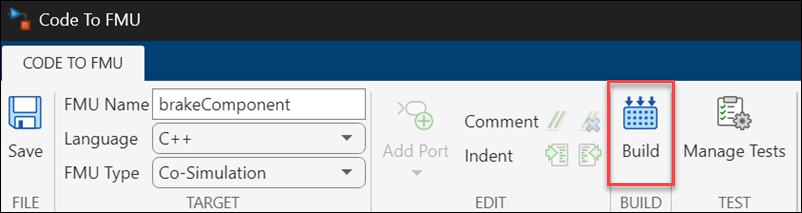
The generated FMU is stored in the buildOutput folder of the project.
openProject("brakeModel");

brakeModelProjObject = FMUBuilder.CodeToFMU('brakeModel.prj');
brakeModelProjObject.build();
### Using toolchain: GNU gcc/g++ | gmake (64-bit Linux)
### Creating '/tmp/Bdoc26b_3351752_1255651/tpe24aae35/fmubuilder-ex12513831/brakeModel/buildOutput/slprj/fmuWorkingDir/brakeComponent.mk' ...
### Building 'brakeComponent': "/mathworks/devel/bat/filer/batfs2566-0/Bdoc26b.3351752/build/runnable/matlab/bin/glnxa64/gmake"  -j 4 -l 4 -f brakeComponent.mk all
gcc -c -fwrapv -fPIC -Wno-error=incompatible-pointer-types -Wno-error=stringop-overflow -O0 -DFMI_VERSION=3  -I/mathworks/devel/bat/filer/batfs2566-0/Bdoc26b.3351752/build/runnable/matlab/rtw/c/src/rapid/fmu/fmi3 -I/mathworks/devel/bat/filer/batfs2566-0/Bdoc26b.3351752/build/runnable/matlab/extern/include -I/tmp/Bdoc26b_3351752_1255651/tpe24aae35/fmubuilder-ex12513831/brakeModel/include -I/tmp/Bdoc26b_3351752_1255651/tpe24aae35/fmubuilder-ex12513831/brakeModel/buildOutput -o "fmi3Functions.o" "/tmp/Bdoc26b_3351752_1255651/tpe24aae35/fmubuilder-ex12513831/brakeModel/buildOutput/slprj/fmuWorkingDir/fmi3Functions.c"
g++ -c -fwrapv -fPIC -Wno-error=incompatible-pointer-types -Wno-error=stringop-overflow -O0 -DFMI_VERSION=3  -I/mathworks/devel/bat/filer/batfs2566-0/Bdoc26b.3351752/build/runnable/matlab/rtw/c/src/rapid/fmu/fmi3 -I/mathworks/devel/bat/filer/batfs2566-0/Bdoc26b.3351752/build/runnable/matlab/extern/include -I/tmp/Bdoc26b_3351752_1255651/tpe24aae35/fmubuilder-ex12513831/brakeModel/include -I/tmp/Bdoc26b_3351752_1255651/tpe24aae35/fmubuilder-ex12513831/brakeModel/buildOutput -o "brakeComponent.o" "/tmp/Bdoc26b_3351752_1255651/tpe24aae35/fmubuilder-ex12513831/brakeModel/buildOutput/slprj/fmuWorkingDir/brakeComponent.cpp"
g++ -c -fwrapv -fPIC -Wno-error=incompatible-pointer-types -Wno-error=stringop-overflow -O0 -DFMI_VERSION=3  -I/mathworks/devel/bat/filer/batfs2566-0/Bdoc26b.3351752/build/runnable/matlab/rtw/c/src/rapid/fmu/fmi3 -I/mathworks/devel/bat/filer/batfs2566-0/Bdoc26b.3351752/build/runnable/matlab/extern/include -I/tmp/Bdoc26b_3351752_1255651/tpe24aae35/fmubuilder-ex12513831/brakeModel/include -I/tmp/Bdoc26b_3351752_1255651/tpe24aae35/fmubuilder-ex12513831/brakeModel/buildOutput -o "brakeComponent_wrapper.o" "/tmp/Bdoc26b_3351752_1255651/tpe24aae35/fmubuilder-ex12513831/brakeModel/buildOutput/slprj/fmuWorkingDir/brakeComponent_wrapper.cpp"
g++ -c -fwrapv -fPIC -Wno-error=incompatible-pointer-types -Wno-error=stringop-overflow -O0 -DFMI_VERSION=3  -I/mathworks/devel/bat/filer/batfs2566-0/Bdoc26b.3351752/build/runnable/matlab/rtw/c/src/rapid/fmu/fmi3 -I/mathworks/devel/bat/filer/batfs2566-0/Bdoc26b.3351752/build/runnable/matlab/extern/include -I/tmp/Bdoc26b_3351752_1255651/tpe24aae35/fmubuilder-ex12513831/brakeModel/include -I/tmp/Bdoc26b_3351752_1255651/tpe24aae35/fmubuilder-ex12513831/brakeModel/buildOutput -o "calculateBrakeTorque.o" "/tmp/Bdoc26b_3351752_1255651/tpe24aae35/fmubuilder-ex12513831/brakeModel/src/calculateBrakeTorque.cpp"
### Creating shared library "./brakeComponent.so" ...
g++ -shared -Wl,--no-undefined -o ./brakeComponent.so fmi3Functions.o brakeComponent.o brakeComponent_wrapper.o calculateBrakeTorque.o -Wl,--start-group   -Wl,--end-group
### Created: "./brakeComponent.so"
### Successfully generated all binary outputs.
gmake: Nothing to be done for `all'.
Packaging FMU: FMU 'brakeComponent.fmu' created successfully.
Import and Simulate FMU
Open the Simulink® model simModel that imports the generated FMU into Simulink.
open_system("simModel.slx");Double-click the FMU block to open the block dialog box. Specify the values of the FMU parameters.
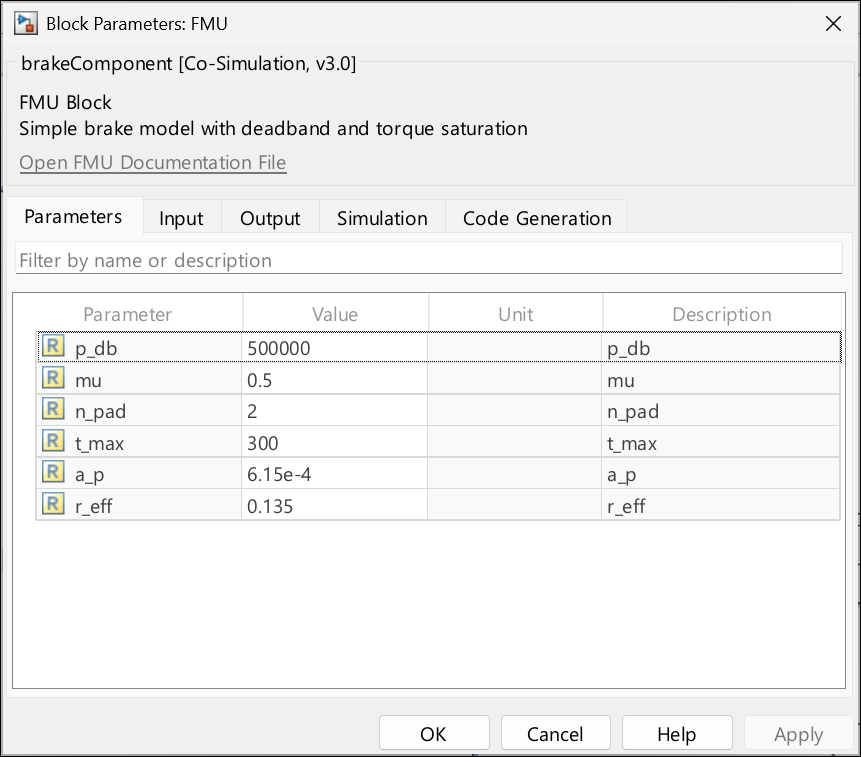
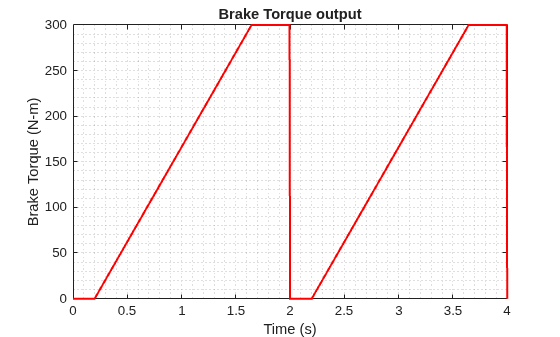
Simulate the model and plot the output.
simOut = sim("simModel.slx");

figure(1)
plot(simOut.yout{1}.Values,'r','LineWidth',1.5);
grid minor
xlabel('Time (s)')
ylabel('Brake Torque (N-m)')
title('Brake Torque output')