Generate Code for Object Detection
R2026bThis example shows how to generate C code using MATLAB® Coder™ from MATLAB applications that use Image Processing Toolbox™ functions. In particular, this example describes how to:
Set up your MATLAB environment and prepare your MATLAB code for code generation.
Solve issues that you might encounter in your MATLAB code that prevent code generation. To illustrate the process, the code used in this example includes some readiness issues and build issues that you must overcome before you can generate code.
Set Up Compiler
Specify which C/C++ compiler you want to use with MATLAB Coder to generate code by using the mex function with the -setup option.
mex -setupDefine Entry-Point Function
First, prototype the image processing workflow without considering support for code generation. Define a function detectCells that performs cell detection using segmentation and morphological techniques. This function is attached to this example as a supporting file and is your entry point for code generation. An entry-point function is a top-level MATLAB function for which you generate code.
Test the detectCells function with a sample image cell.tif.
I = imread('cell.tif');
Iseg = detectCells(I);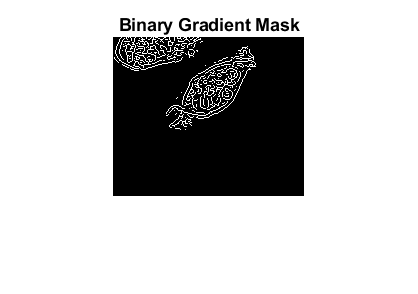
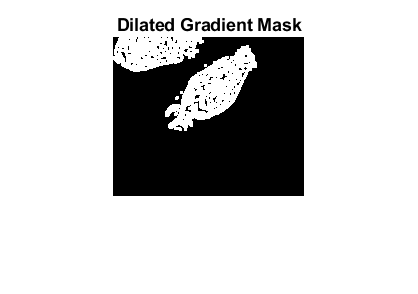
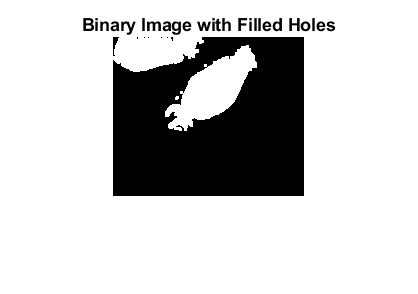
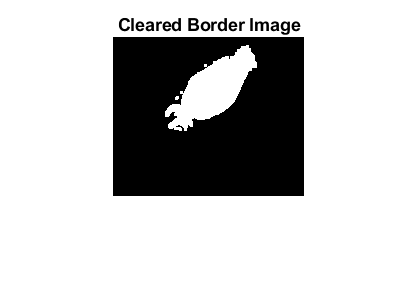
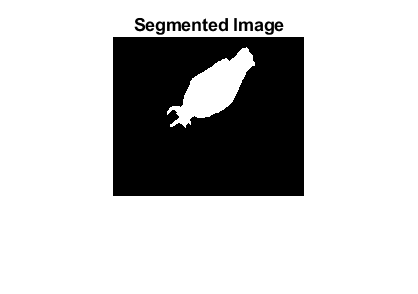
Confirm the accuracy of the segmentation by overlaying the segmented image on the original image.
imshow(labeloverlay(I,Iseg))
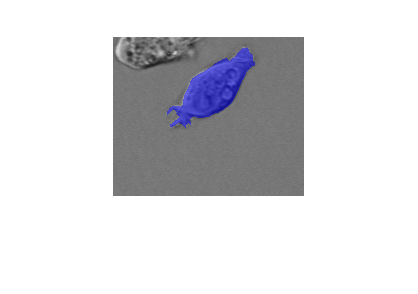
Because you will modify the entry-point function for code generation, it is recommended that you work with a copy detectCellsCodeGen.m of the original file. This version of the function includes the compilation directive %#codegen at the end of the function signature. This directive instructs the Code Analyzer to diagnose issues that might prohibit successful code generation.
Open the MATLAB Coder app by using the coder function. Alternatively, in MATLAB Toolstrip, select the Apps tab, navigate to the Code Generation section, and click the MATLAB Coder app.
coder
Name your MATLAB Coder project file detectCellsProject.coderprj. Add your entry-point function detectCellsCodeGen to the project.
The app runs the Code Generation Readiness Tool on the entry-point function. This tool screens the MATLAB code for features and functions that are not supported for code generation. If the app identifies issues with an entry-point function or one of its dependencies, it displays a warning message in the Entry Points tab. Click the link next to the message to open the Code Generation Readiness Tool in a separate window where you can review and fix the issues. In this example, the app does not detect code generation readiness issues in the detectCellsCodeGen function.
However, the Entry Points tab shows a different message that says that he input types for one or more entry points have not been fully defined. You will resolve this issue in the next section of this example.
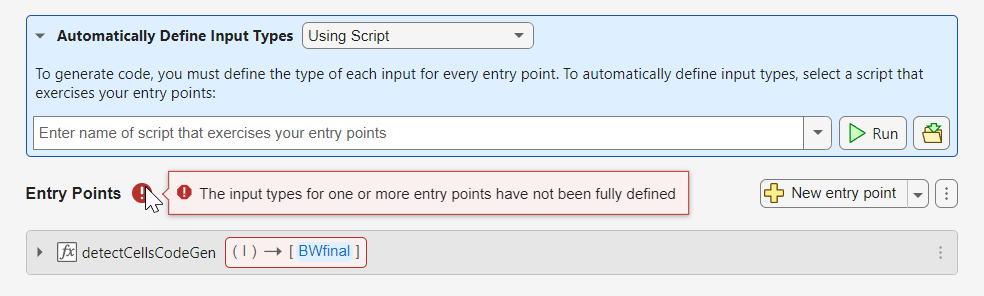
Define Type and Size of Function Inputs
To generate code, you must specify the type and size of every input argument of your entry-point function. There are several ways to specify the type and size of your input arguments The easiest way is by automatically defining the input types by using a script that calls your entry-point function. For this example, in the Automatically Define Input Types section of the Entry Points tab, specify the name of the script detectCellsTestBench.m and click Run. The MATLAB Coder app exercises this test script and determines the types and sizes of the entry-point inputs. For more information about defining inputs, see the MATLAB Coder documentation.
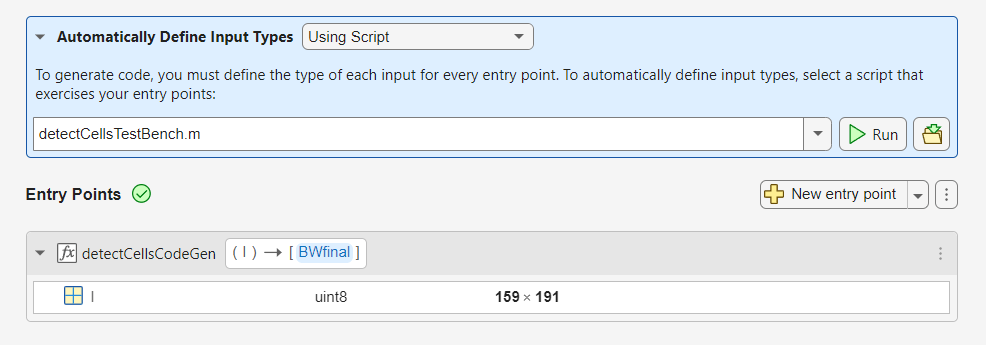
Generate and Run MEX Function
Even though you performed code generation readiness checks, additional issues might arise during the build process that can prevent code generation. While the readiness checks look at function dependencies to determine readiness, the build process examines coding patterns.
Before generating standalone C or C++ code, it is a best practice to generate a MEX function from your entry-point functions and run the generated MEX function. A MEX function is generated code that can be called from inside MATLAB. Generating a MEX function allows you to detect and fix build issues before you generate standalone code. Running the generated MEX function allows you to detect and fix run-time errors that are harder to diagnose in the generated standalone code.
In the MATLAB Coder toolstrip tab, open the Run Generated MEX drop-down menu.
Specify a test file that calls the entry-point function with example inputs. For this example, use the test file
detectCellsTestBench.mthat you used to define the input types.
This example contains a build issue: it passes an array of strel objects to imdilate and arrays of objects are not supported for code generation.
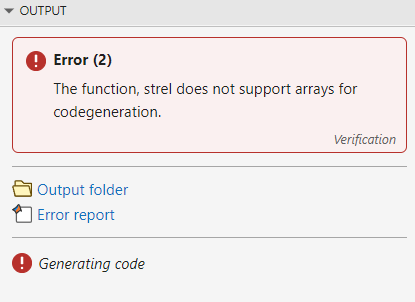
Click Error report to see the line in the detectCellsCodeGen function that caused the code generation error.
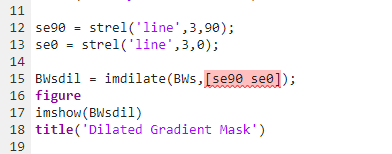
To address this build issue, modify the call to imdilate to avoid passing an array of strel objects. Replace the single call to imdilate with two separate calls to imdilate where you pass one strel in with each call.
BWsdil = imdilate(BWs,se90);
BWsdil = imdilate(BWsdil,se0);
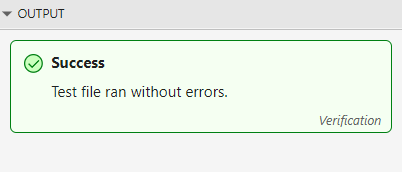
Generate and run a MEX function again to make sure your changes fixed the issue. Click Run Generated MEX. The code generator displays a message declaring that the test file ran without errors.
Generate Code
You are now ready to generate standalone code.
Choose the type of code you want to generate and select the target platform. MATLAB Coder can generate C or C++ source code, a MEX file, a static library, a shared library, or a standalone executable. For production hardware, you can select from many choices including ARM® and Intel® processors.
This example uses the default code generation settings. The output type is Static Library and the language is C. Also, Settings > Hardware is set to MATLAB Host Computer. When you choose MATLAB Host Computer**,** the generated code depends on a precompiled shared library. Image Processing Toolbox functions use this shared library to preserve performance optimizations.
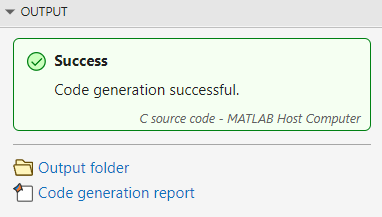
To generate source code only, click Generate Code. By default, MATLAB Coder creates a codegen subfolder in your work folder that contains the generated output.
See Also
codegen (MATLAB Coder) | MATLAB
Coder (MATLAB Coder)

