Run Optimizations
R2026bWhen you create an optimization, the new optimization appears as a new node in the tree pane on the left. In CAGE, the setup details are on the right.
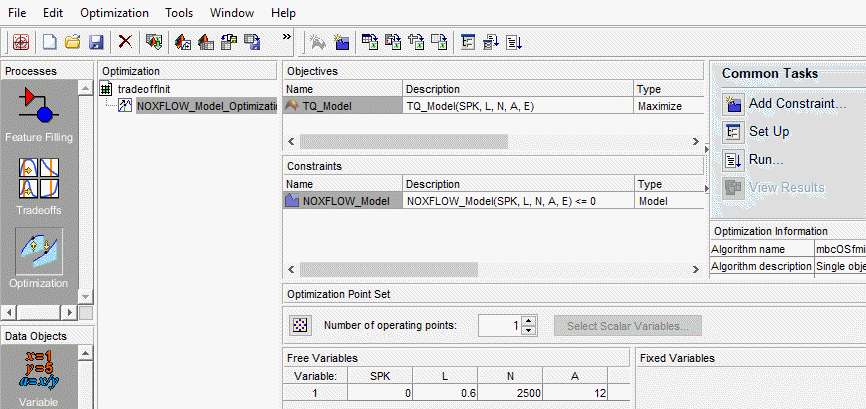
If your optimization is ready to run, you can click Run Optimization in the toolbar to proceed. You may want to edit variable values, constraints, or objectives before running the optimization. If you need to set up any objectives or constraints, Run is not enabled. If your optimization is ready to run, you can select Set Up and Run Optimization to change algorithm-specific settings such as number of required solutions and tolerances for termination.
If you click Set Up, you can change settings in the Optimization Parameters dialog box.
If you click Run instead, you do not see the optimization settings, but go straight to running the optimization.
You see a progress bar as the optimization proceeds. When the optimization completes, a new Output node appears under your Optimization node in the tree. The view automatically switches to this node so that you can analyze the results.
Note
If a tradeoff is defined, lookup tables automatically fill after an optimization completes. If an optimization is rerun, lookup tables automatically update.

