Identify and Select a GPU Device
R2026bThis example shows how to use gpuDevice to identify and select which device you want to use.
To determine how many GPU devices are available in your computer, use the gpuDeviceCount function.
gpuDeviceCount("available")ans = 2
When there are multiple devices, the first is the default. You can examine its properties with the gpuDeviceTable function to determine if that is the one you want to use.
gpuDeviceTable
ans = 2×5 table
1 "NVIDIA RTX A5000" "8.6" true true
2 "NVIDIA RTX A5000" "8.6" true false
If the first device is the device you want to use, you can proceed. To run computations on the GPU, use gpuArray enabled functions. For more information, see Run MATLAB Functions on a GPU.
To verify that MATLAB® can use your GPU, use the canUseGPU function. The function returns 1 (true) if there is a GPU available for computation and 0 (false) otherwise.
canUseGPU
ans = logical
   1
To diagnose an issue with your GPU setup, for example if canUseGPU returns 0 (false), use the validateGPU function. Validating your GPU is optional.
validateGPU
# Beginning GPU validation
# Performing system validation
#    CUDA-supported platform .................................................PASSED
#    CUDA-enabled graphics driver exists .....................................PASSED
#        Version: 570.133.07
#    CUDA-enabled graphics driver load .......................................PASSED
#    CUDA environment variables ..............................................PASSED
#        CUDA_VISIBLE_DEVICES: "0,1"
#    CUDA device count .......................................................PASSED
#        Found 2 devices.
#    GPU libraries load ......................................................PASSED
#
# Performing device validation for device index 1
#    Device exists ...........................................................PASSED
#        NVIDIA RTX A5000
#    Device supported ........................................................PASSED
#    Device available ........................................................PASSED
#        Device is in 'Default' compute mode.
#    Device selectable .......................................................PASSED
#    Device memory allocation ................................................PASSED
#    Device kernel launch ....................................................PASSED
#
# Finished GPU validation with no failures.
To use another device, call gpuDevice with the index of the other device.
gpuDevice(2)
ans =
  CUDADevice with properties:

                 Name: 'NVIDIA RTX A5000'
                Index: 2 (of 2)
    ComputeCapability: '8.6'
          DriverModel: 'N/A'
          TotalMemory: 25294995456 (25.29 GB)
      AvailableMemory: 25073221632 (25.07 GB)
      DeviceAvailable: true
       DeviceSelected: true

  Show all properties.
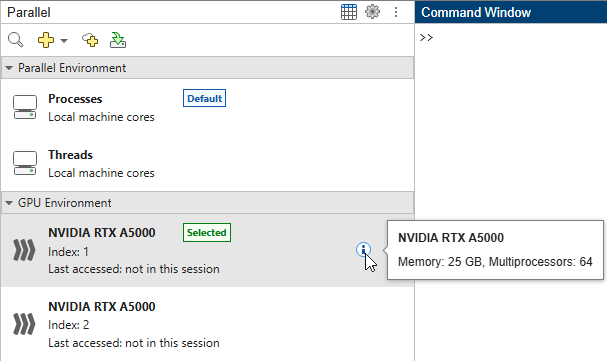
You can also determine how many GPU devices are available, inspect some of their properties, and select a device to use in the GPU Environment section of the Parallel panel  . Alternatively, on the Home tab, in the Environment area, select Parallel > Select GPU Environment.
See Also
gpuDevice | gpuDeviceCount | gpuArray | gpuDeviceTable | canUseGPU | validateGPU

