Adjust Report Page Orientation Based on Figure Size
R2026bThis example shows how to adjust the page layout of a report based on the size of the figures that you append. Depending on their size, some figures may some figures may be easier to read when the page is in landscape or portrait orientation. In this example, you create three figures of different sizes, and adjust the orientation of the page based on the size.
Set Up the Reporter Environment
Import the namespaces for the dom, utilis, and
report packages. Importing these namespaces shortens the reporter
constructor names that you need to use in your code.
import mlreportgen.dom.*
import mlreportgen.utils.*
import mlreportgen.report.*
Create a report document to contain the figures. Add a title page and a table of contents.
rpt = Report("myReport","pdf");
append(rpt,TitlePage("Title","My Dynamic Plot Report"));
append(rpt,TableOfContents);
Generate Figures
Close any existing figures, and then create three plots in three different figure
windows. Capture the handles of the MATLAB® figure windows by using the gcf function.
close all

figure
peaks(20);
myFigure(1) = gcf;
myFigure(1).Name = "Peaks";
myFigure(1).Position = [1 1 800 900];

figure
sphere(20);
myFigure(2) = gcf;
myFigure(2).Name = "Sphere";
myFigure(2).Position = [1 1 800 800];

figure
L = 160*membrane(1,100);
s = surface(L);
s.EdgeColor = "none";
view(3)
myFigure(3) = gcf;
myFigure(3).Name = "Membrane";
myFigure(3).Position = [1 1 1290 800];
Append Figures to Report and Adjust Page Layout
To append a figure to the report and adjust the page layout based on the figure size:
Create a
Figurereporter.Create an
Imagereporter from a snapshot of the figure. TheImagereporter contains the width and height information of the snapshot in theWidthandHeightproperties.Define a
PDFPageLayoutobject, and adjust thePageSize.Orientationproperty based on theWidthandHeightproperties of theImagereporter.Append the
PDFPageLayoutobject to the report.Append the
Figurereporter to the report.
For this example, use this code to create the Figure and
Image objects for the three figures. The code sets the orientation of the
page to "landscape" when the width of a figure is greater than its
height. Otherwise, it sets the orientation to "portrait".
for n = 1:length(myFigure)
  fig(n) = Figure(myFigure(n));
  img(n) = Image(getSnapshotImage(fig(n),rpt));
  width = units.toPixels(img(n).Width);
  height = units.toPixels(img(n).Height);
  plo = PDFPageLayout;
  if width > height
      plo.PageSize.Orientation = "landscape";
      width = plo.PageSize.Width;
      plo.PageSize.Width = plo.PageSize.Height;
      plo.PageSize.Height = width;
  else
      plo.PageSize.Orientation = "portrait";
  end
      head = Heading2(myFigure(n).Name);
  append(rpt,plo);
  head.Style = [head.Style,{PageBreakBefore,Bold,FontSize("18pt")}];
  append(rpt,head);
  append(rpt,fig(n));
end
View the Report
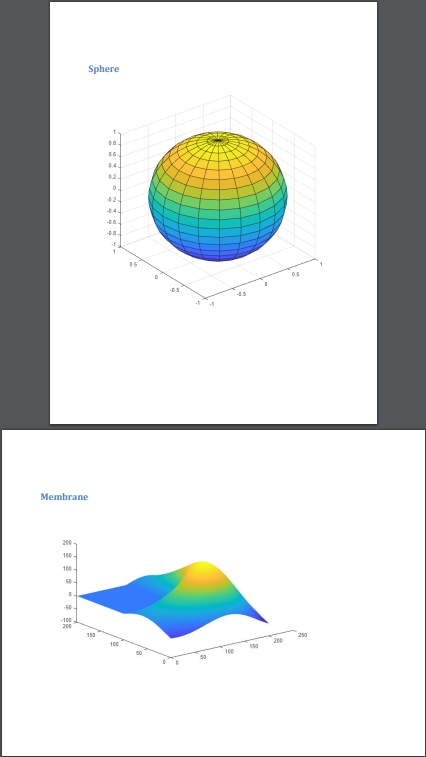
Open the report to view the images. The first two images are on portrait -oriented pages, and the last image is on a landscape-oriented page.
close(rpt);
rptview(rpt);
This image shows the last two pages of the report.