Complex Lowpass FIR
R2026bDesign complex lowpass finite impulse response filter
Description
A lowpass filter attenuates the energy of an input signal above a specified frequency threshold. A finite impulse response (FIR) filter computes an output signal as a running weighted average of input samples. A complex filter is characterized by complex-valued coefficients and processes the input signal along positive and negative frequencies.
To design a Complex Lowpass FIR filter, specify combinations of the parameters in the diagram. Click a parameter for more information.
Signal Processing Toolbox™ provides different ways to design complex lowpass FIR filters:
designfiltfunction — Design a complex lowpass FIR filter at the command line or in a script. Use"complexlowpassfir"as the first argument when you call the function.For an example, see Design Complex Lowpass FIR Filter Using designfilt.
Filter Designer app — Design a complex lowpass FIR filter interactively. Export your design to the MATLAB® workspace or to a file.
For an example, see Design Complex Lowpass FIR Filter Using Filter Designer.
All of these methods return digitalFilter objects. If you
have a DSP System Toolbox™ license, you can generate your design as a filter System object™ and include additional design options.
For other ways to design complex lowpass FIR filters using MATLAB, see cfirpm.
Examples
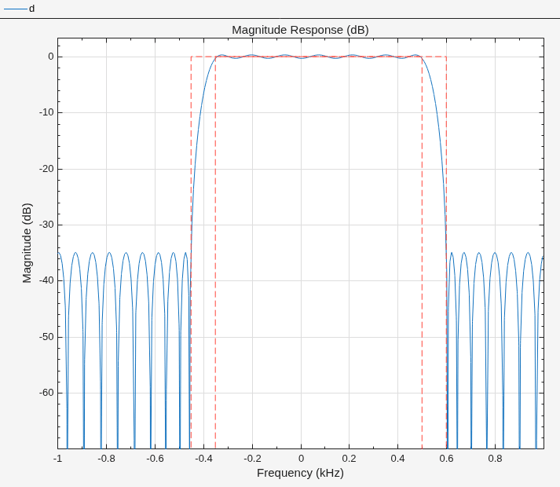
To design the filter at the command line or in a script, use the designfilt function with "complexlowpassfir" as the first argument. Use name-value arguments to specify your design further.
d = designfilt("complexlowpassfir", ... % Response type SampleRate=2000, ... % Sample rate FilterOrder=30, ... % Filter order PassbandFrequency1=-350, ... % Frequency constraints PassbandFrequency2=500, ... TransitionWidth=100, ... StopbandWeight1=2, ... % Design method options PassbandWeight=1, ... StopbandWeight2=2); filterAnalyzer(d)
To design the filter using the Filter Designer app:
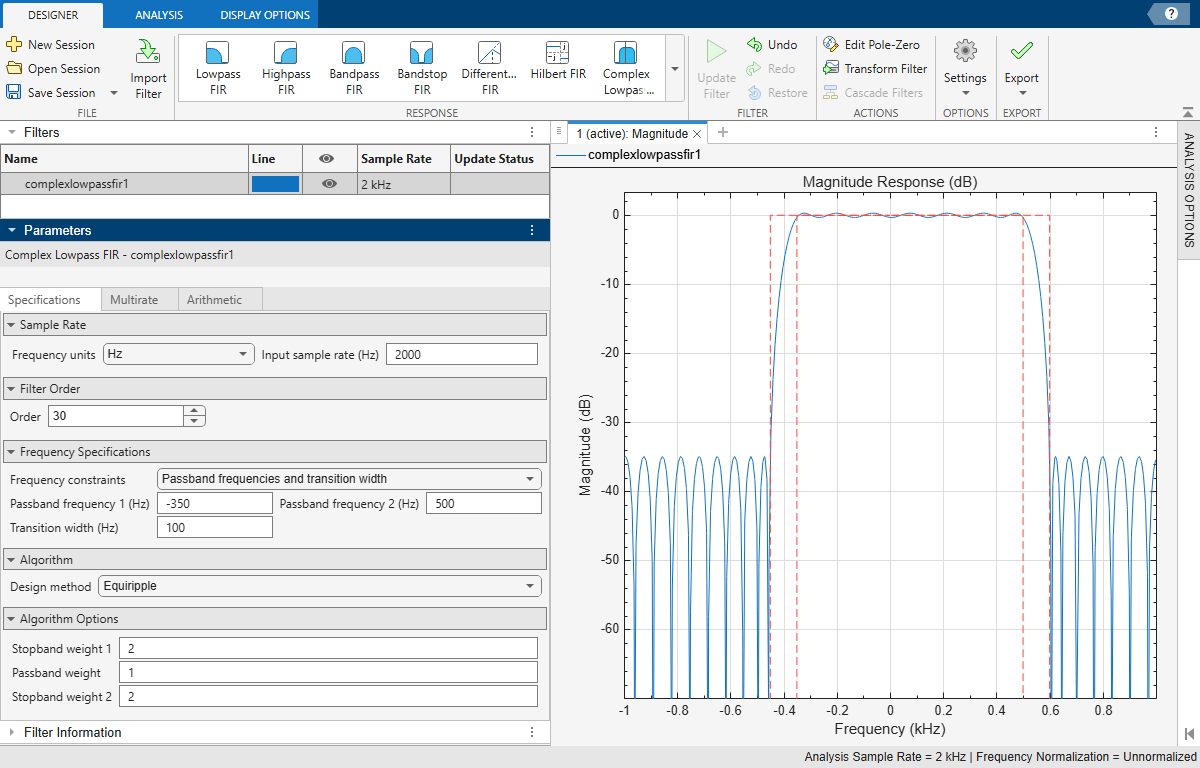
In the Response gallery of the Designer tab in the app toolstrip, select Complex Lowpass FIR.
Specify the filter using the options in the Filter Parameters table:
In Sample Rate, specify Frequency units as
Hzand Input sample rate (Hz) as2000.Under Filter Order, specify the Order as
30.Under Frequency Specifications, specify:
Passband frequency 1 as
-350HzPassband frequency 2 as
500HzTransition width as
100Hz
Under Algorithm, select
Equiripple. Under Algorithm Options, specify:Stopband weight 1 as
2Passband weight as
1Stopband weight 2 as
2
In the Filter section of the Designer tab, click Update Filter.
Export code to create your digital filter. On the toolstrip, click Export and select
Generate MATLAB function>Digital Filter Object. The code appears in the editor.function designedFilter = complexlowpassfir1filt designedFilter = designfilt('complexlowpassfir', ... 'FilterOrder',30,'PassbandFrequency1',-350, ... 'PassbandFrequency2',500,'TransitionWidth',100, ... 'SampleRate',2000,'StopbandWeight1',2, ... 'StopbandWeight2',2); end
Parameters
Design Method
Specify the algorithm to design the filter. The available design methods correlate with the set of design specifications that you choose.
Design the filter using the Parks-McClellan algorithm. Equiripple filters have a frequency response that minimizes the maximum ripple magnitude over all bands.
designfilt Function | Filter Designer App |
|---|---|
Specify
| In the Algorithm section of the filter
parameters panel, set Design method to
|
The equiripple design method supports these design parameter combinations.
| Filter Order | Frequency Specifications | Magnitude Specifications | Design Method Options | DSP System Toolbox License Required |
|---|---|---|---|---|
|
| N/A |
| |
|
| N/A |
|
Sample Rate
The sample rate you specify sets the Nyquist frequency for the filter. If you specify a sample rate Fs in hertz, the Nyquist frequency is Fs/2. If you work with normalized frequencies, the Nyquist frequency is 1.
Specify the filter sample rate as a positive scalar expressed in hertz.
designfilt Function | Filter Designer App |
|---|---|
| In the Sample Rate section of the filter parameters panel:
|
Filter Order
Specify the filter order N as a positive integer. Some design methods let you specify the order. Others generate minimum-order designs, which are the shortest filters that satisfy the specified constraints.
designfilt Function | Filter Designer App |
|---|---|
| In the Filter Order section of the filter parameters panel:
|
Frequency Specifications
The lower stopband frequency is the highest frequency in the lower stopband region.
Specify the lower stopband frequency as a negative scalar whose absolute value is smaller than the Nyquist frequency. If you specify a sample rate Fs in hertz, the Nyquist frequency is Fs/2. If you work with normalized frequencies, the Nyquist frequency is 1.
designfilt Function | Filter Designer App |
|---|---|
|
|
The lower passband frequency is the lowest frequency in the passband region.
Specify the lower passband frequency as a negative scalar whose absolute value is smaller than the Nyquist frequency. If you specify a sample rate Fs in hertz, the Nyquist frequency is Fs/2. If you work with normalized frequencies, the Nyquist frequency is 1.
designfilt Function | Filter Designer App |
|---|---|
|
|
The higher passband frequency is the highest frequency in the passband region.
Specify the higher passband frequency as a positive scalar smaller than the Nyquist frequency. If you specify a sample rate Fs in hertz, the Nyquist frequency is Fs/2. If you work with normalized frequencies, the Nyquist frequency is 1.
designfilt Function | Filter Designer App |
|---|---|
|
|
The higher stopband frequency is the lowest frequency in the higher stopband region.
Specify the higher stopband frequency as a positive scalar smaller than the Nyquist frequency. If you specify a sample rate Fs in hertz, the Nyquist frequency is Fs/2. If you work with normalized frequencies, the Nyquist frequency is 1.
designfilt Function | Filter Designer App |
|---|---|
|
|
The transition band separates the passband region from either stopband region.
Specify the width of the transition band as a positive scalar smaller than the Nyquist frequency. If you specify a sample rate Fs in hertz, the Nyquist frequency is Fs/2. If you work with normalized frequencies, the Nyquist frequency is 1.
designfilt Function | Filter Designer App |
|---|---|
|
|
Design Method Options
Basic Options
Lower stopband optimization weight for an Equiripple design, specified as a positive scalar.
Weights let you specify the relative importance of the passband ripple and the stopband attenuation in a filter design. By default, the passband and the stopbands are equally weighted, each with unit weight. By increasing a stopband weight, you can increase the attenuation of a stopband at the expense of increasing the passband ripple.
designfilt Function | Filter Designer App |
|---|---|
|
|
Passband optimization weight for an Equiripple design, specified as a positive scalar.
Weights let you specify the relative importance of the passband ripple and the stopband attenuation in a filter design. By default, the passband and the stopband are equally weighted, each with unit weight. By increasing the passband weight, you can decrease the passband ripple at the expense of decreasing stopband attenuation.
designfilt Function | Filter Designer App |
|---|---|
|
|
Higher stopband optimization weight for an Equiripple design, specified as a positive scalar.
Weights let you specify the relative importance of the passband ripple and the stopband attenuation in a filter design. By default, the passband and the stopbands are equally weighted, each with unit weight. By increasing a stopband weight, you can increase the attenuation of a stopband at the expense of increasing the passband ripple.
designfilt Function | Filter Designer App |
|---|---|
|
|
See Also
Apps
Functions
Live Editor Tasks
MATLAB Command
You clicked a link that corresponds to this MATLAB command:
Run the command by entering it in the MATLAB Command Window. Web browsers do not support MATLAB commands.
Seleziona un sito web
Seleziona un sito web per visualizzare contenuto tradotto dove disponibile e vedere eventi e offerte locali. In base alla tua area geografica, ti consigliamo di selezionare: .
Puoi anche selezionare un sito web dal seguente elenco:
Come ottenere le migliori prestazioni del sito
Per ottenere le migliori prestazioni del sito, seleziona il sito cinese (in cinese o in inglese). I siti MathWorks per gli altri paesi non sono ottimizzati per essere visitati dalla tua area geografica.
Americhe
- América Latina (Español)
- Canada (English)
- United States (English)
Europa
- Belgium (English)
- Denmark (English)
- Deutschland (Deutsch)
- España (Español)
- Finland (English)
- France (Français)
- Ireland (English)
- Italia (Italiano)
- Luxembourg (English)
- Netherlands (English)
- Norway (English)
- Österreich (Deutsch)
- Portugal (English)
- Sweden (English)
- Switzerland
- United Kingdom (English)