Denoise Noisy Doppler Signal
R2026bUse Signal Analyzer to denoise the noisy Doppler signal and display its scalogram. This example requires a Wavelet Toolbox™ license.
Load the noisy Doppler signal.
load noisdoppOpen Signal Analyzer and drag the signal from the Workspace Browser to the Signal table. Duplicate the signal. Rename the duplicate noisdoppDenoise. Click Display Grid to create a one-by-two grid of displays. Plot noisdopp in the left display and noisdoppDenoise in the right display.
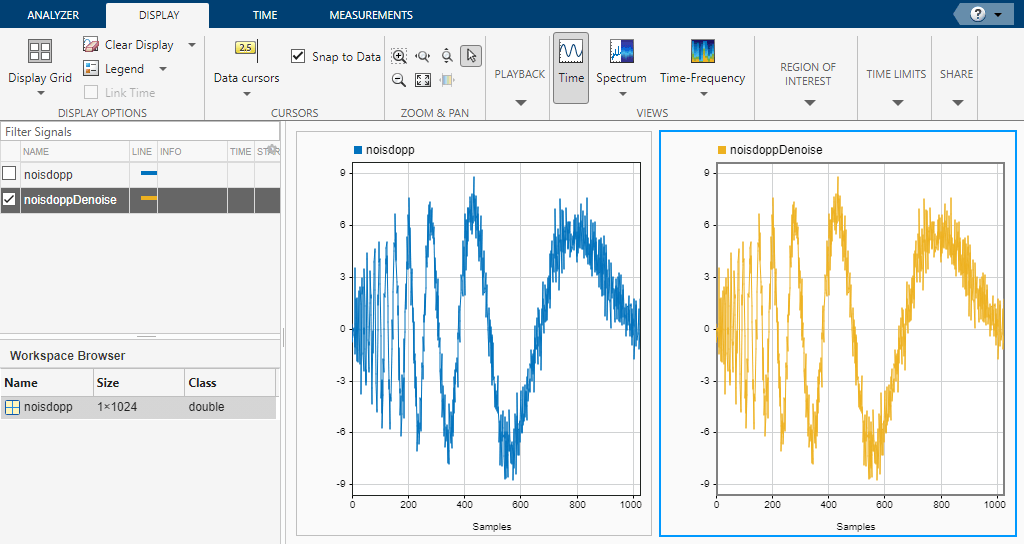
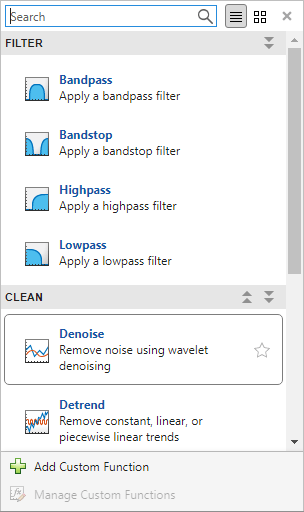
Select the right display and highlight the name noisdoppDenoise in the Signal table. Select the Analyzer tab, click Preprocess to enter the preprocessing mode, and choose Denoise from the list of preprocessing options.
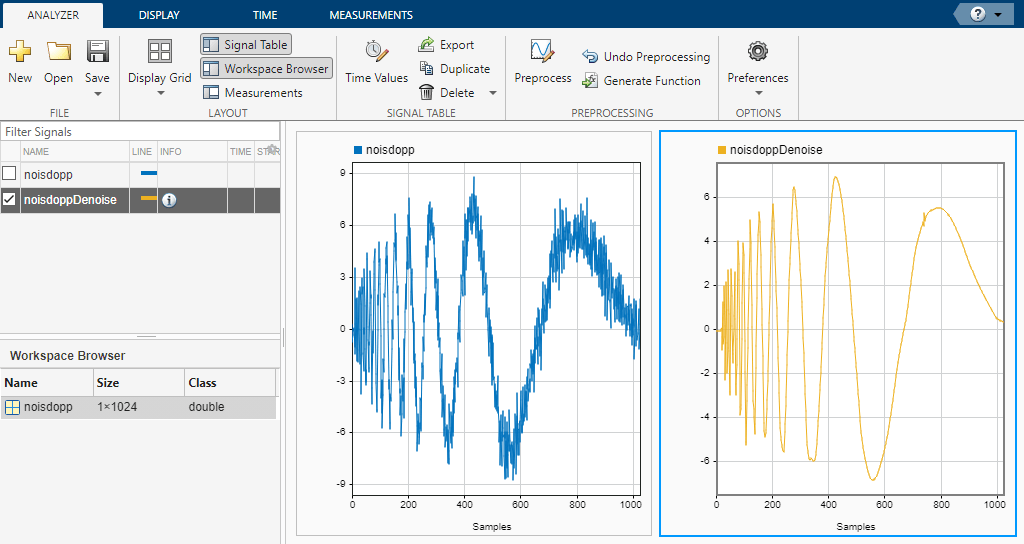
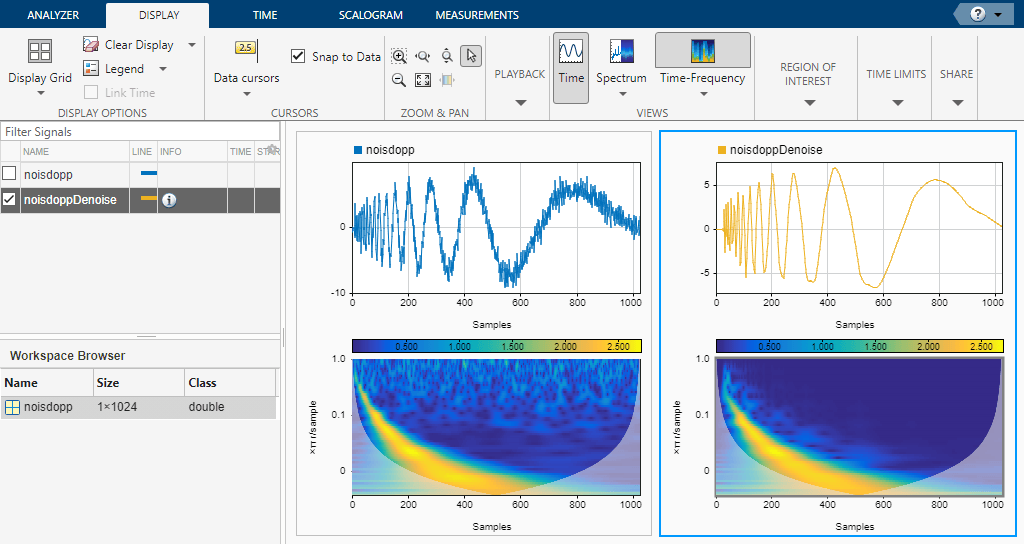
Use the Function Parameters panel to adjust and apply denoising parameters to the selected signal. For more information, see Wavelet Signal Denoiser (Wavelet Toolbox). Click Apply to denoise the signal with the default settings. Click Accept All to save the preprocessing results and exit the mode. The denoised signal is smoother than the original signal.
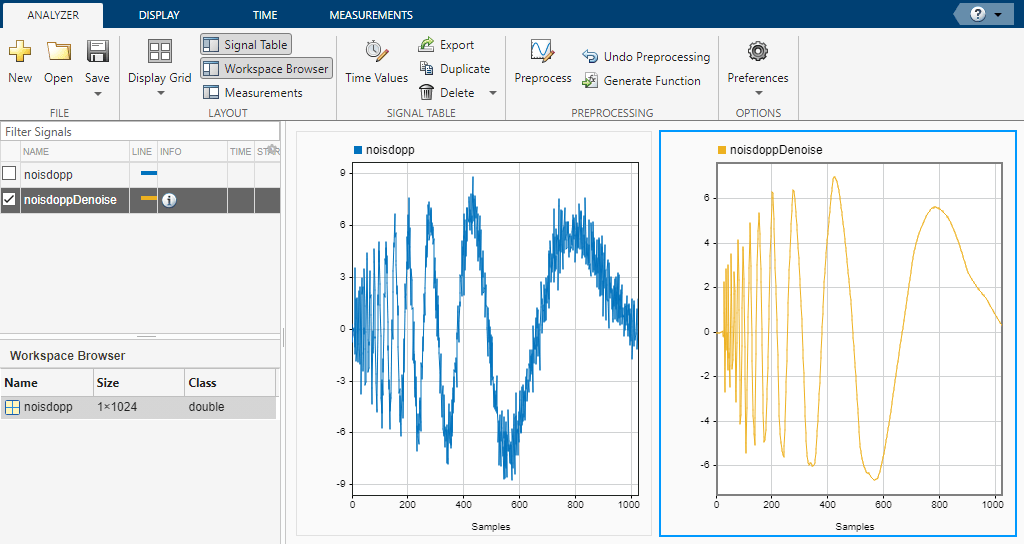
To denoise the signal with a different set of parameters, click Undo Preprocessing, reenter the preprocessing mode, and select Denoise. In the Function Parameters panel, select Universal Threshold from the Denoising Method dropdown list and Hard from the Thresholding dropdown list. Click Apply and exit the mode.
To see the effects of denoising on the scalogram, click Time-Frequency on the Display tab and select Scalogram. Click on the left display and repeat the steps.
See Also
Apps
- Signal Analyzer | Wavelet Signal Denoiser (Wavelet Toolbox)
Functions
highpass|lowpass|smoothdata|wdenoise(Wavelet Toolbox)
Topics
- Find Delay Between Correlated Signals
- Resolve Tones by Varying Window Leakage
- Compute Signal Spectrum Using Different Windows
- Find Interference Using Persistence Spectrum
- Modulation and Demodulation Using Complex Envelope
- Find and Track Ridges Using Reassigned Spectrogram
- Extract Voices from Music Signal
- Resample and Filter a Nonuniformly Sampled Signal
- Declip Saturated Signals Using Your Own Function
- Compute Envelope Spectrum of Vibration Signal
- Extract Regions of Interest from Whale Song
- Use Signal Analyzer App
- Edit Sample Rate and Other Time Information
- Data Types Supported by Signal Analyzer
- Spectrum Computation in Signal Analyzer
- Persistence Spectrum in Signal Analyzer
- Spectrogram Computation in Signal Analyzer
- Scalogram Computation in Signal Analyzer
- Keyboard Shortcuts for Signal Analyzer
- Signal Analyzer Tips and Limitations

