Variable Viewer
R2026bView variable initialization results for Simscape models
Description
The Variable Viewer app checks the initial conditions for the model and displays whether the initial variables meet their targets. The app displays the variable priority and target values, where specified, and the final start values for all the initial variables. The app also displays whether the solver successfully met the specified targets. You must run the model or click the Update button to view the results.
To configure the table columns, see Configure the Variable Viewer. By default, the table contains these columns:
| Name | Description |
|---|---|
| Status | Initialization status of each variable. The icon indicates the status:
|
| Priority | Variable initialization priority. You specify this value in the block dialog box or the underlying component file. |
| Target | Initial target value for a variable. |
| Start | The initial value of the variable computed by the solver. |
| Unit | The variable base unit, common for all the values. Simscape™ unit manager automatically converts values as needed. For example, if you specify the Initial Target parameter in the block dialog box as 20 and the Unit as mm, the Variable Viewer displays the Target as 0.2 and Unit as m. |


The Variable Viewer toolbar buttons perform these actions:
 | Displays a flat view that minimizes the number of rows in the table. In flat view, the rows for the parent nodes are not visible, the table contains only one row per variable, and the Name column includes the path to the variable in the model. If the Variable Viewer app is in flat view, you cannot expand or collapse nodes. This is the default view. |
 | Displays the data in a tree view. In the tree view, the variable nodes appear in groups under the parent port, block, and subsystem nodes. The app initially collapses all nodes. You can expand them individually or expand all nodes by using the Expand All button. |
 | Expands all nodes in the tree view. To enable this button, select the Tree button. |
 | Collapses all nodes in the tree view. To enable this button, select the Tree button. |
 | Recomputes the initial conditions for the model and refreshes the values in
the viewer. Use this button after adjusting the block parameter values, changing
variable priorities and targets, or updating the block diagram. If the data in the
Variable Viewer app is out of sync with the model, the
Update button displays a warning symbol
In Fast Restart mode, the Update button is disabled. |
 | Applies filters. For more information, see Configure the Variable Viewer. |
 | Clears all the filtering options. For more information, see Configure the Variable Viewer. |
 | Displays only the Status, Priority, Target, Start, and Unit columns in the Variable Viewer app table. |
 | Displays all the views of the Variable Viewer app table. Use this to troubleshoot your model. For more information, see Configure the Variable Viewer. |
 | Configures which columns to display. |
 | Saves the current Variable Viewer app configuration. When you reopen the app, it loads the saved configuration. For more information, see Configure the Variable Viewer. |


Open the Variable Viewer App
To open the Variable Viewer app, in Simulink, on the Debug tab, click Simscape > Variable Viewer.
Examples
This example shows how to view the initialization variables for the Permanent Magnet DC Motor example.
Open and simulate the model.
openExample("simscape/PermanentMagnetDCMotorExample")
mdl = "PermanentMagnetDCMotor";
sim(mdl)
To open the Variable Viewer app, in Simulink, on the Debug tab, click Simscape > Variable Viewer.

This example shows how to highlight the block in the block diagram that corresponds to a variable in the app.
Open the model from the Permanent Magnet DC Motor example.
openExample("simscape/PermanentMagnetDCMotorExample")Open the Variable Viewer app. In the model window, on the Debug tab, click Simscape > Variable Viewer.
Click the Update button.
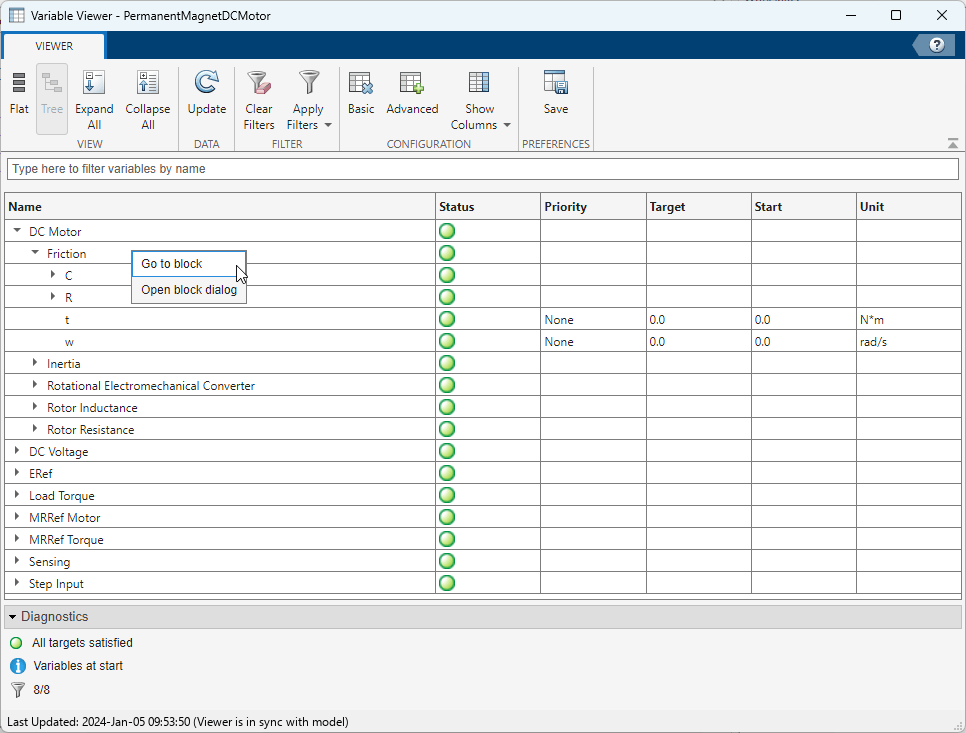
Click Tree to display the results in tree view. Expand DC Motor and right-click Friction.
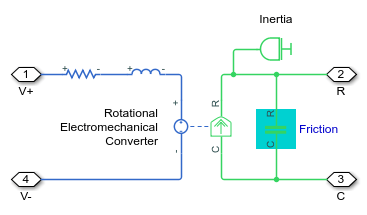
When you click Go to block, Simscape highlights the
Friction block in the DC Motor subsystem.
Related Examples
Version History
Introduced in R2014a

