Define Variant Configurations for the Model
R2026bDefining a variant configuration lets you represent a specific design alternative that you implemented in the Simulink® model using variant elements (variant blocks, variant parameters, variant transitions). You set up the configuration by combining variant choices across your model hierarchy.
Open Example Model
Open the VMControllerGS model.
modelName = "VMControllerGS";
open_system(modelName);
Explore Model
The controller in the VMControllerGS model can operate in one of
three modes: Linear, Nonlinear, or
Smart. Each mode corresponds to a different variant configuration. You
can also define configurations that span the model hierarchy. For instance, you might set up
a configuration where the controller runs in Linear mode while the plant
operates in Trial mode. In Variant Manager, you define a variant
configuration as a set of variant control variables and their values that activates a
specific variant path in your model hierarchy.
The VMControllerGS model does not have any variant configurations
defined. Follow these steps to create some configurations for the model.
Add Variant Configurations Object for Model
Create a Simulink.VariantConfigurations object to store your variant
configurations.
In Variant Manager, in the toolstrip, enter a name for the object in the Name box.

Click Apply Changes to associate the model to the variant configurations object, which is added in the data dictionary,
dVMControllerGS.sldd. Variant Manager identifies and populates the name of the data source in the Source box.Save the model and the data dictionary.
Set Up Variant Control Variables Manually
Variant control variables can be automatically identified or set up manually. Automatic identification (importing variant control variables) is generally easier and less error-prone than setting up variant control variables manually.
Create a configuration for a nonlinear controller with low-fidelity parameter value settings.
In the Configurations pane, click the Add variant configuration button
 . A new row appears in the configurations table. Give
your configuration a name, such as
. A new row appears in the configurations table. Give
your configuration a name, such as NonlinearLowFid.
Identify the variant control variables needed to activate the
Nonlinear
                        Controller
component with low-fidelity variant parameter values.Use the Blocks and Variant Parameters tabs to find which variant control variables are used in the variant condition expressions.
For this example, you need:
vCtrl(for the controller type)vLUTFid(for fidelity level)
In the Control Variables section, click the Add control variable button
, and then start typing the variable
name in the Name column of the table. Variant
Manager suggests matching variables from the data sources of the model.
Select vCtrl. Variant Manager autofills the valueControllerTypesGS.Linearfrom the data source. Change the value toControllerTypesGS.Nonlinear.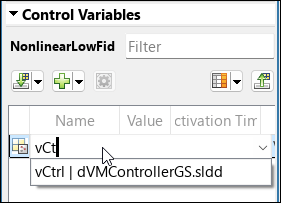
Repeat the previous step for
vLUTFid, selecting the appropriate value for high fidelity.
Tip
You can also manually copy the variable name and value from the variant condition expression in the model hierarchy table instead of typing them.
You can toggle the visibility of the Variant Activation Time and Source columns in the table using the
 button.
Optionally, add a description to help others understand the purpose and details of this configuration.

All rows in the model hierarchy table appear dimmed for the newly added configuration because the configuration has not been applied to the model. In the Variant Manager toolstrip, click Activate Configuration. The operation checks that the variant configuration is set up correctly and applies the configuration to the model.
In the Blocks tab, the
Nonlinear
                        Controller
is active.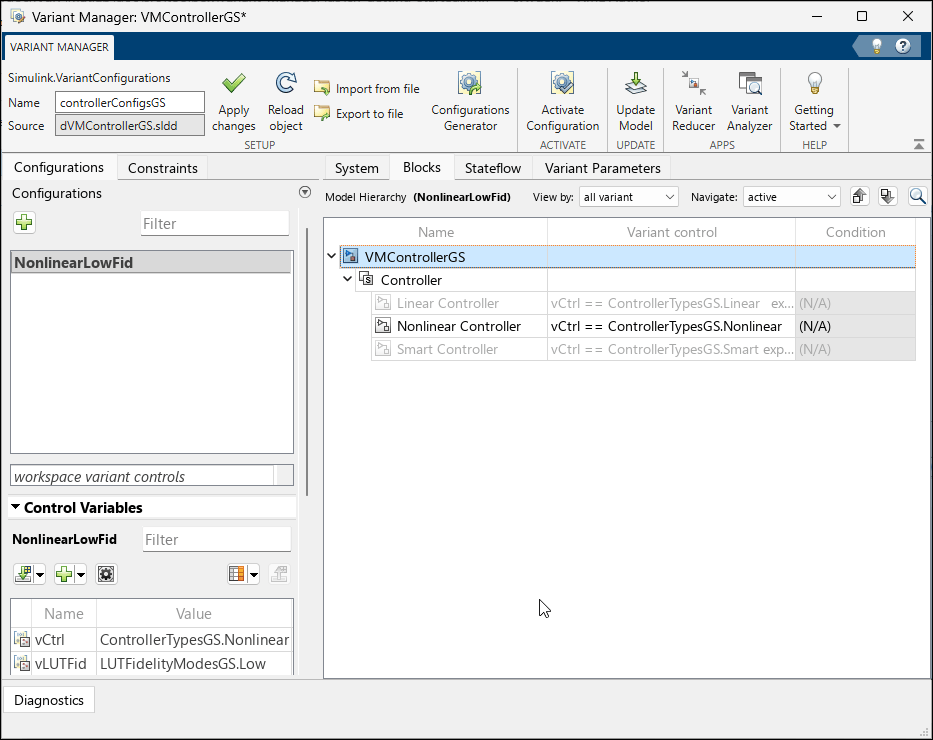
In the Variant Parameters tab, the low-fidelity choice of the variant parameters
pLUTBPsandpLUTDataare active. The default choice of parameterspInitCondandpKcare active because they do not have a specific value defined for the conditionvCtrl == ControllerTypesGS.Nonlinear.You can verify the control variable values in
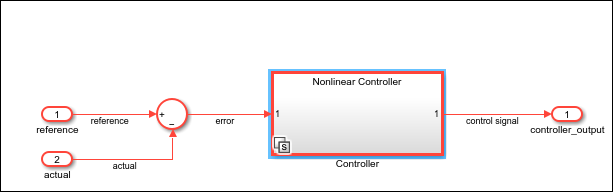
dVMControllerGS.sldd. When you activate the configuration, the software writes the values back to the data source automatically.Simulate the model and verify that the model simulates with the active configuration.
Import Control Variables Automatically
Importing variant control variables is a quick and reliable way to define configurations, especially when your model is already set up with the right variant controls. This operation imports all variant control variables used across a model hierarchy to the configuration.
Create a configuration for a nonlinear controller with high-fidelity parameter value settings.
Add a new configuration and name it
NonlinearHighFid.Click Import control variables across model hierarchy
 . Variant Manager imports the variant control
variables used by variant elements in the model from the data sources where they are
defined.
. Variant Manager imports the variant control
variables used by variant elements in the model from the data sources where they are
defined.Update the control variable values:
Set
vCtrltoControllerTypesGS.Nonlinear.Set
vLUTFidtoLUTFidelityModesGS.High.
Activate the configuration.

Copy an Existing Configuration
Create a configuration for a linear controller.
In the Configurations table, right-click the
NonLinearLowFidconfiguration or click the Open context menu button , and select
Copy. The configuration is copied with a new
name.
, and select
Copy. The configuration is copied with a new
name.Tip
You can select multiple configurations or constraints simultaneously for bulk operations such as copy or delete. Hold down the Shift key as you click each row that you want to include in the multi-selection.

Rename the new configuration to
Linear.Update the control variable values:
Set
vCtrltoControllerTypesGS.Linear.Set
vLUTFidtoLUTFidelityModesGS.Low.Activate the new configuration.
Save the configurations. See Save Variant Configurations.
Open Completed Model
You can also access a fully set-up version of the models used in this tutorial, which already includes all configurations. To open this version, use this command.
open_system("slexVariantManagerOverview");See Also
Simulink.VariantConfigurations | Simulink.VariantManager.activateModel

