Define Variant Configurations Without Associating Them to Model
R2026bIn Model-Based Design using Simulink®, a top-down modeling approach means you start by defining the overall system architecture and high-level requirements. After that, you incrementally develop and refine the underlying systems to meet those specifications.
Suppose you are at the stage in a top-down workflow where you already have the algorithmic definitions or data sets for your components, but you have not built the Simulink model yet. For instance, during the requirements phase of Model-Based Design, you might already know that the plant component in your system will eventually have different variants, such as a basic plant or a trial plant. Even though you have not started modeling this component in Simulink, you can still define its possible variant configurations.
Create a variant configurations object independently of a model. You can define the object in the base workspace or in the Design Data section of a data dictionary.
To create the object in the base workspace:
Open Model Explorer. In the Model Hierarchy pane, select the Base Workspace node. From the Add menu, select
Simulink VariantConfigurations.To create the object directly from the base workspace, enter this command in the MATLAB® Command Window.
vcdo = Simulink.VariantConfigurations;
For an example of the command line workflow, see Create Variant Configurations Object.
To create the object in a data dictionary:
In the Simulink Toolstrip, go to the Modeling tab and click Model Explorer.
Create a new data dictionary for your component.
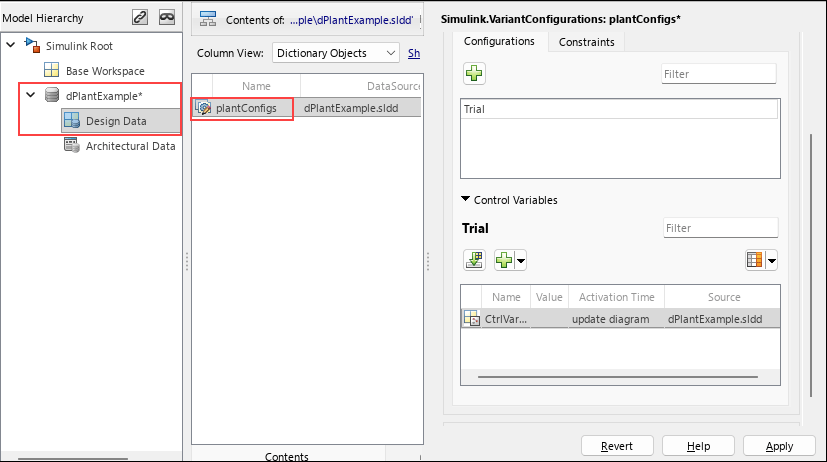
Select the Design Data section, and from the Add menu, select Simulink VariantConfigurations.
In the right pane that opens, add your variant configurations.
Tip
If you already have variant control variables or data objects in an external file, you can import them into the dictionary. When you are setting up variant control variables for your configuration, use the Import control variables from model data source option to bring those variables into your configuration.
Click Apply and save the data dictionary.
Later, when your model is ready, you can associate this configuration object with the model using Variant Manager. Open Variant Manager for the model, enter the name of the object in the Name box of the Simulink.VariantConfigurations object, and apply the changes. Variant Manager then loads the variant configuration automatically and fills in the configurations and constraints tables for you.
See Also
Simulink.VariantConfigurations

