Manually Add and Delete Global Variables from External C Code into Simulink
R2026bThis example shows how you can manually add and delete global variables from an external C code into Simulink®. These global variables define different functionalities of the C code. To add and delete the global variables from an external C Code, use the C Caller block. By manual addition and deletion, you can ensure that the block contains only the global variables required on the block interface.
In this example, a C Caller block integrates an external C code that contains a C function representing a bang-bang controller. This controller is used in a closed-loop feedback system that controls boiler temperature.
Open the model named templateMdl. This model has two components:
Boiler Plantsubsystem that represents a mathematical model of a boiler. This subsystem receives a Boolean signal from the Controller that turns the boiler on and off.C Caller block that calls the C function representing a bang-bang controller. The controller turns the boiler on or off by sending a signal of value
1or0, respectively, to theBoiler Plantsubsystem.
Initially, the C Caller block is commented out. The workflow helps you to configure the block.
open_system("templateMdl.slx"); 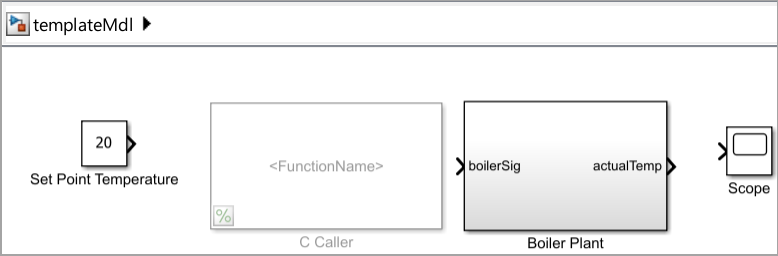
Configure C Caller Block to Add and Delete Global Variables
To add and delete global variables into the C Caller block from an external C code:
Uncomment the C Caller block. Select the block and pause of the ellipsis (...) that appears. In the action bar that expands, click Uncomment displayed by
 .
.Change the block name to
Controller. Click theCCallerannotation at the bottom of the block and enter the new name.Ensure automatic addition of global variables in the C Caller block Port specification table is disabled. In the C Caller block dialog box, click the
 icon. This opens the Configuration Parameters dialog box. In this dialog box, search for Automatically infer global variables as function interfaces parameter and ensure that the checkbox is not selected.
Specify the header and source files. In the Configuration Parameters dialog box, under the Simulation Target pane, select the Code information tab. For Include header, specify
Controller.h. For Source files, specifyController.c. Click Apply and OK to apply the changes to the model.Configure the C Caller block to call the C function that represents a bang-bang controller. In the C Caller block dialog box:
Click the
 button. A message in the Diagnostic Viewer indicates that custom code is successfully parsed.
Set Function name to
BangBangController. The function uses these global variables —actualTemp,boilerSig,currentState,previousState,setPointTemp, andtemporalCounter.
Add and delete global variables from the
BangBangControllerfunction. Expand the Port specifications table:To add one variable at a time, click the
 button. In this example, add
 actualTemp,boilerSig,currentState,previousState, andsetPointTemp. Alternatively, to add the global variables used by the function all at once, use the button.
To delete the variables that you do not need on the block interface, click the
 button. In this model, select the rows corresponding to the
 currentStateandpreviousStatevariables, and delete those.To expose the global variables on the C Caller block interface, change the scope values of the variables you added to the table. In the Scope column, double-click each field and from the drop-down options, select the scope value.
For
actualTemp, selectInput.For
boilerSig, selectOutput.For
setPointTemp, selectInput.
After you complete the previous steps, your Port specification table looks like this.
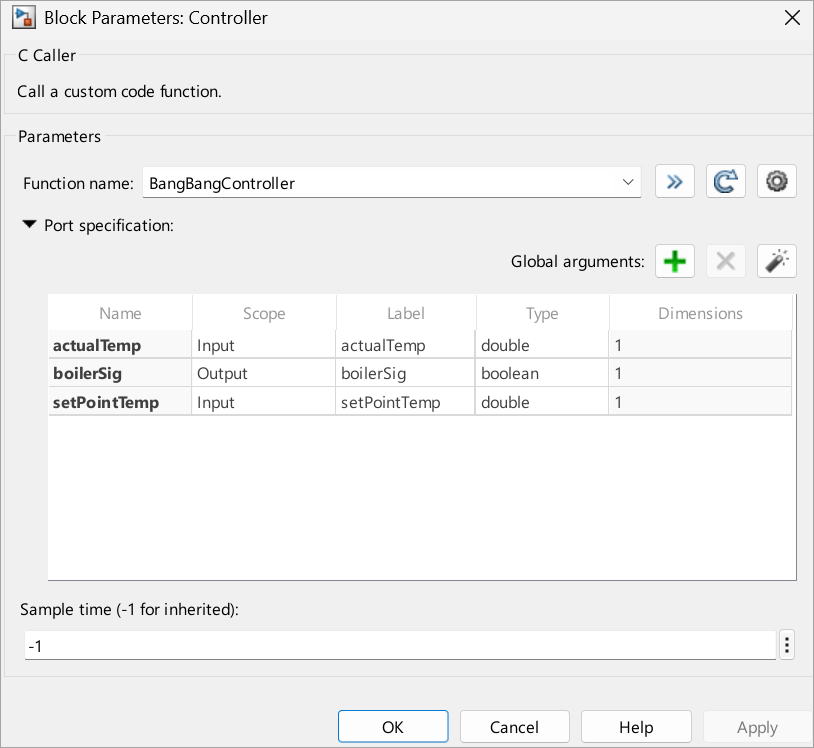
Now click Apply and OK to apply the changes to the block. Verify that the variables you specify in the Port specification table appear on the C Caller block interface.

Configure Model For Simulation
To complete the modeling, connect these ports and blocks:
To set the temperature for the controller loop, connect the output port of the
Set Point Temperatureblock to thesetPointTempport of theControllerblock.To transmit the controller signal to the boiler, connect the output port of the
Controllerblock to the input port of theBoilerPlantblock.For temperature feedback, connect the output port of the
Boiler Plantblock to the actualTemp port of the C Caller block. Branch this signal and connect this to the Scope block.
To generate a Simulink representation of the
enumtype used in the header file, use theSimulink.importExternalCTypesfunction. In the Simulink toolstrip, on the Modeling tab, in the Setup section, click the down arrow next to Model Settings and select Model Properties. Then, in the Callbacks tab, select PreLoadFcn and enterSimulink.importExternalCTypes("Controller.h").
After saving your changes, close and reopen the model. This process prompts Simulink to parse the header file and create a Simulink representation of the enum type that is stored in a struct in the MATLAB® base workspace.
Optionally, you can compare the model you created with the model named CCallerGlobalIOExample. This ensures that your model configuration is correct.
open_system("CCallerGlobalIOExample.slx")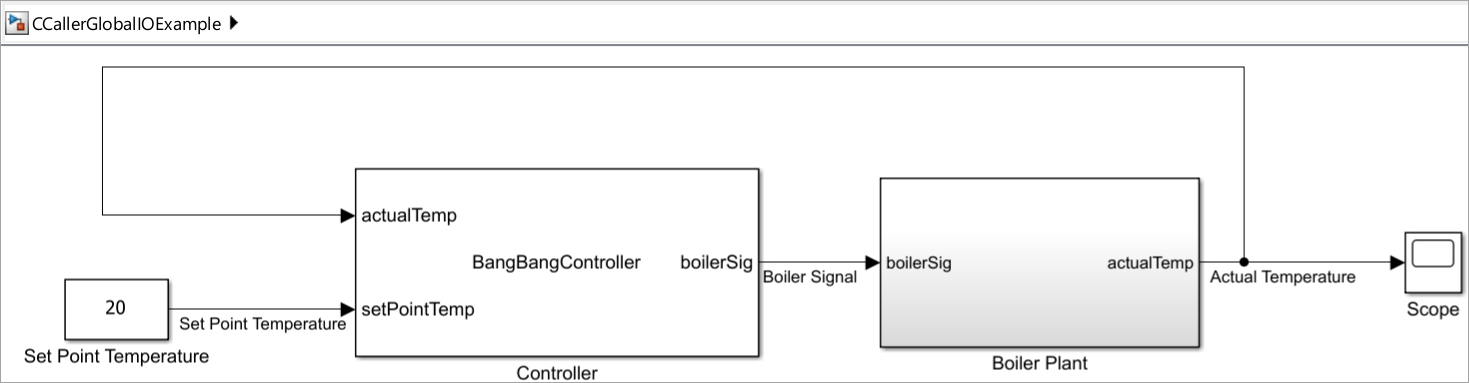
Simulate Model
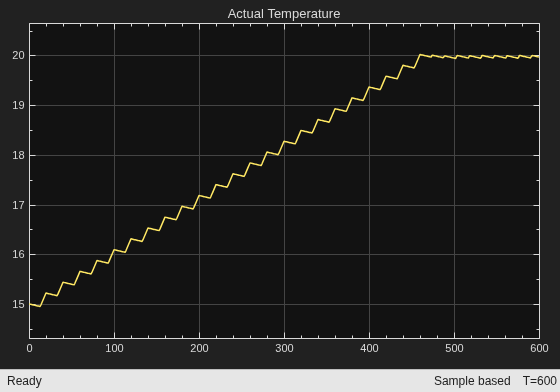
Simulate the model you created and observe the Scope block display. To ensure correct results, compare your Scope block display with the Scope block display mentioned here. Observe that, the initial boiler temperature is set at 15 deg C. The controller brings the boiler to reach its set point temperature of 20 deg C at approximately t = 450s. To know more CCallerGlobalIOExample model, see Observe C Caller Block Exported Global Variables Without Model Modification.
out = sim("CCallerGlobalIOExample.slx");