C Caller
R2026bIntegrate C code in Simulink
C Caller block
To add a block to a model, double-click the canvas and start typing the block name. Then, select the block from the list.
Libraries:
Simulink /
User-Defined Functions
Description
The C Caller block integrates your external C code into Simulink®. This block imports and lists the functions in your external C code, and enables you to select your resolved C functions to integrate in your Simulink models.
Fetch a C Caller block to the Simulink canvas, using Library Browser > Simulink > User Defined Functions.
Then, click the  icon on the block dialog box. This opens the
Configuration Parameters dialog box. Inside the
Configuration Parameters dialog box, go to the
Simulation Target pane and use the parameters in the
Code information tab to define source code and any supporting
files. To browse the function definitions in your source code, use the
icon on the block dialog box. This opens the
Configuration Parameters dialog box. Inside the
Configuration Parameters dialog box, go to the
Simulation Target pane and use the parameters in the
Code information tab to define source code and any supporting
files. To browse the function definitions in your source code, use the  icon. For more information about defining source code and
supporting files, see Specify and Configure Custom C/C++ Code.
icon. For more information about defining source code and
supporting files, see Specify and Configure Custom C/C++ Code.
To change your source code and the supporting files, use the same parameters in the
Code information tab of the Simulation
Target pane in the Configuration Parameters dialog
box. After changing your source code and the supporting files, refresh the list of functions
by clicking the  button on the block dialog box.
Examples
Manually Add and Delete Global Variables from External C Code into Simulink
How to manually add and delete global variables from external C code into Simulink.
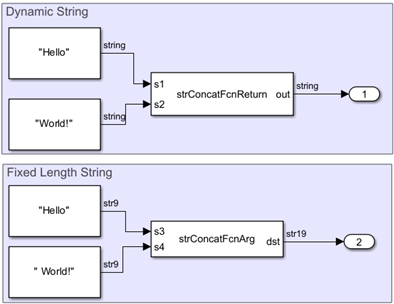
Use Simulink Strings for C Caller Block
How to use Simulink Strings for C Caller block.
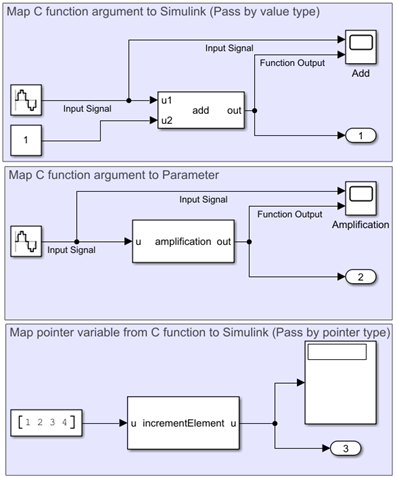
Call Custom C Functions in Simulink Using C Caller Block
Call and integrate custom C function that performs arithmetic operations into Simulink.
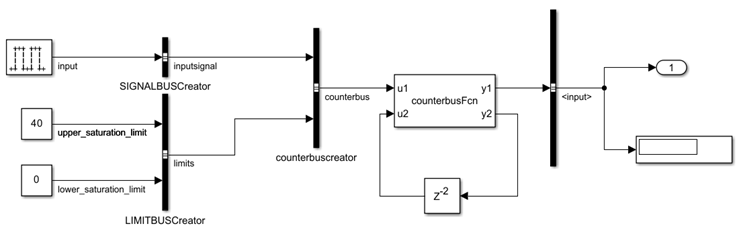
Call C Function Containing C Structure into Simulink
Call and integrate custom C function that performs bus operations into Simulink.
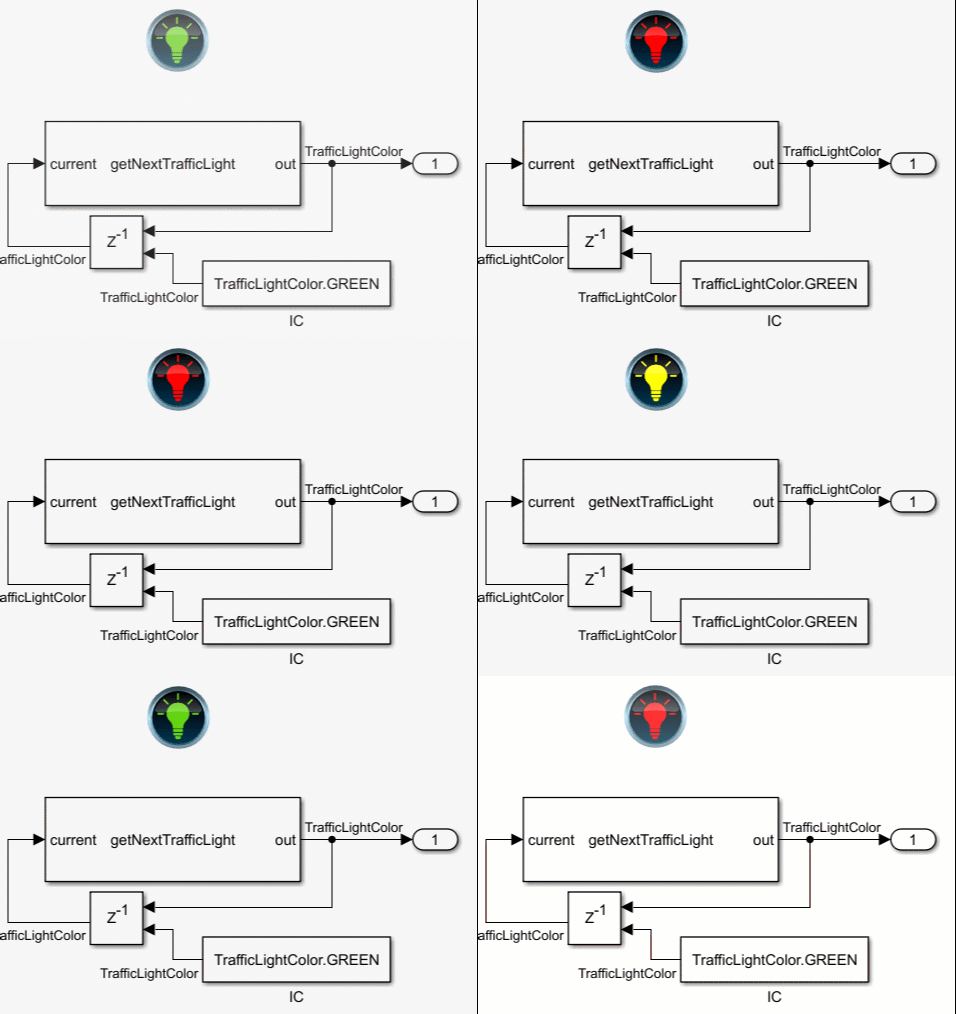
Call C Function Containing Enumerated Data Type into Simulink
Map enumerated data type from custom C code into Simulink using a C Caller block.
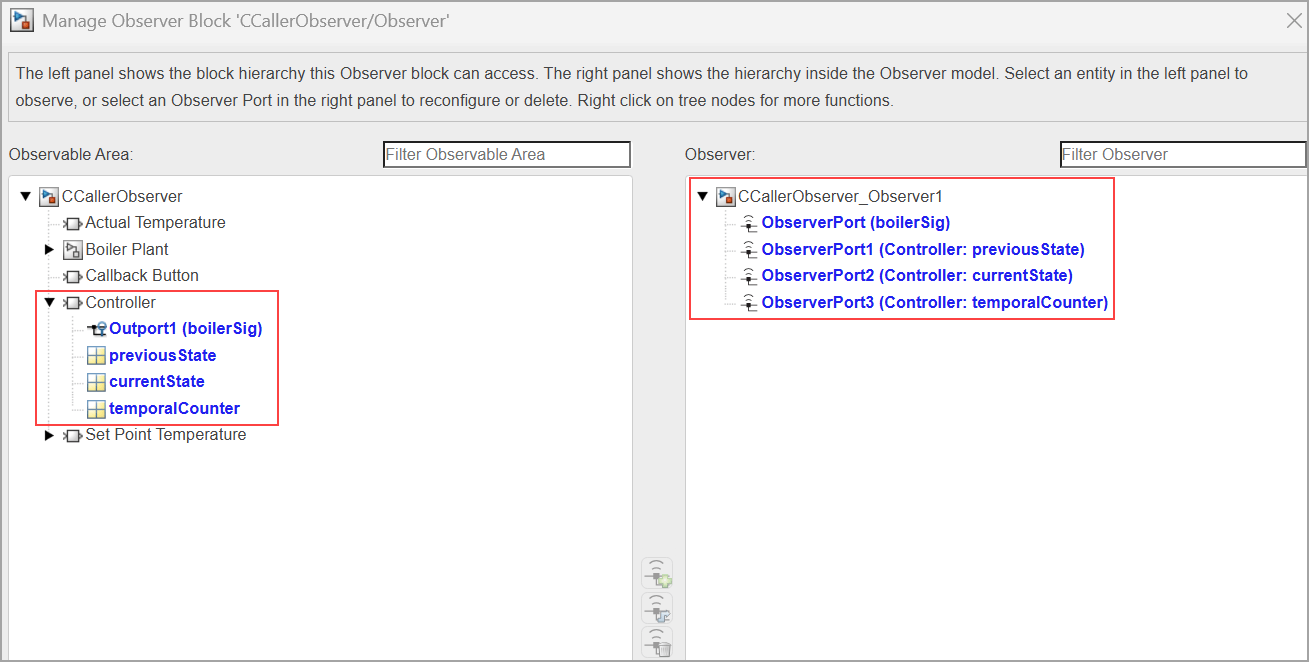
Observe C Caller Block Exported Global Variables Without Model Modification
How to observe exported global variables from C Caller block without displaying those on model canvas.
Limitations
Initialization/Termination of Custom Code Settings — If you need to allocate and deallocate memory for your custom code, insert allocate and deallocate in the Initialize function and Terminate function fields of custom code settings, or use a C Function block.
Complex Data Support — The block does not support complex data types in Simulink.
Variable Arguments — Variable arguments in C are not supported, for example,
int sprintf(char *str, const char *format, ...).C++ Syntax — The block does not support native C++ syntax directly. You need to write a C function wrapper to interface with C++ code.
Simulink Test™ Observer Support — Starting in R2026a, you can observe exported global variables in a C Caller block using Observer Port and Observer Reference blocks. You cannot use these blocks to observe static global variables or global variables of n-D matrices.
Ports
Input
Output
Parameters
Name of the function parsed for the C Caller block, specified as a character vector or string scalar. For a list of available functions, see Available Functions.
Tunable: Yes
Programmatic Use
Block Parameter:
FunctionName |
| Type: character vector or string scalar |
myFunctionName = get_param(gcb,"FunctionName")myFunctionName =
'mean_filter'Port properties, specified as a table. The table indicates the attributes of each
input and output element of the block. If the scope is an
input, you can modify this variable to a
parameter or a constant. These
properties include
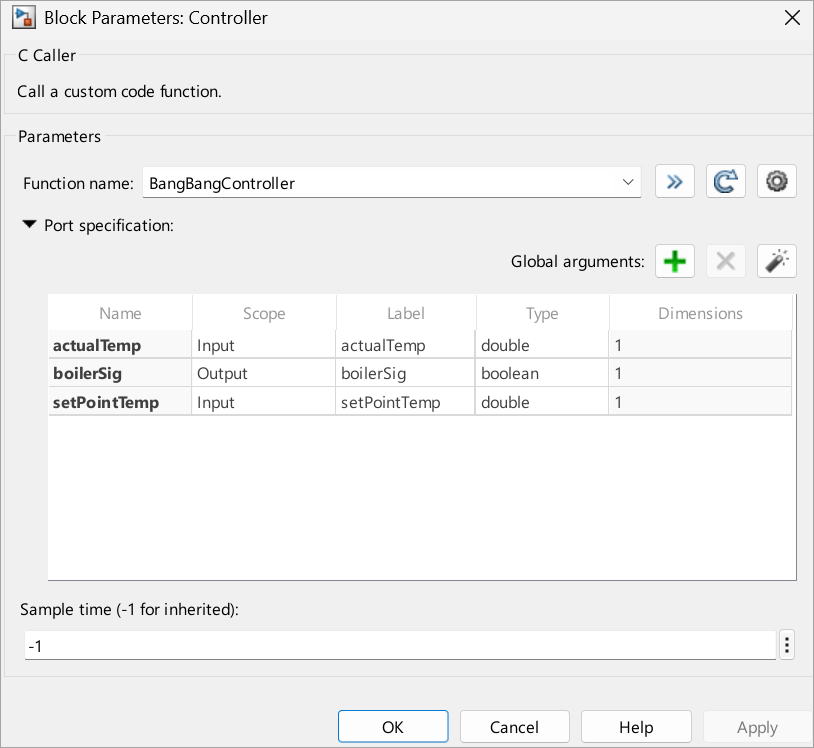
Global arguments — Starting in R2026a, you can use buttons in the C Caller block dialog box to add, delete or automatically infer global variables from external custom code. To use these buttons, in the Configuration Parameters dialog box, select Simulation Target. On the Import settings tab, ensure that the Automatically infer global variables as function interfaces checkbox is not selected.
Add a global variable from external C code to the block using the
 button. Using this button, you can add one
variable at a time. To add global variables programmatically, use the
button. Using this button, you can add one
variable at a time. To add global variables programmatically, use the addGlobalArgmethod, which is available for versions R2024b and later.Delete a global variable from the block using the
 button. To delete a variable, select its row from
the Port specification table, and click the button. To delete
more than one variable at a time, select the rows corresponding to those
variables, and use the button. To delete the global variables programmatically,
use the
button. To delete a variable, select its row from
the Port specification table, and click the button. To delete
more than one variable at a time, select the rows corresponding to those
variables, and use the button. To delete the global variables programmatically,
use the deleteGlobalArgmethod, which is available for versions R2024b and later.To add the global variables used by the selected C function all at once, use the
 button.
Name — Demonstrates the variable name inferred from your source code.
A bold argument name indicates that the port or parameter is a global argument.
Scope — Indicates the role of the variables from your source code. If the variable is an input argument in the C Caller block source code, you can change the scope type to a constant or a parameter. If the variable is an output argument in the source code, you cannot change the scope type.
Label — Labels the input or output variable for the Simulink model. You can change the labels using this table. If the scope is a parameter, enter the parameter name in this field. If the scope is a constant, enter the constant value.
Type — Indicates the data type coming from the ports.
Size — Indicates the size of the input and output data.
Name, scope, type, and size are inferred from your source code.
Programmatic Use
Block Parameter:
FunctionPortSpecification |
Type:
FunctionPortSpecification object |
List of all available functions that can be mapped to a C Caller block, specified as a cell array.
The C Caller block in your model imports all functions in your
external source code, and shows the function names next to the Function name on the block
dialog box. To select and use a function in your block, confirm that the function name
appears in the Available Functions table. If you are missing
one of the functions, reload the source code by clicking the refresh button on the block dialog box. To change the names of
functions, modify your source code and click the Refresh button
to reload.
Programmatic Use
Block Parameter:
AvailableFunctions |
| Type: cell array |
allAvailableFunctions = get_param(gcb, "AvailableFunctions")allAvailableFunctions =
1×1 cell array
{'add'}
Sample period, specified in seconds. See Types of Sample Time and Specify Sample Time.
Programmatic Use
Block Parameter:
SampleTime |
| Type: string scalar or character vector |
Default: "-1" |
Block Characteristics
More About
Tips
To test models that include C Caller blocks, see Test Integrated C Code (Simulink Test).
If a model has custom code, after the model is updated or run, the
slprjfolder may be locked due to the loaded custom code simulation executable file. You cannot delete the folder when it is locked. To unload the executable file and unlock theslprjfolder, use theclear mexcommand. Seeclear.
Extended Capabilities
Version History
Introduced in R2018bSee Also
Blocks
- C Function | MATLAB Function | MATLAB System | S-Function | S-Function Builder | Observer Reference (Simulink Test) | Observer Port (Simulink Test)

