fprintf
R2026aVisualizza il testo della variabile centrato sull’icona del sottosistema mascherato
Descrizione
fprintf( formatta formatspec,var)var come specificato in formatspec.
Esempi
Visualizzare il testo Hello sull’icona.
fprintf('Hello');Convertire il carattere a in un numero intero 97 e visualizzarlo sull’icona di blocco.
myvar = 'a'
fprintf('hello = %d',myvar);
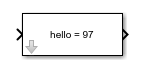
Argomenti di input
Il testo che appare sul blocco è specificato come stringa o vettore di caratteri.
Tipi di dati: char | string
Il carattere di conversione per la variabile è specificato.
Operatore di formattazione
Un operatore di formattazione inizia con un segno di percentuale, %, e termina con un carattere di conversione. È obbligatorio per specificare il carattere di conversione. A scelta, è possibile specificare identificatore, flag, larghezza campo, precisione e operatori di sottotipo tra % e il carattere di conversione. Gli spazi tra gli operatori non sono validi e sono visualizzati qui solo per questioni di leggibilità.

Carattere di conversione
Questa tabella mostra i caratteri di conversione per formattare i dati numerici e di tipo carattere come testo.
| Tipo di valore | Conversione | Dettagli |
|---|---|---|
Numero intero, con firma |
| Base 10 |
Numero intero, senza firma |
| Base 10 |
| Base 8 (ottale) | |
| Base 16 (esadecimale), lettere minuscole | |
| Lo stesso per | |
Numero in virgola mobile |
| Notazione in virgola fissa (utilizzare un operatore di precisione per specificare il numero di cifre dopo il separatore decimale.) |
| Notazione esponenziale, come ad esempio | |
| Lo stesso per | |
| Il più compatto di | |
| Il più compatto di | |
Caratteri o stringhe |
| Carattere singolo |
| Vettore di caratteri o array di stringhe. Il tipo di testo di output è lo stesso del tipo di |
Tipi di dati: char | string
La variabile è formattata secondo il carattere di formattazione specificato in formatspec.
Nota
Sebbene questa funzione fprintf abbia un nome identico alla sua funzione corrispondente MATLAB®, fornisce solo la funzionalità descritta in questa pagina.
Cronologia versioni
Introduzione prima di R2006a
Vedi anche
disp | port_label | text | Mask Display and Initialization Commands

