Customize Simulink Context Menu Using Extension Points
R2026bSimulink® context menus are the menus that open when you right-click something in Simulink. You can customize a subset of these menus: the context menu of the Simulink model canvas and the context menus of model elements in the model canvas such as blocks, signal lines, and annotations.
This page provides an overview of the customization workflow. For examples, see RichMenu Extension. To customize Stateflow® context menus, see Add Menu Items to Model Editor Menus.
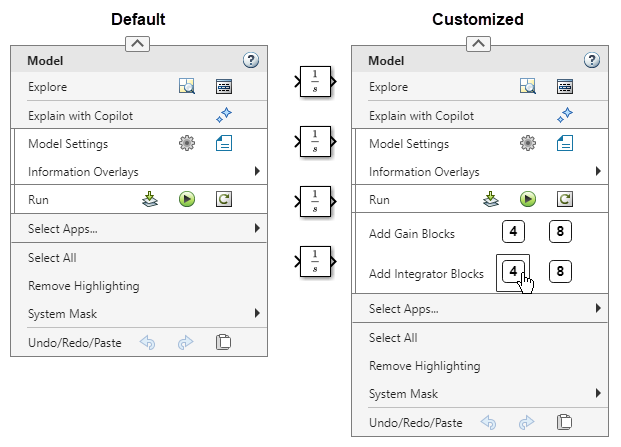
Customize Context Menu Using Extension Point
The context menus of the Simulink model canvas and model elements in the canvas are made up of widgets such as menu items, push buttons, text fields and check boxes. Widgets that contain other widgets are called containers. You can add custom widgets to context-menu containers at predefined locations called extension points. To learn about your options, see Simulink Context Menu Architecture.
Convert Customizations Created Before R2026a to Extension Point Format
To add a custom widget, take these steps.
Create a folder named
resources. In the folder, create a JSON-formatted file namedextensions.json. You can create more than oneextensions.jsonfile, as long as they are in differentresourcesfolders.In the file, add a set of JSON declarations that define your customizations. For information about how to write the declarations, see RichMenu Extension.
Code formatting mistakes such as missing brackets or incorrect line indentation can prevent your customizations from rendering as expected. To avoid formatting mistakes, consider writing the declarations in an integrated development environment (IDE) equipped to help you format code, for example, Visual Studio Code.
Enable your customizations. Add the parent folder of the
resourcesfolder to the MATLAB® path using theaddpathfunction. Alternatively, right-click the folder in the Files panel and select Add to Path > Selected Folder(s) and Subfolders. Then, reload the Simulink studio configuration using theslReloadStudioConfigfunction.
To convert context menu customizations that you created prior to R2026a to the
extension points format, use the slConvertCustomContextMenus function. To troubleshoot the
conversion, see Resolve Failure to Convert Context Menu Customization to Extension Point Format.
Remove Customizations
To remove customizations from the context menu, do one of these:
Remove the parent folder of the resources folder from the MATLAB path and then refresh the customizations.
Rename the
extensions.jsonfile to anything other thanextensions.jsonand then refresh the customizations.Delete the
extensions.jsonfile and then refresh the customizations.
Disable Actions of Default Context Menu Widgets
To disable the actions of default Simulink context menu widgets, use the Simulink
Context Menu Filter Object object. Hiding default Simulink context menu widgets is not supported, but you can specify when custom
widgets are visible by specifying a value for the when property
in the JSON declarations that define the customization. See RichMenu Extension for
details.

