Add Dynamic Behavior to Masked Icons
Use the Graphical Icon Editor, to add dynamic behavior to masked block icons:
Render Multiple Variations of Same Block Icon Using Parts
Designing block icons with multiple elements can be complex. When you design block icons using parts, you can:
Break the icon into smaller sections, making it easier to manage and edit.
Reuse common elements across multiple parts to render multiple variations.
Show or hide specific sections of the icon based on block parameters.
Organize and layer elements to control which elements appear above or below others. This capability makes the stacking order clearer and reduces complexity when working with multiple elements.
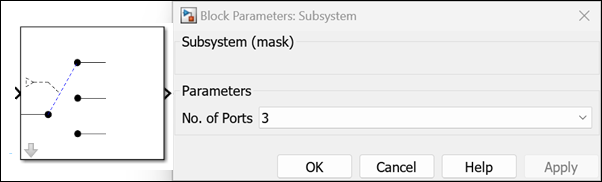
Consider a masked Subsystem block with the popup parameter set to portSelection with the prompt No.of Ports. The block icon changes based on the value you select for No. of Ports in the Block Parameters dialog box. If you specify the No. of Ports as 3, an image of a three-switch port appears on the block icon. If you specify No. of Ports as 4, an image of a four-switch port appears on the block icon.

To create block icon variations using parts:
1. Create a mask on the Subsystem block.
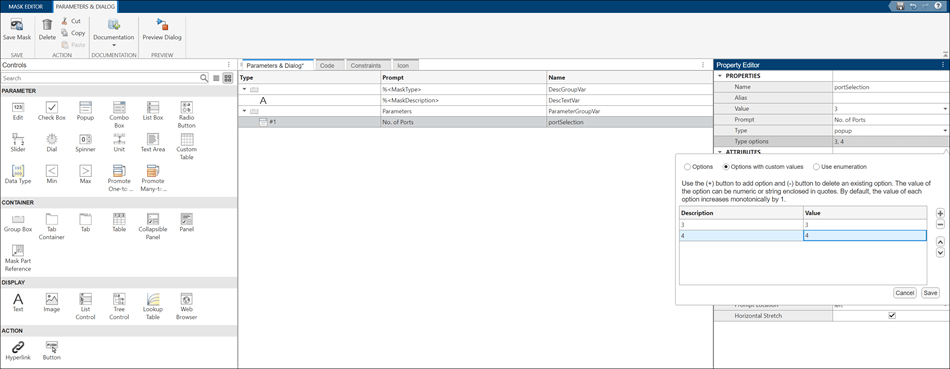
2. In the Mask Editor, in the Controls pane, click Popup to create a popup parameter. In the Property Editor pane, double-click the cell to the right of Type options and select Options with custom values. Add two rows, specify both the Description and Value for the first row as 3, and specify both the Description and Value for the second row as 4. Click Save.
3. Click the Icon tab. Draw the icon image shown.
4. Pin this part to make it the base part of the block mask icon. In the Element Browser, click toggle base part to pin this part to make it the base part of the block mask icon. The elements in the base part appear in all other parts, so you do not need to replicate icon elements.
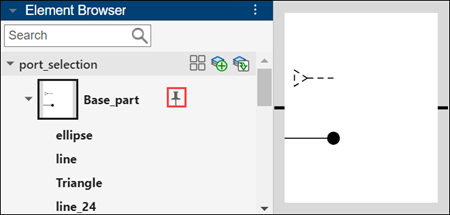
Note: You cannot modify the elements of the base part and their positions in other parts.
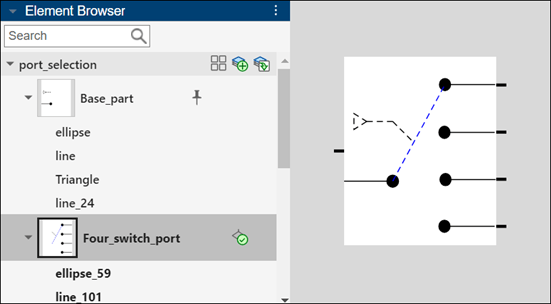
5. To create a new icon part, click the plus sign in the Element Browser. Use the graphical drawing tools to draw an icon with four-switch port elements. Double-click the part name to rename the part as Four_switch_port.
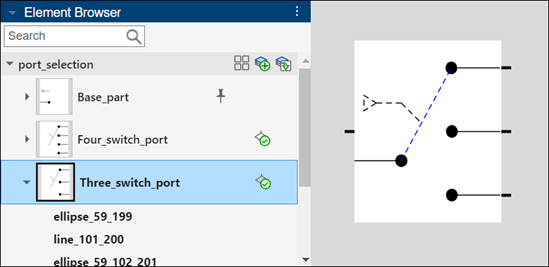
6. Click the duplicate icon part to duplicate the Four_switch_port part. Modify the duplicated part to show a three-switch port. Rename the part as Three_switch_port.
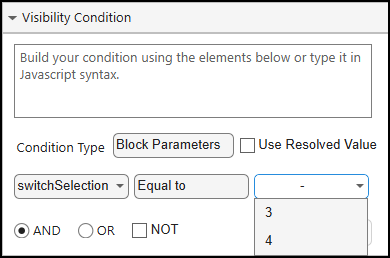
7. To control when a particular part appears as the block icon, enter conditions based on the corresponding block parameters by clicking Set visibility condition in the Element Browser. In the Element Properties pane, click Visibility, and then click Condition Builder. From the Condition Type list, select Block Parameters. Set the parameter to portSelection, the condition to Equal to, and the value to 3 for a three-switch port. Similarly, set the condition for a four-switch port, where the portSelection is equal to 4. Click Apply.
8. Save the mask. In the mask dialog box, change the value of the No. of Ports parameter. Observe how the block icon changes based on the value you select for the parameter.
Use Parts to Design Complex Block Icon and Preview Variations
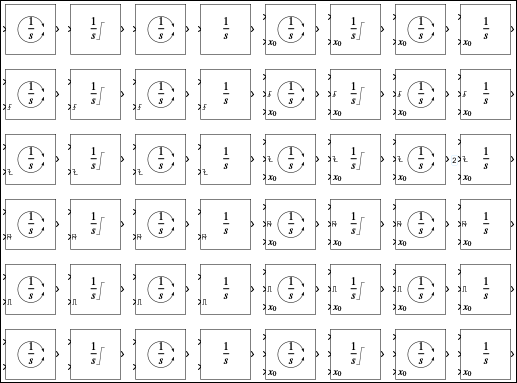
You can design complex block icons using icon parts and combine the parts based on parameter conditions. For example, refer to the Integrator_block block in the model slexMaskIconEditor. Each element in the icon of the Integrator_block block is designed as an individual part, and these parts are combined based on the visibility condition specified for each part. These conditions help to avoid a cluttered canvas.

This image shows some of the Integrator_block icon variations based on visibility conditions. For example, the parts Vertical_1ByS and Either_symbol are combined to form an icon variation with the conditions blockHeight>=25, WrapState="ON", and ExternalReset="either".

Preview the variations of the icon on Simulink® canvas. The preview options Parameter Variations and Width Height Variations are available at the bottom of the Simulink canvas.
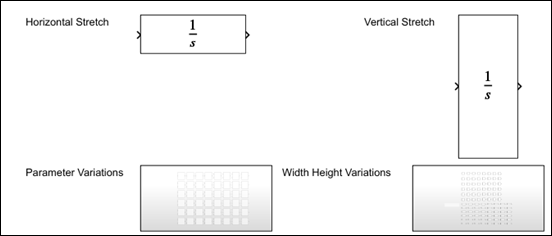
To view all the permutations of the integer block based on parameters and conditional visibility, click Parameter Variations and then Width Height Variations.
Show or Hide Elements in the Icon Based on Block Parameters
You can use the Graphical Icon Editor to define conditions to control the visibility of certain icon parts. The icon can adapt to dynamic behavior based on the block parameters.
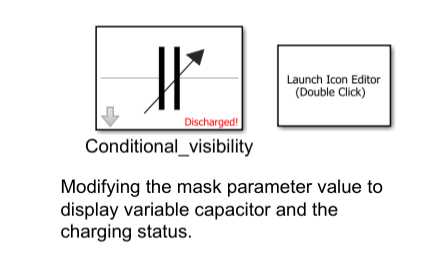
Refer to the block Conditional_visibility in the model slexMaskIconEditor. The arrow in the icon is displayed when the mask parameter Show Variable Capacitor is selected. Additionally, the block indicates its charging status as Charged or Discharged, depending on the option selected for the mask parameter Charging Status.
Control Visibility of Icon Elements Using Block Parameters
To create a visibility condition for the capacitor icon:
1. Create a mask on the Subsystem block.
2. In the Parameters & Dialog tab of the Mask Editor, create a check box parameter named VariableCapacitor and a popup parameter named ChargingStatus. Use these mask parameters to create the visibility condition.

3. In the Icon tab, draw the capacitor icon using the available drawing tools.
4. To specify the visibility condition, select the arrow element of the icon. In the Element Properties pane, click Visibility, and then click Condition Builder. From the Condition Type list, select Block Parameters. Select the mask parameter VariableCapacitor, set the condition as Equal to, and then select on. Click Apply to create a JavaScript expression using the specified condition.
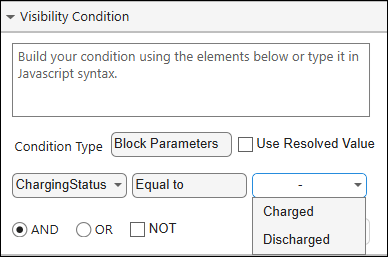
5. To display the status of the capacitor, select the text element. In the Element Properties pane, click Visibility, and then click Condition Builder. In Set Visibility Condition, specify the JavaScript expression value@ChargingStatus === 0.
6. To save the icon with the model, in the toolstrip, click Save With Model.
7. Preview the icon in Simulink canvas. Double-click the block Conditional_visibility to open the mask dialog box. Select Show Variable Capacitor and then click OK. Observe that the arrow element is visible in the icon.
Position Elements Relatively Using Relative Positioning
You can anchor block icon elements at a specific position or relative to other icon elements on the canvas using Relative Positioning. Relative Positioning reduces manual adjustments when you resize or modify icons and help maintain consistent alignment and spacing.
Refer to the block Layout_Constraints in the model slexMaskIconEditor.
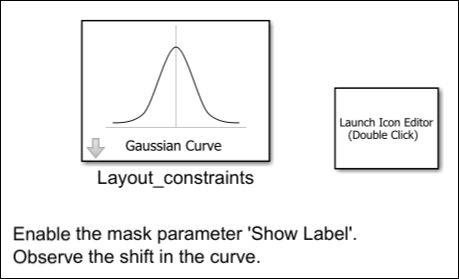
To position the elements on the block Layout_Constraints:
1. Create a mask on the Subsystem block.
2. In the Parameters & Dialog tab, create a check box parameter named showLabel.
3. Click the Icon tab and design the icon.
You can group elements to manage multiple elements as a single unit, so you can move, resize, or modify them together. For example, you can group elements related to the Gaussian curve.
4. In the Element Browser select the Gaussian element group. In the Relative Positioning section, click More, and then set the appropriate condition for Vertical Center.
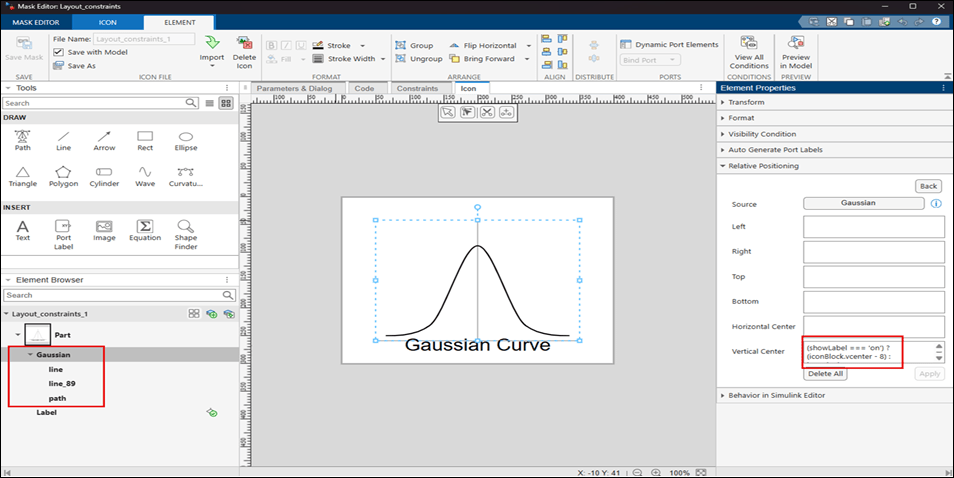
5. Save the icon and save the mask. Double-click the block Layout_constraints. In the mask dialog box, select Show Label, and observe that the text Gaussian Curve appears as a label on the block. The curve automatically adjusts its position to prevent any overlap with the label.
Display Text Dynamically on Block Icon Based on Parameter Values
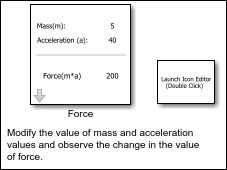
In a Simulink® block diagram, each block represents a component in the system. Instead of manually labeling the value on each block, you can use the Graphical Icon Editor to display the value of the parameter on the block itself to improve readability and reduce errors during model validation and debugging. When you bind a text element to a parameter, any change in the value of the parameter is reflected immediately on the block. You can also modify the value of a parameter on the block directly instead of modifying the parameter in the mask dialog box.
Refer to the block Force in the example model slexMaskIconEditor.
Parameterize Text
To parameterize text on the Force block icon:
1. Create a mask on the Subsystem block.
2. In the Parameters & Dialog tab, create three mask parameters: mass, acceleration, and force.
3. Write mask initialization and parameter callback code to calculate the force using the values of mass and acceleration.
4. Click the Icon tab, and design the icon using the text elements.
5. Select the text element next to the text Mass(m) that needs to be parameterized.
6. In the Text Properties pane, expand Text Conditions. Specify Parameter as mass.

Note: If you want to edit the value of the block parameter in the block icon itself. Select Allow editing on block.
8. Follow the preceeding steps to parameterize acceleration and 8. Follow the preceding steps to parameterize acceleration and 7. Follow the preceding steps to parameterize acceleration and force.
8. Save the mask.
Double-click the block Force, modify the values of mass and acceleration in the mask dialog box and observe the results.

Display Elements That Fit Size of Icon
You can create a block icon that dynamically changes size when you resize the block. When you resize the block, the element that fits within the new size is displayed as the block icon. The image is neither shrunk nor cropped, instead a clear and readable version of the icon always appears, ensuring visibility and readability regardless of the size of the block.
Refer to the block First_fit in the model slexMaskIconEditor. Resize the block and observe the text displayed on the block icon. The biggest size contains the matrix values and the smallest size contains the index K of the matrix.

To design icon similar to the block Layout_Constraints follow these steps:
1. Create a mask on the Subsystem block.
2. Click the Icon tab, in the icon canvas, insert the equation tool and specify the LaTeX equation \pmatrix{0 & 1 & 2 & 3 \cr 4 & 5 & 6 & 7 \cr 8 & 9 & 0 & 1} and \pmatrix{3 \times 4} to display the values and dimension of the matrix respectively. Create a text element K to display the index of the matrix.
3. Select all the three elements, right-click and select Convert to First Fit.
This groups the selected elements and only the elements that fit the icon size are displayed.

4. Save the icon and save the mask.
Resize the block and observe the text displayed on the block icon.
Auto Generate Port Labels on a Block Icon
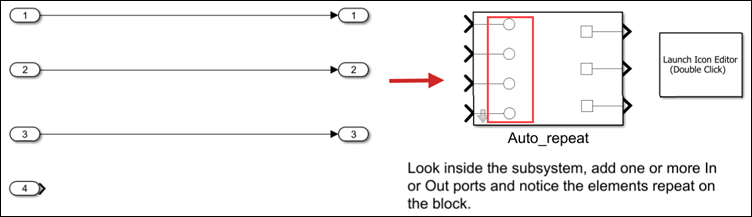
You can automatically repeat elements across multiple ports in a masked block icon without having to manually repeat the element at each port, which avoids clutter on the canvas. In the example model slexMaskGraphicalIconEditor.slx, refer to the block Auto_repeat, where the circle element repeats on each port on the left side of the block, and the rectangle element repeats on each port of the right side of the block.

To repeat the icon element across multiple ports:
1. Create a mask on the block.
2. Click the Icon tab.
3. Create a rectangle element to the right of the canvas.
4. Select the rectangle element. To repeat the element on the right pane, in the Element Properties pane, under Dynamic Port Elements, select Right Ports.

Repeat the circle element on the left ports. In the Element Properties pane, under Dynamic Port Elements, select Left Ports.
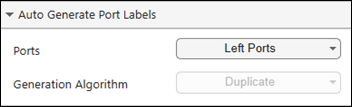
Look inside the Auto_Repeat Subsystem block. Add one or more In or Out ports and observe the changes.
You can automatically increment a text element that is bound to a port. For example, if you bind a text element labeled a to a left port and want the text to increment automatically across other left ports, set Generation Algorithm to Increment. The labels for the other left ports will appear as a1, a2, and so on.
Create Block Icons for Simscape Blocks
You can use the Graphical Icon Editor to create block icons for Simscape® blocks.
1. Open the model slexMaskGraphicalIconEditor_simscape.
open_system("slexMaskGraphicalIconEditor_simscape");
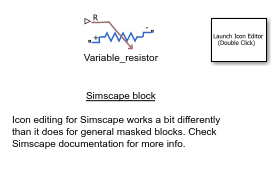
2. To launch the Graphical Icon Editor double-click Launch Icon Editor block or use this command in the MATLAB Command Window:
Simulink.IconEditor.open(gcb);
3. For more information on using the Graphical Icon Editor to view and edit block icons for Simscape blocks, see Using the Graphical Icon Editor in Customizing the Block Name and Appearance (Simscape).

