Introduction to System Mask
R2026bA system mask helps you to design a custom interface for a subsystem block diagram or model, enabling the encapsulation of a model's underlying complexity. This results in a user-friendly interface for interaction. Since each model can consist of multiple blocks, each with its own parameters and dialog boxes, a system mask facilitates the creation of a unified mask with the necessary parameters for the model.
The advantages of using a system mask are:
Enable the parameterization of Simulink® blocks by exposing key parameters through the mask interface.
Enhance the reusability of Simulink blocks by encapsulating custom functionality and parameters within a system mask. You can create blocks with predefined behaviors that can be easily reused in different models or projects. This reusability not only saves time but also promotes consistency and standardization across different simulations.
There are two variations to create a system mask. You can create system mask from a subsystem file and reference in another subsystem block diagram or you can create a model mask and reference it in another model.
Create and Reference System Mask in a Subsystem File
You can mask a subsystem file using a system mask and reference it in another subsystem file.
To create a system mask:
Create a subsystem file and create the block diagram
In the Simulink toolstrip, on the Subsystem tab, click Create System Mask. Alternatively, right-click anywhere on the canvas and select System Mask > Create System Mask. The Mask Editor dialog box opens.
Add the parameters and save the mask.
For details, refer Add a System Mask to a Subsystem File.
Create and Reference Model Mask
Consider a model that represents the DC motor equation. Plant in this
model is a Model block that references a masked model, simplifying the user
interface.
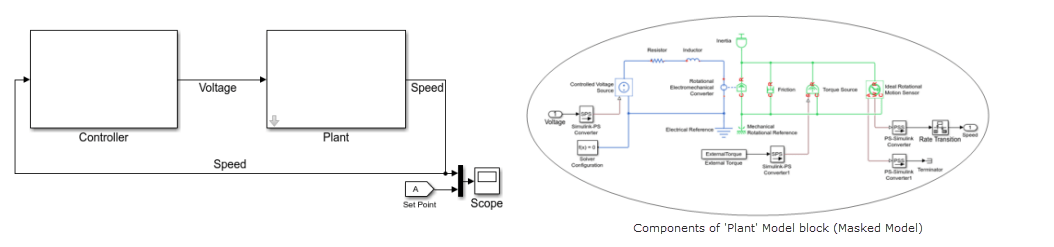
The Plant block contains the same mask as that of the masked model
and the mask is uneditable. The mask can only be edited from the Mask Editor dialog box of
the masked model.
To create a model mask:
Define mask arguments.
Create model mask.
View system mask parameters.
Insert a Model Reference block and reference the masked model.
For details on creating a model mask, refer Create and Reference a Masked Model.
When you reference a masked model from a Model block, a mask is generated automatically on the Model block. The generated mask on the Model block is a copy of the model mask that it is referencing. You can reference a masked model from multiple Model block instances.
Limitations
System mask has the following limitations:
Mask initialization code is not supported for system mask on a model. This is to prevent any direct modification of the referenced model from the Model block.
Mask port constraints is not supported for system mask.

