Select Validation Scheme in Classification Learner or Regression Learner
R2026bIn the Classification Learner and Regression Learner apps, you select a validation scheme to examine the predictive performance of models that you train. Validation can protect against overfitting and help you choose the best model. A model that is too flexible and suffers from overfitting has a lower validation accuracy. In the resubstitution validation scheme, the app assesses a model's accuracy using the same data set on which it is trained, whereas in the cross-validation and holdout validation schemes, the app uses different data sets for training the full model and for assessing the model.
You must choose a validation scheme before training any models, so that you can compare all the models in your session using the same validation scheme. Because you cannot retrain models you import into the apps, the validation scheme does not apply to imported models.
This topic describes how to select a validation scheme when you start a new app session from within the app. For information on how to launch an app, see Classification Learner and Regression Learner. When you launch an app from the command line, you can optionally specify a validation scheme. In the following description, training data set refers to the portion of the data that you do not set aside as a test data set when you start an app session.
To select a validation scheme in a new app session:
On the Learn tab, in the File section, click New Session and select From Workspace Data, From Data File, or From Trained Model.

In the Validation section of the resulting dialog box, select Cross-validation, Holdout validation, Resubstitution validation, or Use cvpartition object for the validation scheme.
Cross-validation — Specify the number of folds for the app to use to partition the training data set. In Classification Learner, each fold contains approximately the same proportion of response classes.
If you specify k folds, the app partitions the training data set into k disjoint folds. Each fold contains approximately n/k observations, where n is the number of observations in the training data set. The default setting is five folds, which provides good protection against overfitting for most data sets.
For each fold, the app trains a model using the combined set of observations from the other folds. Also, for each fold, the app computes predictions from the trained model using the observations in the current fold.
The app trains a full model using the training data set, and computes the full model's performance metrics using the aggregate predictions from the k fold models. Note that the validation results plots in the app show the aggregate predictions from the k fold models. The cross-validation scheme gives a good estimate of the predictive accuracy of the full model trained with all the data. The scheme requires multiple fits but makes efficient use of all the data and, therefore, it is recommended for small data sets.
Holdout validation — Specify a percentage of the training data set to use as a validation data set. In Classification Learner, the validation data set contains approximately the same proportion of response classes as the training data set.
The app trains a validation model on the remaining portion of the training data set, and computes the validation model's performance metrics using the validation data set. The app trains a full model using the training data set, but uses the validation performance metrics and predictions from the validation model. Because the full model's performance is assessed on the validation model, which is trained on only a portion of the training data set, holdout validation is recommended only for large data sets.
Resubstitution validation — This scheme provides no protection against overfitting and is generally not recommended. The app uses the training data set for training and computes the model's performance metrics on the same data set. When you do not have a separate validation set, you get an unrealistic estimate of the model’s performance on new data. That is, the training sample accuracy is likely to be unrealistically high, and the predictive accuracy is likely to be lower. Because resubstitution validation can be faster than other validation schemes, you might choose this scheme to quickly gauge whether your data is suitable for training machine learning models, or to explore the effects of applying feature selection or principal component analysis to your data.
Use cvpartition object (since R2026b) — Select a workspace
cvpartitionobject that defines the validation scheme and the indexing for the validation sets. The following restrictions apply:The validation
cvpartitionobject cannot have the type"leaveout".You cannot set aside a percentage of the data as a test data set using the Test section of the New Session dialog box. However, you can set aside test data by selecting a
cvpartitionobject with the type"holdout"in the Test section. Alternatively, after you start an app session, you can import test data using the Import Test Data button on the Test tab. For more information, see Test Trained Models in Classification Learner or Regression Learner.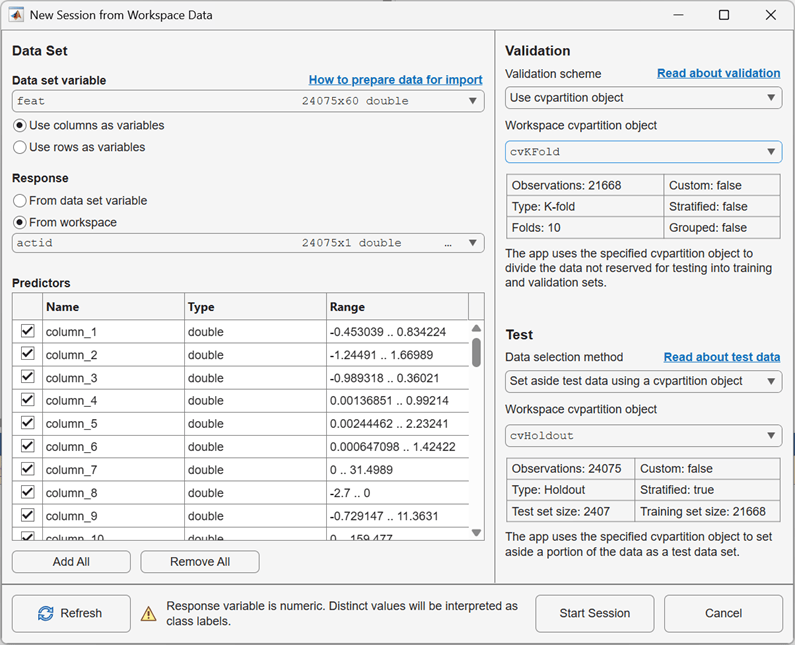
After you train a model, you can assess its performance by viewing the model's validation metrics in the Models pane, the model's Summary tab, the Results table tab, or the Compare Results plot. Validation metrics are not available for imported models. To compare the performance of imported models to models that you train in the app, see Test Trained Models in Classification Learner or Regression Learner.
You cannot change the validation scheme during an app session. To train new models on the same data using a different validation scheme, export any trained models you want to keep to the workspace (or save your current session), and start a new session by clicking New Session in the File section of the Learn tab.
For information on how to export partitions and data sets from the learner apps, see Export Partitions and Data Sets from Classification Learner or Regression Learner.

