Install Windows Subsystem for Linux (WSL2)
R2026bThis section helps you complete the Install Windows Subsystem for Linux (WSL2) step of the Hardware Setup process using the Hardware Setup screens.
Note
Ensure that your PC is connected to an active internet connection before proceeding with the next step.
The following screen appears when the hardware setup for ArduPilot® is launched for the first time in the current MATLAB® installation, and only if WSL is not already installed.

To set up a new installation of Windows Subsystem for Linux (WSL2) that is used in UAV Toolbox Support Package for ArduPilot Autopilots, perform these steps.
Open Windows® command prompt as administrator.
Type
cmdin Windows search, and right-click the command prompt entry and select Run as administrator.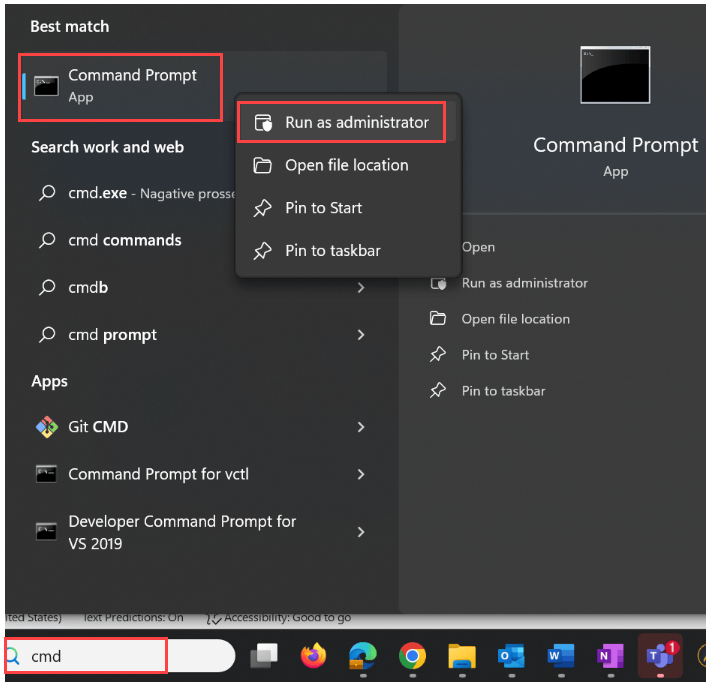
Run the following command to install only WSL 2, without any Linux® distribution.
wsl --install --no-distribution
Restart your computer to complete the installation.
Install and Set Up Ubuntu 22.04 in WSL2
After you install WSL2 by following the instructions in Install Windows Subsystem for Linux (WSL2) documentation, install and set up Ubuntu® distribution. Perform these steps
Open the Windows Command Prompt as a regular user (not as an administrator).
Press the Windows Start key, type
cmd, and press Enter.List all available distributions for install.
Run this command in the command prompt.
wsl --list --online
Locate Ubuntu 22.04
Look for Ubuntu-22.04 in the list. This is the common name for Ubuntu 22.04.
If the name differs, use the exact name shown in your list.
Install Ubuntu 22.04
Run this command.
wsl --install -d Ubuntu-22.04
If the distribution name is different, replace Ubuntu-22.04 with the correct name from your list:
wsl --install -d <DistributionName>
Set up Ubuntu.
Installed Ubuntu distribution will prompt you to configure a new username and password for your Ubuntu environment.
Launch WSL2 shell
Launch the WSL2 shell using these steps:
Open the Windows Command Prompt and type:
wsl -d Ubuntu-22.04
If the distribution name is different, replace Ubuntu-22.04 with the correct name from your list:
wsl --install -d <DistributionName>
Next Steps
Install Ubuntu Distribution for WSL

