Create Polyspace Platform Project from Build Command in User Interface
R2026bIf you use a build command such as make or cmake for building your source code or you are able to generate a JSON compilation database using your build system, you can create a Polyspace Platform project from the build command or compilation database. This topic shows how to create a project from a build
command or compilation database in the Polyspace® Platform user interface. For the equivalent workflow at the command line, see Configure Sources and Build Options in Project for Polyspace Analysis and Testing.
Enter Build Command Information
To create a project from a working build command or compilation database:
On the Polyspace Platform toolstrip, instead of New, select New > Project From Build Command.
In the Create project using build information window, specify a Project Name and Location. Select Overwrite existing project if you want any existing project with the same name to be overwritten.
Specify a compilation database or build command from which to create a project:
To create a project from a compilation database, select Use compilation database. Enter the path to a compilation database file (
.jsonfile). For an example of how to create a compilation database, seepolyspace-configure.To create a project from a build command, select Use build command.
For Build command, specify a build command such as
makeor specify the path to an IDE executable such as"C:\Program Files (x86)\Microsoft Visual Studio\2019\Professional\Common7\IDE\devenv.exe". If you specify the path to a build command, also specify a Working directory from which the build command is run.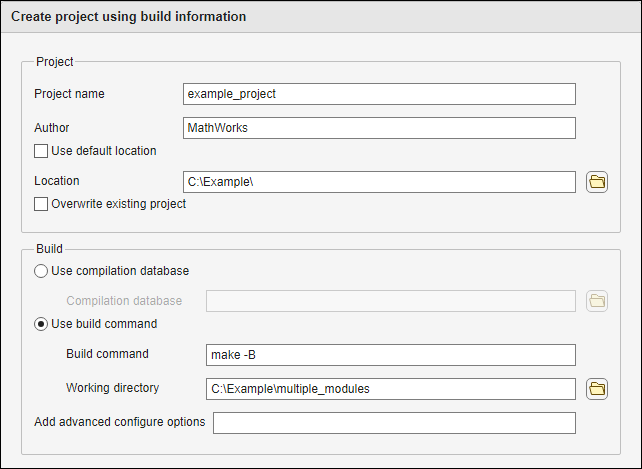
Use the Add advanced configure options text box to configure the project using command-line options including options supported by
polyspace-configure. For instance, you can exclude certain sources from your project. Use the-exclude-sourcesoption along with a glob pattern to remove any source with a matching filename. For more information, see Select Files for Polyspace Project Using Pattern Matching.For instance, the example below excludes all files in the
testsfolder along with any file namedpstunit.c.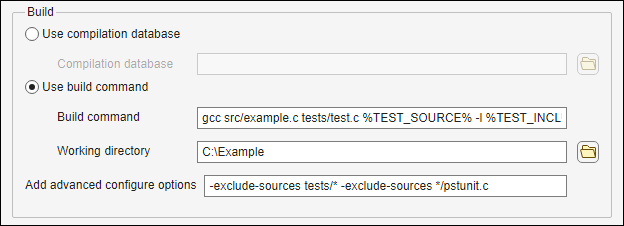
Create Project
In the Create project using build information window, click  . Polyspace runs your build command and if successful, creates a Polyspace Platform project based on this information.
If you specify the path to an IDE, clicking Run opens the IDE. Build your project within the IDE and close the IDE to complete creating the Polyspace Platform project. See Create Polyspace Platform Projects from IDE Builds.
Set Additional Options If Needed
Once a project is created, the sources and build options in the project are preconfigured for running static analysis. If you are also using Polyspace Platform projects for authoring and running tests, you might have to set additional configuration options for building the tests. In particular, if you intend to run the tests on a target board, you have to set the option Target board name (Testing) (Polyspace Test).
See Information Gathered from Build Systems for Polyspace Analysis and Testing.
Update Project as Necessary
If you open the project configuration, the Project and Build tabs contain a label Auto-generated on the top right indicating that at least part of the configuration was automatically generated from an external source. If you add additional options besides the auto-generated ones, these options are lost during a project update. For information on how to keep this project updated, see Update Projects in Polyspace Platform User Interface.

