Verify Generated Code by Using SIL or PIL
R2026bIf you have Embedded Coder®, you can use software-in-the-loop (SIL) or processor-in-the-loop (PIL) execution to verify the accuracy of production-ready source code and compiled object code.
In SIL execution, the code generator compiles and runs library code on your host computer. In PIL execution, the code generator compiles the generated code and runs the resulting object code on a target processor or an equivalent instruction set simulator. In both execution modes, you can reuse the test scripts you develop for your MATLAB® functions to verify the numerical behavior of library code.
In this step of the tutorial, you use SIL execution to verify the C++ code that you generated for the collatz entry-point function.
To create the project file and specify the type of the input argument to the collatz function, follow the previous steps in this tutorial. Alternatively, run the script collatz_step5.m.
Check Code Generation Settings
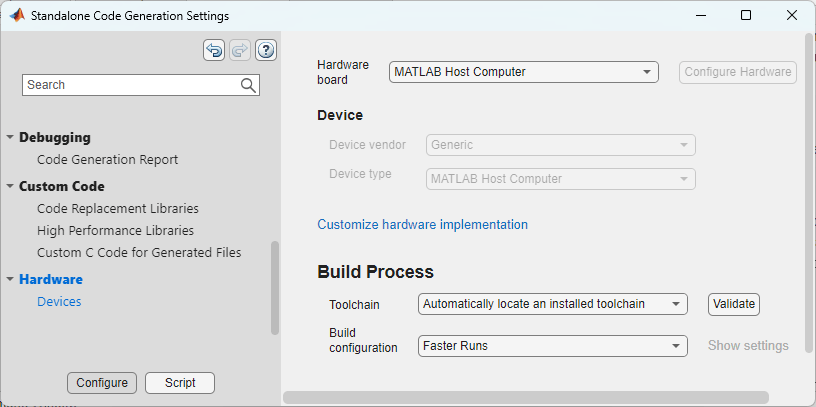
When you use the Run Generated Code button to verify your code, the app performs SIL or PIL execution depending on the setting of the Hardware board code configuration parameter.
For this example, you verify the generated code by using SIL execution. On the MATLAB Coder tab, in the Prepare section, click Settings. The Standalone Code Generation Settings dialog box opens. In the left pane, click Hardware to open the hardware pane. To use SIL execution, set Hardware board to MATLAB Host Computer. To use PIL execution, set Hardware board to None — Select device. For this example, make sure that the Hardware board parameter is set to MATLAB Host Computer. Close the dialog box.
Verify Generated Code by Using SIL
You can use SIL or PIL to verify both the original MATLAB code and the generated code. The code generator runs tests against the generated code by default.
To verify the generated code, in the MATLAB Coder tab, in the Verify section, click Run Generated Code and make sure that Verification Mode is set to Use generated code. Then, select the test file:
If you completed the previous tutorial steps, the app suggests the test file you used to define input types and test the MEX function. Click Run file: collatz_test.m.
If you did not complete the previous tutorial steps, click Run file: Select MATLAB file to run. Navigate to and select the script file
collatz_test.min the working directory.
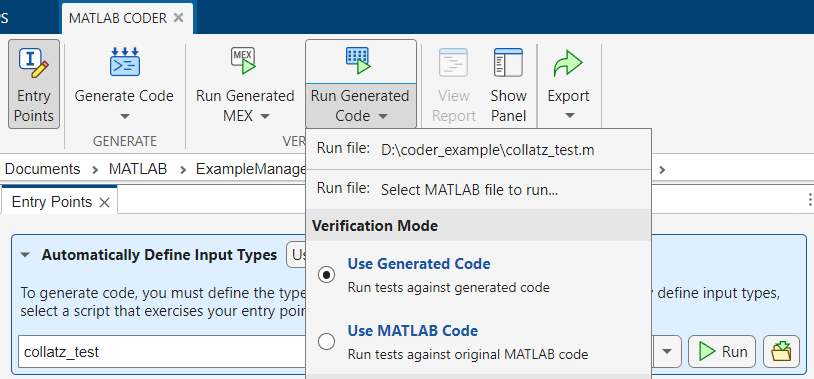
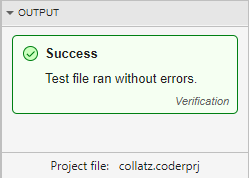
The code generator runs the generated code by using SIL. In this example, the app does not detect issues. The Output section of the MATLAB Coder panel displays a message indicating that the collatz_test file did not produce errors.
In the Command Window, click clear collatz_sil to terminate SIL execution.
Next, learn about optimizing and deploying the generated code.
See Also
MATLAB Coder | Embedded Coder (Embedded Coder)

