Compare Data Programmatically
You can harness the capabilities of the Simulation Data Inspector programmatically from the MATLAB® command line.
The Simulation Data Inspector organizes data in runs and signals, assigning a unique
numeric identifier to each run and signal. The Simulink.sdi.Run and Simulink.sdi.Signal objects allow you to
access to your data and view and modify run and signal metadata. When you interact with the
Simulation Data Inspector programmatically, some functions require Signal
or Run objects as inputs, while others use signal or run IDs. This table
lists some ways to access these objects and IDs.
| Action | Function | Input Required |
|---|---|---|
| Access run ID | Simulink.sdi.getAllRunIDs | None |
Simulink.sdi.getRunIDByIndex | Index of run in Simulation Data Inspector repository | |
Access Simulink.sdi.Run object | Simulink.sdi.Run.getLatest | None |
Simulink.sdi.getCurrentSimulationRun | Model name | |
Simulink.sdi.getRun | Run ID | |
| Access signal ID | getAllSignalIDs | Run object |
getSignalIDByIndex | Run object and index of signal in the run | |
getSignalIDsByName | Run object and signal name | |
Access Simulink.sdi.Signal object | getAllSignals | Run object |
getSignalByIndex | Run object and index of signal in the run | |
getSignalsByName | Run object and signal name | |
Simulink.sdi.getSignal | Signal ID |
Compare Two Signals in the Same Run
You can use the Simulation Data Inspector programmatic interface to compare signals within a single run. This example compares the input and output signals of an aircraft longitudinal flight controller.
Load the Simulation Data Inspector session file that contains the flight control data.
Simulink.sdi.load("AircraftExample.mldatx");To access the latest run, use the Simulink.sdi.Run.getLatest function.
aircraftRun = Simulink.sdi.Run.getLatest;
Use the Simulink.sdi.getSignalsByName function to access the Stick signal, which represents the input to the controller, and the alpha, rad signal, which represents the output.
stick = getSignalsByName(aircraftRun,"Stick");
alpha = getSignalsByName(aircraftRun,"alpha, rad");
Use the signal IDs to compare the Stick and alpha, rad signals using the Simulink.sdi.compareSignals function. The Stick signal is the baseline. The alpha, rad signal is the signal to compare against the baseline.
comparisonResults = Simulink.sdi.compareSignals(stick.ID,alpha.ID);
match = comparisonResults.Status
match =
  ComparisonSignalStatus enumeration

    OutOfTolerance
The comparison result is out of tolerance. You can use the Simulink.sdi.view function to open the Simulation Data Inspector to view and analyze the comparison results.
Simulink.sdi.view
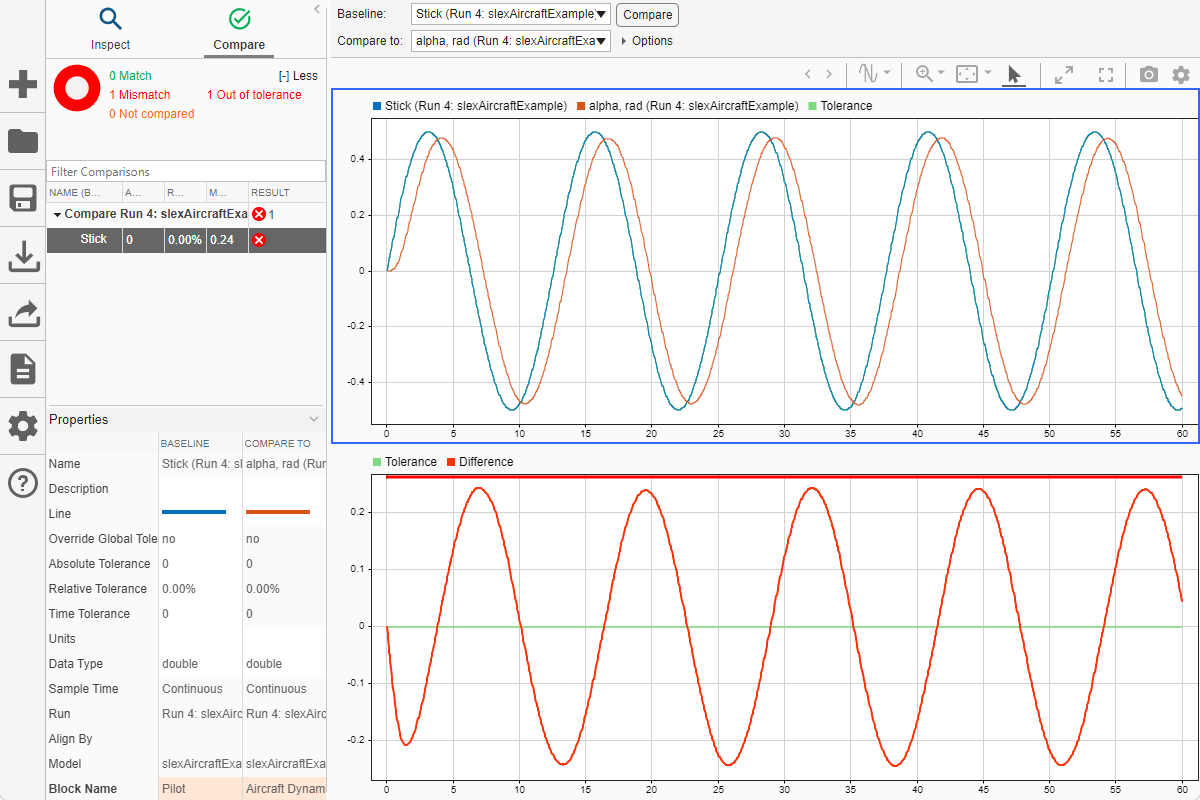
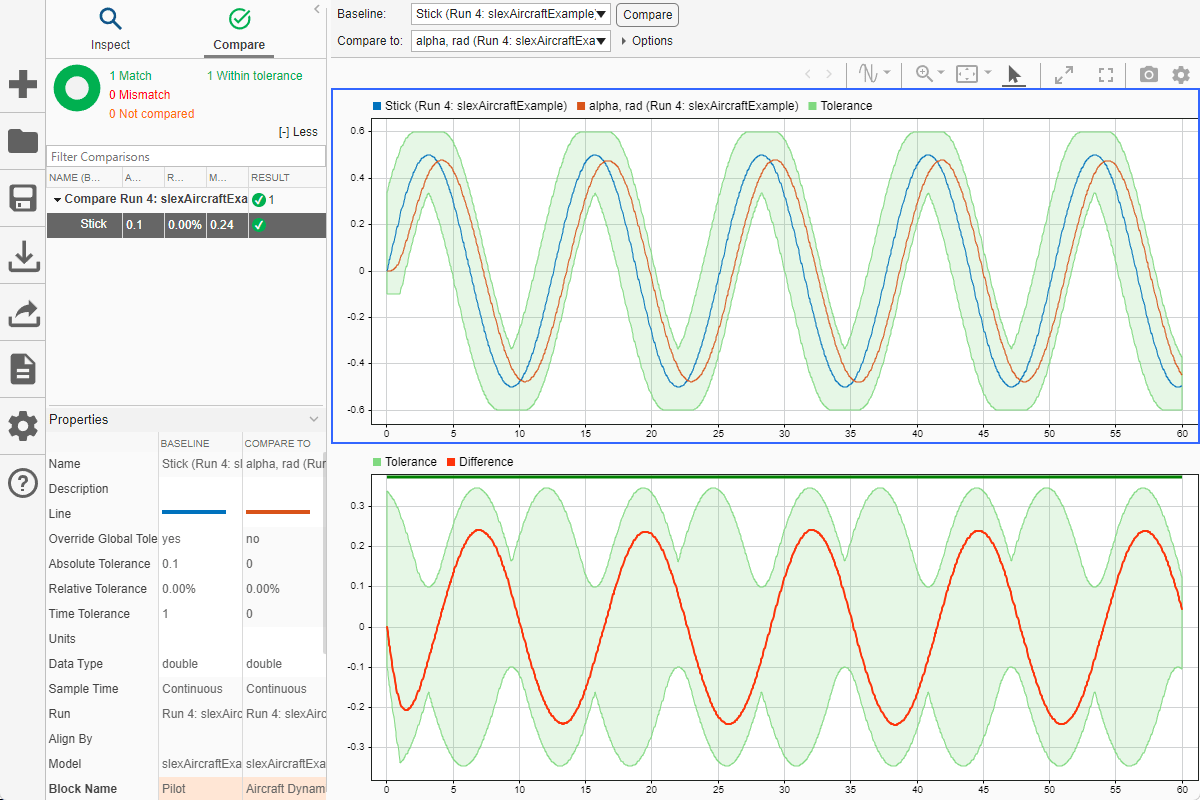
You can specify time and magnitude tolerance values to use for the comparison. Comparisons use tolerance values specified for the baseline signal in the comparison. To account for the phase shift, set a time tolerance of 1 on the Stick signal. To account for magnitude differences, set an absolute tolerance value of 0.1 on the Stick signal.
stick.TimeTol = 1;
stick.AbsTol = 0.1;
Compare the signals again. This time, because of the absolute and time tolerances, the signal comparison passes.
comparisonResults = Simulink.sdi.compareSignals(stick.ID,alpha.ID);
match = comparisonResults.Status
match =
  ComparisonSignalStatus enumeration

    WithinTolerance
Compare Runs with Global Tolerance
You can specify global tolerance values to use when comparing two simulation runs. Global tolerance values are applied to all signals within the run. This example shows how to specify global tolerance values for a run comparison and how to analyze and save the comparison results.
Load the Simulation Data Inspector session file that contains the data to compare. The session file contains data for four simulations of an aircraft longitudinal flight controller. This example compares data from two runs that use different input filter time constants.
Simulink.sdi.load("AircraftExample.mldatx");To access the run data to compare, use the Simulink.sdi.getAllRunIDs function to get the run IDs that correspond to the last two simulation runs.
runIDs = Simulink.sdi.getAllRunIDs;
runID1 = runIDs(end - 1);
runID2 = runIDs(end);
Use the Simulink.sdi.compareRuns function to compare the runs. Specify a global relative tolerance value of 0.2 and a global time tolerance value of 0.5.
runResult = Simulink.sdi.compareRuns(runID1,runID2,"reltol",0.2,"timetol",0.5);
Check the Summary property of the returned Simulink.sdi.DiffRunResult object to see whether signals are within the tolerance values or out of tolerance.
runResult.Summary
ans = struct with fields:
       OutOfTolerance: 0
      WithinTolerance: 3
            Unaligned: 0
        UnitsMismatch: 0
                Empty: 0
             Canceled: 0
          EmptySynced: 0
     DataTypeMismatch: 0
         TimeMismatch: 0
    StartStopMismatch: 0
          Unsupported: 0
All three signal comparison results fall within the specified global tolerance.
You can save the comparison results to an MLDATX file using the saveResult function.
saveResult(runResult,"InputFilterComparison");Analyze Simulation Data Using Signal Tolerances
You can programmatically specify signal tolerance values to use in comparisons performed using the Simulation Data Inspector. In this example, you compare data collected by simulating a model of an aircraft longitudinal flight control system. Each simulation uses a different value for the input filter time constant and logs the input and output signals. You analyze the effect of the time constant change by comparing results using the Simulation Data Inspector and signal tolerances.
First, load the session file that contains the simulation data.
Simulink.sdi.load('AircraftExample.mldatx');The session file contains four runs. In this example, you compare data from the first two runs in the file. Access the Simulink.sdi.Run objects for the first two runs loaded from the file.
runIDs = Simulink.sdi.getAllRunIDs;
runIDTs1 = runIDs(end-3);
runIDTs2 = runIDs(end-2);
Compare the two runs without specifying any tolerances.
noTolDiffResult = Simulink.sdi.compareRuns(runIDTs1,runIDTs2);
Use the getResultByIndex function to access the comparison results for the q and alpha signals.
qResult = getResultByIndex(noTolDiffResult,1);
alphaResult = getResultByIndex(noTolDiffResult,2);
Check the Status property of each signal result to see whether the comparison result falls within or out of tolerance.
qResult.Status
ans =
  ComparisonSignalStatus enumeration

    OutOfTolerance
alphaResult.Status
ans =
  ComparisonSignalStatus enumeration

    OutOfTolerance
The comparison uses a value of 0 for all tolerances, so the OutOfTolerance result means the signals are not identical.
You can further analyze the effect of the time constant by specifying tolerance values for the signals. Specify the tolerances by setting the properties for the Simulink.sdi.Signal objects that correspond to the signals being compared. Comparisons use tolerances specified for the baseline signals. This example specifies a time tolerance and an absolute tolerance.
To specify a tolerance, first access the Signal objects from the baseline run.
runTs1 = Simulink.sdi.getRun(runIDTs1);
qSig = getSignalsByName(runTs1,'q, rad/sec');
alphaSig = getSignalsByName(runTs1,'alpha, rad');
For the q signal, specify an absolute tolerance of 0.1 and a time tolerance of 0.6 using the AbsTol and TimeTol properties, respectively.
qSig.AbsTol = 0.1;
qSig.TimeTol = 0.6;
For the alpha signal, specify an absolute tolerance of 0.2 and a time tolerance of 0.8.
alphaSig.AbsTol = 0.2;
alphaSig.TimeTol = 0.8;
Compare the results again. Access the results from the comparison and check the Status property for each signal.
tolDiffResult = Simulink.sdi.compareRuns(runIDTs1,runIDTs2);
qResult2 = getResultByIndex(tolDiffResult,1);
alphaResult2 = getResultByIndex(tolDiffResult,2);

qResult2.Status
ans =
  ComparisonSignalStatus enumeration

    WithinTolerance
alphaResult2.Status
ans =
  ComparisonSignalStatus enumeration

    WithinTolerance

