Display 3-D Volumetric Images
R2026bYou can display a 3-D volumetric image or surface by rendering the volume in 3-D space. To improve the visibility of features within the volume, you can move the camera position within the scene, adjust the transparency of the data, or change rendering styles. You can also expose interior features by displaying 2-D cross sections of the volume. For more information, see Choose Approach to Display 2-D and 3-D Images.
Use the Volume Viewer app to view and explore volumetric intensity data and volumetric labeled data. Volume Viewer includes tools that you can use to examine volumetric data interactively.
Apps
| Volume Viewer | View volumetric data and labeled volumetric data |
Functions
Properties
| Viewer Properties | Viewer for 2-D and 3-D image display (Since R2022b) |
| Volume Properties | Display volume in 3-D viewer (Since R2022b) |
| BlockedVolume Properties | Display blocked volume in 3-D viewer (Since R2023a) |
Topics
Explore Volumetric Data Interactively
- Explore 3-D Volumetric Data with Volume Viewer
View perpendicular cross-sections of 3-D volumetric data and adjust the rendering to reveal structures within the volume. - Explore 3-D Labeled Volumetric Data with Volume Viewer
View 3-D labeled volumetric data, and adjust the visualization such as the opacity and colormap, using the Volume Viewer app.
Display Volumes and Adjust Rendering
- Display Volume Using Cinematic Rendering
View volumes with photorealistic lighting and shadows using cinematic rendering. - Display Large 3-D Images Using Blocked Volume Visualization
This example shows how to display large 3-D image volumes using ablockedImageobject and thevolshowfunction. - Remove Objects from Volume Display Using 3-D Scissors
This example shows how to interactively remove unwanted regions in a 3-D display, such as a patient bed in a CT scan, by using 3-D scissors. - Display Interior Labels by Clipping Volume Planes
Interactively clip a quadrant of a volumetric image to expose a surface within the volume.
Display 2-D Cross Sections of Volumes
- Explore Slices from 3-D Image Volume with Anisotropic Voxel Spacing
Display slices from a 3-D image volume with voxel spacing that varies between spatial dimensions.
Featured Examples

Display Translucent Volume with Advanced Light Scattering
Display translucent volumes using realistic light scattering.
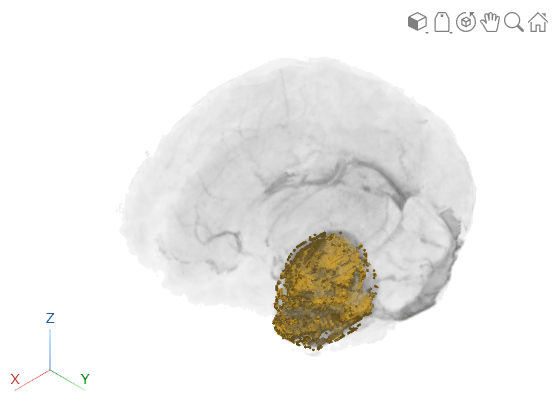
Display Interior Labels by Adjusting Volume Overlay Properties
Adjust the transparency of labeled volumetric data and the rendering style to reveal labels on the interior of the volume.
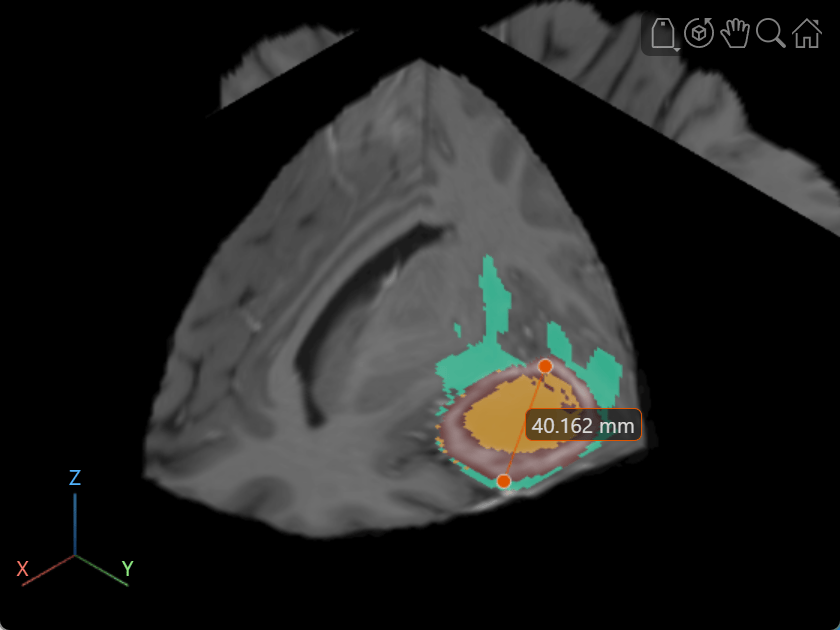
Label Volume Display Using Point and Line Annotations
Add and edit point and line annotations in a Viewer object displaying a 3-D Brain MRI scan.

