Configure for Microsoft HPC Pack
R2026bFollow these instructions to configure your MATLAB®
Parallel Server™ installation to work with Microsoft® HPC Pack. In the following instructions,
matlabroot refers to the MATLAB installation location.
Supported versions:
Microsoft HPC Pack 2016
Microsoft HPC Pack 2019.
Before you start, you must ensure that you have installed and licensed MATLAB Parallel Server on your cluster nodes. For details, see License and Install MATLAB Parallel Server in Cluster.
How MATLAB Interfaces with Microsoft HPC Pack
MATLAB Parallel Server does not require server-side components or a dedicated service on your cluster. Instead, MATLAB uses a plugin framework with scripts that define how the MATLAB client communicates with the scheduler and MATLAB Parallel Server workers.
Cluster profiles let you configure properties for the plugin scripts. When you create cluster, job, and task objects in MATLAB, the profile applies these settings.
To manage jobs, the scripts use HPC Pack utilities such as job
submit and job list. To enable communication
between the client and MATLAB
Parallel Server workers, the scripts store job and task files on disk for transfer and
result retrieval. If the client cannot directly access the cluster, MATLAB supports SSH for remote command execution and SFTP for file
transfer.
Configure Microsoft HPC Pack Cluster
The MicrosoftHPCServerSetup.bat file automates most of the
steps required to prepare your cluster for MATLAB
Parallel Server jobs.
Note
If you are using an HPC Pack in a network share installation, the network share location must be in the “Intranet” zone. You might need to adjust the Internet Options for your cluster nodes and add the network share location to the list of Intranet sites.
Log in on the cluster head node as a user with administrator privileges.
Open a command window with administrator privileges and run the following file command
matlabroot\toolbox\parallel\bin\MicrosoftHPCServerSetup.bat -cluster
If you are using an HPC Pack in a network share installation, this command performs some of the setup required for all machines in the cluster. The location of the MATLAB installation must be the same on every cluster node. If you are not using an HPC Pack in a network share installation, then you must run this command on every cluster node.
Note
If you need to override the script default values, modify the values defined in
MicrosoftHPCServerSetup.xmlbefore runningMicrosoftHPCServerSetup.bat. Use the-def_fileargument to the script when using aMicrosoftHPCServerSetup.xmlfile in a custom location. For example:MicrosoftHPCServerSetup.bat -cluster -def_file <filename>
You modify the file only on the node where you actually run the script.
An example of one of the values you might set is for
CLUSTER_NAME. If you provide a friendly name for the cluster in this parameter, it is recognized by MATLAB discover clusters feature and displayed in the resulting cluster list.
You might need configure client and cluster ports before you can start using your cluster. For details, see Required Ports.
Configure Client Computer for HPC Pack
The MicrosoftHPCServerSetup.bat file automates most of the
steps required to prepare your MATLAB client for MATLAB
Parallel Server jobs.
This configuring applies to all versions of HPC Pack.
Note
If you are using HPC Pack in a network share installation, the network share location must be in the “Intranet” zone. You might need to adjust the Internet Options for your cluster nodes and add the network share location to the list of Intranet sites.
Open a command window with administrator privileges and run the following file command
matlabroot\toolbox\parallel\bin\MicrosoftHPCServerSetup.bat -client
This command performs some of the setup required for a client machine.
Note
If you need to override the default values the script, modify the values defined in
MicrosoftHPCServerSetup.xmlbefore runningMicrosoftHPCServerSetup.bat. Use the-def_fileargument to the script when using aMicrosoftHPCServerSetup.xmlfile in a custom location. For example:MicrosoftHPCServerSetup.bat -client -def_file <filename>
To submit jobs or discover the cluster from MATLAB, the Microsoft HPC Pack client utilities must be installed on your MATLAB client machine. If they are not already installed and up to date, ask your system administrator for the correct client utilities to install. The utilities are available from Microsoft download center.
If you have installed multiple versions of the Microsoft HPC Pack client utilities, MATLAB uses the most recent install. To configure MATLAB to use a specific install, set the environment variable
'MATLAB_HPC_SERVER_HOME'to the install location of the client utilities you want to use.
Create Cluster Profile and Validate Installation
This procedure verifies that your parallel computing products are installed and configured correctly for using Microsoft Windows® HPC Pack.
Step 1: Create a Cluster Profile
In this step you create a cluster profile to use in subsequent steps. To create a cluster profile, try discovering your cluster. In the Parallel panel , click the Discover clusters button (since R2026b). Alternatively, on the Home tab, in the Environment area, select Parallel > Discover Clusters. For more information, see Discover Clusters (Parallel Computing Toolbox).
If your cluster is not available for discovery, follow these steps.
In the Parallel panel , click the Add new cluster profile button , then select HPC Pack (since R2026b). To the right of the new cluster profile, click the More Actions button , then click View Profile.
Alternatively, start the Cluster Profile Manager. On the Home tab, in the Environment area, select Parallel > Create and Manage Clusters. Create a new profile by selecting Add Cluster Profile > HPC Pack.
With the new profile selected in the list, click Rename and edit the profile name to be
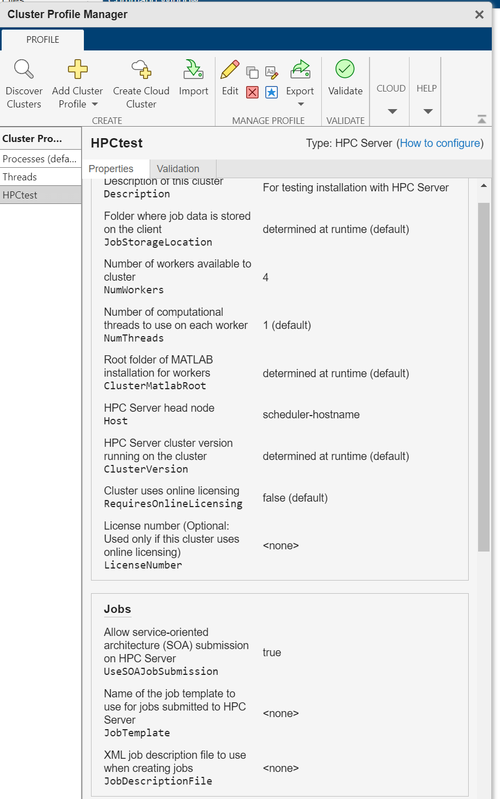
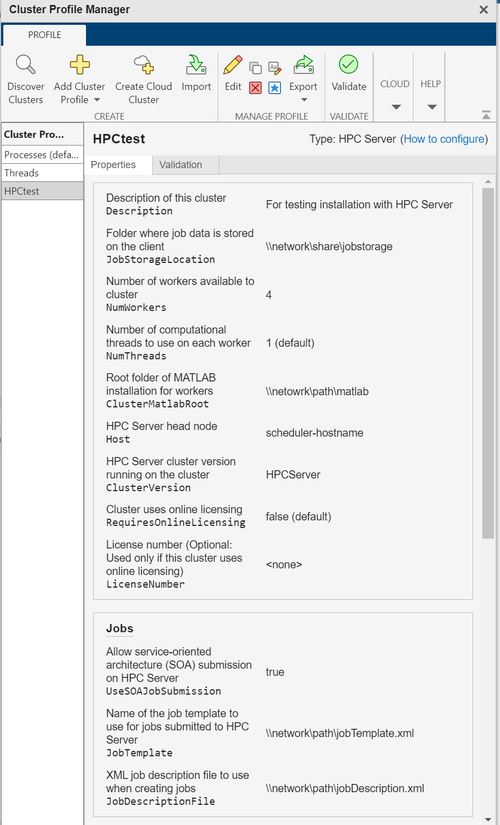
HPCtest. Press Enter.In the Properties tab, you specify values for the cluster property fields.
Note: The
JobStorageLocation,ClusterMatlabRoot,ClusterVersion, andUseSOAJobSubmissionproperty settings are optional. You only need to set them in the profile if you did not runMicrosoftHPCServerSetup.batas described in Configure Microsoft HPC Pack Cluster, or if you want to override the setting established by that script.Set the Description field to
For testing installation with HPC Pack.Optionally set the JobStorageLocation to the location where you want job and task data to be stored. This must be accessible to all the worker machines.
Note
You must not use the same job storage location for different versions of parallel computing products. Each version on your cluster must use its own job storage location.
The default value is determined at runtime by the
MicrosoftHPCPackSetup.batscript.Set the NumWorkers field to the number of workers you want to run the validation tests on, within the limitation of your licensing.
Optionally set the ClusterMatlabRoot to the installation location of the MATLAB to run on the worker machines, as determined in Chapter 1 of the installation instructions. Otherwise, the default value is determined at runtime by the
MicrosoftHPCServerSetup.batscript.Set the Host field to the name of the host on which your scheduler is running. Depending on your network, this might be a simple host name, or it might have to be a fully qualified domain name.
If the cluster uses online licensing, set RequiresOnlineLicensing to true.
If you set RequiresOnlineLicensing to true, in the LicenseNumber field, enter your license number.
If you want to test SOA job submissions on an HPC Pack cluster, set UseSOAJobSubmission to
true. If you plan to use SOA job submissions with your cluster, you should test this first without SOA submission, then later return and test it with SOA job submission. The default value is determined at runtime based on your scheduler. To learn more about SOA job submissions, see SOA Jobs on the Microsoft website.If you want to use a job template for jobs that you submit to the cluster, you can specify the location of a XML job template file in the JobTemplate field. To learn more about job templates, see Understanding Job Templates on the Microsoft website.
If you want to use a job description file to create jobs, you can specify the location of an XML job description file in the JobDescriptionFile field. To learn more about job description files, see Save a Job or Task to a File on the Microsoft website.
Click Done to save your cluster profile. The cluster profile should look something like one of these figures.
Step 2: Validate the Configuration
In this step you validate your cluster profile, and thereby your installation.
You can specify the number of workers to use when validating your profile. If
you do not specify the number of workers in the Validation tab, then the validation will attempt to use as many
workers as the value specified by the NumWorkers property
on the Properties tab. You can specify a
smaller number of workers to validate your configuration without occupying the
whole cluster.
If it is not already open, start the Cluster Profile Manager from the MATLAB desktop by selecting on the Home tab in the Environment area Parallel > Create and Manage Clusters.
Select your cluster profile in the listing.
Click Validation tab.
Choose all tests, or a subset of the validation stages, and specify the number of workers to use when validating your profile.
Click Validate.
After the client completes the cluster validation, the Validation tab shows the output.

Note
If your validation does not pass, contact the MathWorks install support team.
If your validation passed, you now have a valid profile that you can use in
other parallel applications. You can make any modifications to your profile
appropriate for your applications, such as NumWorkersRange,
AttachedFiles, AdditionalPaths, and so
on.
To save your profile for other users, select the profile and click Export, then save your profile to a file in a convenient location. Later, when running the Cluster Profile Manager, other users can import your profile by clicking Import.

