createLabel
R2026bCreate project label
Description
labelDefinitions = createLabel(category,LabelNames)Category object by using the findCategory
function.
Examples
Open the Times Table App project. Use currentProject
to create a project object from the currently loaded project.
openExample("matlab/TimesTableProjectExample")
proj = currentProject;
Get the first existing category.
cat = proj.Categories(1)
cat =

  Category with properties:

                Name: "Classification"
        SingleValued: 1
            DataType: "none"
    LabelDefinitions: [1×7 matlab.project.LabelDefinition]
Define a new label in the category.
createLabel(cat,"Future");
Open the Times Table App project. Use currentProject
to create a project object from the currently loaded project.
openExample("matlab/TimesTableProjectExample")
proj = currentProject;
Create a new category of labels called "Engineers"
which can be used to denote file ownership in a project. These labels have
the char datatype for attaching character vector
data.
createCategory(proj,"Engineers","char");
Get the new category by name using the findCategory
function
engineersCategory = findCategory(proj,"Engineers");
Create labels in the new category.
createLabel(engineersCategory,["Tom","Harry"]);
Attach one of the new labels to a file in the project.
label = addLabel(myfile,"Engineers","Tom");
Get the label and add data.
label.Data = "Maintenance responsibility" Label with properties:
File: "C:\myProjects\examples\TimesTableApp\source\timesTableGame.m"
DataType: 'char'
Data: "Maintenance responsibility"
Name: "Tom"
CategoryName: "Engineers"Open the Times Table App project. Use currentProject
to create a project object from the currently loaded project.
openExample("matlab/TimesTableProjectExample")
proj = currentProject;
Convert the project to use the TOML definition file type.
projRoot = proj.RootFolder
close(proj)
matlab.project.convertDefinitionFiles(projRoot.RootFolder, "Toml")
openProject(proj)
Create a new category of labels named
"MyCategory".
category = proj.createCategory("MyCategory");
Create a label named "MyLabel" in the new
category.
label = category.createLabel("MyLabel");
Create a pattern to automatically label all existing and future files
inside the utilities folder with the
"MyLabel" label.
label.FilePatterns = ["utilities/*"];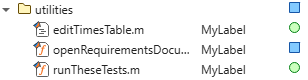
Input Arguments
Output Arguments
Tips
To create and attach a new label in an existing category using a single step, use
addLabelinstead.To create a new category of labels, use
createCategoryfirst.

