Contenuto principale

uiradiobutton

R2026b

Create radio button component

Description

rb = uiradiobutton creates a radio button in a new figure and returns the RadioButton object. MATLAB® calls the uifigure function to create the figure.

rb = uiradiobutton(parent) creates a radio button in the specified parent container. The parent can be a Figure object or one of its child containers.

example

rb = uiradiobutton(___,Name=Value) specifies RadioButton properties using one or more name-value arguments. Use this option with any of the input argument combinations in the previous syntaxes.

example

Examples

collapse all

Create a grid layout in a figure and add three radio buttons. Then create a selection group to manage the three radio buttons.

fig = uifigure(Position=[100 100 200 200]);
gl = uigridlayout(fig,[3 1]);
rb1 = uiradiobutton(gl,Text="English");
rb2 = uiradiobutton(gl,Text="French");
rb3 = uiradiobutton(gl,Text="German");
sg = uiselectiongroup([rb1 rb2 rb3]);
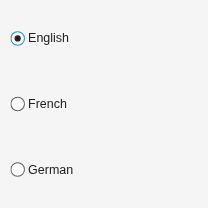
Figure contains an object of type uigridlayout.

Change the radio button selection to French.

rb2.Value = true;
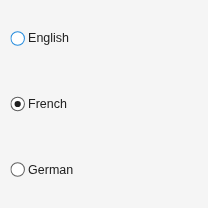
Figure contains an object of type uigridlayout.

Input Arguments

collapse all

Parent container, specified as a Figure object or one of its child containers: Tab, Panel, or GridLayout. If you do not specify a parent container, MATLAB calls the uifigure function to create a new Figure object that serves as the parent container.

Name-Value Arguments

collapse all

Specify optional pairs of arguments as Name1=Value1,...,NameN=ValueN, where Name is the argument name and Value is the corresponding value. Name-value arguments must appear after other arguments, but the order of the pairs does not matter.

Example: uiradiobutton(fig,Text="French")

Note

The properties listed here are a subset of the available properties. For the full list, see RadioButton.

State of the radio button, specified as a numerical or logical 1 (true) or 0 (false). If the radio button is part of a selection group, only one button in the group can be selected at a time. The state of the first radio button added to a selection group is 1, by default. Subsequent buttons added to the same selection group have a default state of 0.

For buttons in a selection group, if the Value property of a radio button changes to 1, the Value property of the previously selected radio button changes to 0. In addition, the SelectedObject property value of the SingleSelectionGroup is updated.

If you programmatically change the Value property of a radio button to 0, MATLAB sets the Value property of the first radio button added to the selection group to 1. If the first radio button added is the one for which you programmatically set the Value property to 0, then MATLAB sets the Value property for the second radio button added to the selection group to 1.

Button label, specified as a character vector, cell array of character vectors, string scalar, string array, or 1-D categorical array. Specify a character vector or string scalar to label the button with a single line of text. Use a cell array or string array to label the button with multiple lines of text. Each element in the array represents a separate line of text. If you specify this property as a categorical array, MATLAB uses the values in the array, not the full set of categories.

Location and size of the radio button, specified as a vector of the form [left bottom width height]. This table describes each element in the vector.

ElementDescription
leftDistance from the inner left edge of the parent container to the outer left edge of the radio button
bottomDistance from the inner bottom edge of the parent container to the outer bottom edge of the radio button
widthDistance between the right and left outer edges of the radio button (including text)
heightDistance between the top and bottom outer edges of the radio button

The Position values are relative to the drawable area of the parent container. The drawable area is the area inside the borders of the container and does not include the area occupied by decorations such as a menu bar or title.

All measurements are in pixel units.

Tips

  • To manage exclusive selection of radio buttons or toggle buttons, use the uiselectiongroup function to create a selection group. Buttons managed by a selection group can be in any container within the same figure.

  • To make your program respond when a user selects a radio button managed by a selection group, define a SelectionChangedFcn callback for the SingleSelectionGroup object. You cannot define callbacks for the individual buttons.

  • To determine which radio button is currently selected, query the SelectedObject property of the SingleSelectionGroup object. For example, sg.SelectedObject returns the currently selected button in the selection group sg. You can execute this query anywhere in your code.

  • If you use a ButtonGroup object as the parent container for radio buttons that are managed by a selection group, then only the selection group manages the selection of the buttons. (since R2026b)

Version History

Introduced in R2016a

expand all

See Also

Functions

Properties

Tools