Run C/C++ Tests on Target in Polyspace Platform User Interface
R2026bIn the context of test execution in Polyspace® Test™, the word target refers to embedded systems with specific processor architecture, cross-compilation tools, and channels for communication with a host computer.
You can run graphical, xUnit, and GoogleTest tests added to a Polyspace Platform project on a custom target. The steps to execute tests on targets are similar to the steps to execute tests on a host computer. However, you must perform a one-time setup to register your target in the Polyspace Platform user interface. Registering a target involves writing a custom target registration file that defines one or more of the following:
Toolchain – Cross-compiler, build tool, and so on.
Board and processor – Board/processor name, data type support, timer functions, and so on.
Communication specifics – Channel, protocol, and so on.
The steps below outline the workflow for test execution on targets in the Polyspace Platform user interface. For a simple example using this workflow, see Get Started with C/C++ Test Execution on Target.
Overview
If you were to run tests on a target outside the Polyspace Platform user interface, you would typically perform these steps:
Build a test executable for the target using a cross-compiler.
Establish communication with the target.
Run the test executable on the target and retrieve test results.
Convert the test results to a human-readable format.
In the Polyspace Platform user interface, once you have registered your target, these steps are automatically managed during test execution. To execute tests on a target board, you follow the same steps as if you were executing the tests on your host computer.
Write Target Registration File
A target registration file is a MATLAB® code file that defines a target using classes from the Target Framework MATLAB API.
Although the target registration file uses MATLAB code, you can author the file in any text editor. You do not need an installation of MATLAB to author this file or use the file later for target registration in Polyspace Test. However, the editors in MATLAB or MATLAB Online provide better support for authoring the file with features such as syntax highlighting and code completions.
For more information on creating this file, see:
Create Target Registration Packages for C/C++ Test Execution on Targets for a brief overview of a custom target registration file.
Set Up PIL Connectivity by Using Target Framework (Embedded Coder) for the full description of a custom target registration file.
target.create(Embedded Coder) to get started with creating a target.
For an example file, see Get Started with C/C++ Test Execution on Target.
Note that if your target comprises only a toolchain for host execution, instead of authoring a MATLAB code file, you can also enter toolchain information in an app in the Polyspace Platform user interface and register the toolchain in the app. For more information, see Toolchain.
Register Target in Polyspace Platform User Interface
To register a target using the previously authored target registration file:
On the Polyspace Platform toolstrip, select
 in the Prepare section, and then select Manage Boards.
Alternatively, on the Polyspace Platform toolstrip, select Settings. On the Testing and Profiling tab, select Manage Boards.
In the Manage Boards window, select Register a target.
Navigate to the target registration file and select the file. If your registration file is valid, your target appears in the list of target boards.
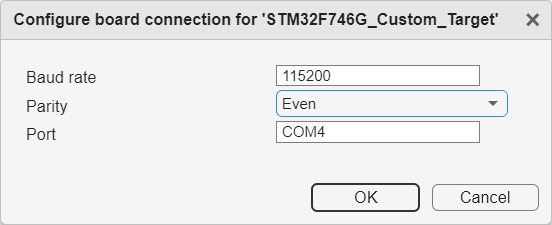
You can override some properties related to your target connection without having to create an entirely new target and registering the new target. On the Manage Boards window, click the  icon next to the target name. Modify the connection to the board as needed. For instance, you can change the parity of the serial connection to the board.
To unregister the target, follow similar steps.
On the Polyspace Platform toolstrip, select
in the Prepare section, and then select Manage Boards. In the Manage Boards window, select Unregister a target.
Navigate to the target unregistration file and select the file. If your file for unregistering the target is valid, your target is removed from the list of target boards.
Select Target in Project Configuration
After registering a target, you can select the target from any project in the Polyspace Platform user interface:
Double-click the Configuration node of your project to open the project configuration.
On the Build tab, select Target and Compiler and then from the Target board name (Testing) list, select the previously registered target. For more information on this option, see
Target board name (Testing).If your target registration file defines a processor and toolchain, these configuration options have the values defined in your target registration file:
Select Test Connection.
This action builds and runs a simple test on the target that you registered and confirms whether the connection is successful. The action is equivalent to running
-check Allwith the commandpolyspace-test -check-target-package.
Override Toolchain Options in Configuration (Optional)
Sometimes, to emulate your command-line build in a particular project, you might want to define compiler flags, build flags, and other such flags that are different from those defined in your target registration file. Instead of registering a new target with the updated flags and using the new target in the project, you can simply add these flags as an override to an existing target in your project configuration. During project build, these flags override the equivalent flags defined in your toolchain registration file.
To add custom toolchain flags:
Open your project configuration.
Select your toolchain from the Compilation toolchain (Testing) list. Click
 next to the option.
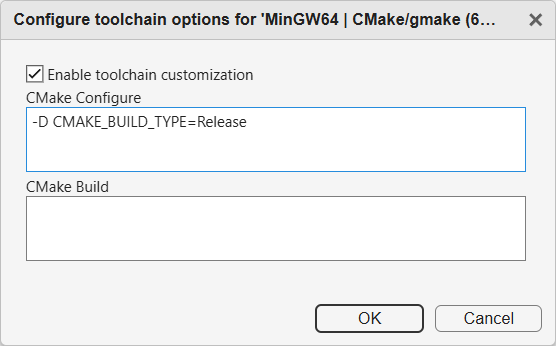
Select Enable toolchain customization. The Configure toolchain options window shows the default command-line flags. Modify the flags as necessary to emulate your command-line build.
Build and Run Tests on Target
Once you configure your project with your target, you can run tests on the target:
Build your project by clicking Build Project in the toolstrip. Polyspace Test builds a test executable appropriate for your target.
Run the tests by clicking Run Tests in the toolstrip. Polyspace Test executes the test executable on the target and gathers the test results.
The test results on target appear on the Results pane. From this pane, you can open a dashboard with an overview of passing and failing tests, or the complete list of tests with their pass/fail status. See Review C/C++ Test Execution Results.
See Also
Target board name (Testing) | Processor | Compilation toolchain (Testing)

