Create Zebra-Striped Tables in Reports
R2026bYou can create zebra-striped or banded tables, which are tables that have alternating color rows or columns. You can create zebra-striped tables programmatically or by using a Microsoft® Word or HTML template.
Note
PDF templates do not support zebra-striped tables.
For more information, see Format Tables, Create Microsoft Word Templates, and Create HTML and PDF Templates.
Programmatically Create a Zebra-Striped Table
This example shows how to create a report that contains a table that spans multiple pages, has alternating row background colors, and a header row that appears on every page that contains the table.
Import the Document Object Model (DOM) and Report namespaces.
import mlreportgen.dom.*
import mlreportgen.report.*
Import the sample data set outages.csv as a table.
outages = readtable("outages.csv","TextType","string");
Create the report container.
rpt = Report("zebraRows","pdf");
Open the report and create a chapter.
open(rpt);
chapter = Chapter;
Create a formal table and a table row.
table = FormalTable;
header = TableRow;
Add entries to table that contain the variable names from the outages table.
for colNumber = 1:width(outages)
append(header,TableEntry(outages.Properties.VariableNames{colNumber}));
end
Set the background color of the table row to salmon and append the row to the formal table as the header row.
header.Style = {BackgroundColor("salmon")};
appendHeaderRow(table,header);
For the first 60 rows in the outages table, create a table row, set the row background color, add table entries for each column, and append the row to the formal table.
colors = ["white" "cadetblue"];
for rowNumber = 1:60
    row = TableRow;
    row.Style = {BackgroundColor(colors(~mod(rowNumber, 2)+1))};
    for colNumber = 1:width(outages)
        entry = Text(outages{rowNumber,colNumber});
        append(row,TableEntry(entry));
    end
    append(table, row);
end
Define the table style. Add a border and separators for the rows and columns. Set the text to use 16pt bold and italic font.
table.Style = {Border("dashed"),ResizeToFitContents(true), ...
    RowSep("solid"),ColSep("solid"),FontSize("16pt"),Bold,Italic};
Create a BaseTable reporter.
baseTable = BaseTable(table);
Add the baseTable reporter to the chapter, and add the chapter to the report.
append(chapter,baseTable);
append(rpt,chapter);
Close and view the report.
close(rpt);
rptview(rpt);
Create a Zebra-Striped Table by Using a Microsoft® Word Template
You can create a zebra-striped table by adding a table style to a Microsoft Word template. Then, you can use the template to generate a report with a zebra-striped table. Using a template organizes your application into separate components.
Create a Word template named myrpt.dotx.
mlreportgen.report.Report.createTemplate("myrpt","docx");
Right-click the template file and, in the context menu, click Open Outside MATLAB. If you double-click the file name, it opens as a DOC file that uses the template.
Open the Styles pane.
In the Styles pane, click the New Style button.
To define a table style that you can use to create zebra-stripe rows, set these fields:
Name —
ZebraStripeTableStyle type —
Table
Set Apply formatting to to Even banded rows. In the color field, select a color for the odd banded rows from the drop-down list.
Set Apply formatting to to Whole table and set these fields:
Alignment —
Align CenterBorders —
All Borders

Click OK to save the new style.
Save the template file.
To avoid having to use fully qualified class names, import the Report and DOM namespaces.
import mlreportgen.report.*
import mlreportgen.dom.*
Create the report container and specify the myrpt template.
rpt = mlreportgen.report.Report("myreport","docx","myrpt.dotx");
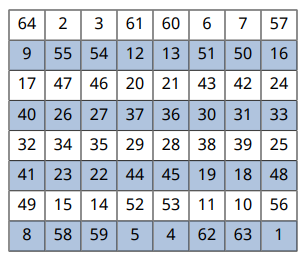
Create a magic square table and set the table style.
maglen = 8;
mag = magic(maglen);
table = Table(mag);
table.StyleName = "ZebraStripeTable";
Specify the row height and table width.
table.Style={RowHeight("0.3in")};
table.Width= "3in";
Add the table to the report. Then, close and view the report.
append(rpt,table);
close(rpt);
rptview(rpt);
Create a Zebra-Striped Table by Using an HTML Template
You can create a zebra-striped table by adding a table style to an HTML template.
Create an HTML template.
mlreportgen.report.Report.createTemplate("myrpt","html");
Unzip the template into a folder named myrpt. The folder contains style sheets and image template files.
unzipTemplate("myrpt.htmtx");In the myrpt folder, in the stylesheets folder, open the root.css file.
To create a CSS rule that defines the style name ZebraStripeTable for an HTML table element, add these lines to the root.css file. The background colors #B0C4DE and #FFFFFF are light blue and white, respectively.
/* Settings for whole table */
table.ZebraStripeTable {
  text-align: center;
  border: 1px solid black;
  border-collapse: collapse;
  width: 5in;
  height: 4in;
}
/* Settings for table body */
table.ZebraStripeTable td {
  padding: 0pt 0pt 0pt 0pt;
  vertical-align: middle;
  text-align: center;
  border: 1px solid black;
  border-collapse: collapse;
}
/* Zebra rows and colors */
tr:nth-child(even) {
  background-color: #B0C4DE
}
tr:nth-child(odd) {
  background-color: #FFFFFF
}
Save the root.css file.
Zip the template files to the myrpt.htmtx template package.
zipTemplate("myrpt");Import the Report and DOM namespaces to avoid having to use fully qualified class names.
import mlreportgen.report.*
import mlreportgen.dom.*
Create a report by using the template.
rpt = mlreportgen.report.Report("myreport","html","myrpt.htmtx");
Create a magic square table and set the StyleName property to the table style.
maglen = 8;
mag = magic(maglen);
tb = Table(mag);
tb.StyleName = "ZebraStripeTable";
Add the table to the report. Then, close and view the report.
append(rpt,tb);
close(rpt);
rptview(rpt);
See Also
mlreportgen.dom.FormalTable | mlreportgen.dom.Table | unzipTemplate | zipTemplate | mlreportgen.report.Report | rptview

