Contenuto principale

mlreportgen.ppt.Video Class

Namespace: mlreportgen.ppt

Video to include in presentation

Since R2026a

Description

Use an object of the mlreportgen.ppt.Video class to include a video in a presentation.

The mlreportgen.ppt.Video class is a handle class.

Class Attributes

HandleCompatible
true
ConstructOnLoad
true

For information on class attributes, see Class Attributes.

Creation

Description

videoObj = mlreportgen.ppt.Video creates an empty Video object.

videoObj = mlreportgen.ppt.Video(videoPath) creates a Video object that contains the video specified by videoPath.

videoObj = mlreportgen.ppt.Video(videoPath,thumbnailPath) creates a Video object that contains the thumbnail specified by thumbnailPath.

example

Note

Closing the mlreportgen.ppt.Presentation object copies the contents of the specified video file into the output presentation. Do not delete or overwrite the video file before the copying process completes.

Input Arguments

expand all

Path and name of the video file, specified as a character vector or string scalar. The PPT API supports these video formats:

Video FormatFile Extension
Advanced Systems Format.asf
Audio Video Interleave.avi
MPEG-4 Part 14.mp4
MPEG Elementary Stream Video.mpv
MPEG-1 or MPEG-2.mpg
Moving Picture Experts Group.mpeg
Windows Media Video.wmv (Windows® only)
QuickTime File Format.mov (macOS only)

Note

To see which file formats your version of PowerPoint® supports, see File formats that are supported in PowerPoint on the Microsoft® website.

This argument sets the Path and Name properties.

Data Types: char | string

Path and name of the thumbnail file, specified as a character vector or string scalar. The PPT API supports these image formats:

Image FormatFile Extension
Windows Enhanced Metafile.emf
Encapsulated PostScript®.eps
Graphics Interchange Format .gif
Joint Photographic Experts Group.jpeg, .jpg
Portable Network Graphics.png
Scalable Vector Graphics.svg
Tagged Image File Format.tif, .tiff

Note

To see which file formats your version of PowerPoint supports, see File formats that are supported in PowerPoint on the Microsoft website.

This argument sets the PosterFrame property.

Data Types: char | string

Properties

expand all

Video file path, specified as a character vector or string scalar.

Attributes:

GetAccess
public
SetAccess
public
NonCopyable
true

Data Types: char | string

Video name, specified as a character vector or string scalar.

Attributes:

GetAccess
public
SetAccess
public
NonCopyable
true

Data Types: char | string

Path and name of the thumbnail file, specified as a character vector or string scalar. The PPT API supports these image formats:

Image FormatFile Extension
Windows Enhanced Metafile.emf
Encapsulated PostScript.eps
Graphics Interchange Format .gif
Joint Photographic Experts Group.jpeg, .jpg
Portable Network Graphics.png
Scalable Vector Graphics.svg
Tagged Image File Format.tif, .tiff

Note

To see which file formats your version of PowerPoint supports, see File formats that are supported in PowerPoint on the Microsoft website.

Attributes:

GetAccess
public
SetAccess
public
NonCopyable
true

Data Types: char | string

Path of the caption file, specified as a character vector or string scalar. For more information on creating caption files for presentation videos, see Create closed captions for a video on the Microsoft website.

Attributes:

GetAccess
public
SetAccess
public
NonCopyable
true

Data Types: char | string

Upper-left x-coordinate position, specified as a character vector or string scalar that contains a number followed by an abbreviation for a unit of measurement. For example, "5in" specifies five inches. Valid abbreviations are:

  • "px" — Pixels

  • "cm" — Centimeters

  • "in" — Inches

  • "mm" — Millimeters

  • "pc" — Picas

  • "pt" — Points

You can also specify pixels by omitting the unit. For example, "5" specifies 5 pixels.

Attributes:

GetAccess
public
SetAccess
public
NonCopyable
true

Data Types: char | string

Upper-left y-coordinate position, specified as a character vector or string scalar that contains a number followed by an abbreviation for a unit of measurement. For example, "5in" specifies five inches. Valid abbreviations are:

  • "px" — Pixels

  • "cm" — Centimeters

  • "in" — Inches

  • "mm" — Millimeters

  • "pc" — Picas

  • "pt" — Points

You can also specify pixels by omitting the unit. For example, "5" specifies 5 pixels.

Attributes:

GetAccess
public
SetAccess
public
NonCopyable
true

Data Types: char | string

Width of the video, specified as a character vector or string scalar that contains a number followed by an abbreviation for a unit of measurement. For example, "5in" specifies five inches. Valid abbreviations are:

  • "px" — Pixels

  • "cm" — Centimeters

  • "in" — Inches

  • "mm" — Millimeters

  • "pc" — Picas

  • "pt" — Points

You can also specify pixels by omitting the unit. For example, "5" specifies 5 pixels.

Note

When you replace a mlreportgen.ppt.ContentPlaceholder object in a slide with the mlreportgen.ppt.Video object, the dimensions of the mlreportgen.ppt.Video object are limited by the dimensions of the ContentPlaceholder. If the value of the Width or Height property is greater than the corresponding property of the ContentPlaceholder object, the presentation automatically resizes both the Width and Height properties to fit within the dimensions of the ContentPlaceholder while retaining the aspect ratio of the media. If you add the mlreportgen.ppt.Video object directly to the slide, the size of the media is limited to the size of the slide.

Attributes:

GetAccess
public
SetAccess
public
NonCopyable
true

Data Types: char | string

Height of the video, specified as a character vector or string scalar that contains a number followed by an abbreviation for a unit of measurement. For example, "5in" specifies five inches. Valid abbreviations are:

  • "px" — Pixels

  • "cm" — Centimeters

  • "in" — Inches

  • "mm" — Millimeters

  • "pc" — Picas

  • "pt" — Points

You can also specify pixels by omitting the unit. For example, "5" specifies 5 pixels.

Note

When you replace a mlreportgen.ppt.ContentPlaceholder object in a slide with the mlreportgen.ppt.Video object, the dimensions of the mlreportgen.ppt.Video object are limited by the dimensions of the ContentPlaceholder. If the value of the Width or Height property is greater than the corresponding property of the ContentPlaceholder object, the presentation automatically resizes both the Width and Height properties to fit within the dimensions of the ContentPlaceholder while retaining the aspect ratio of the media. If you add the mlreportgen.ppt.Video object directly to the slide, the size of the media is limited to the size of the slide.

Attributes:

GetAccess
public
SetAccess
public
NonCopyable
true

Data Types: char | string

The class ignores this property.

Attributes:

GetAccess
public
SetAccess
public
NonCopyable
true

Parent of this object, specified as a PPT API object. A PPT API object must only have one parent.

Attributes:

GetAccess
public
SetAccess
private
NonCopyable
true

The class ignores this property.

Attributes:

GetAccess
public
SetAccess
private
NonCopyable
true

Tag, specified as a character vector or string scalar. The PPT API generates a session-unique tag as part of the creation of this object. The generated tag has the form CLASS:ID, where CLASS is the object class and ID is the value of the Id property of the object. Use this value to help identify where an issue occurs during presentation generation.

Attributes:

GetAccess
public
SetAccess
public
NonCopyable
true

Data Types: char | string

Object identifier, specified as a character vector or string scalar. The PPT API generates a session-unique identifier when it creates the presentation element object. You can specify your own value for Id.

Attributes:

GetAccess
public
SetAccess
public
NonCopyable
true

Data Types: char | string

Methods

expand all

Examples

collapse all

This example shows how to add a video with a custom thumbnail and a caption file to a presentation.

Import the PPT API namespace so you do not have to use fully qualified class names.

import mlreportgen.ppt.*;

Create a presentation.

ppt = Presentation("MyPresentation.pptx");

Open the presentation and add a title slide.

open(ppt);
slide1 = add(ppt,"Title Slide");

Replace the title and subtitle with your content.

replace(slide1,"Title","Pedestrian Tracking");
replace(slide1,"Subtitle",string(datetime('now','Format','d-MMM-y')));

Add the video and customize the size and location. X and Y are the distance from the upper-left corner of the content placeholder.

video = Video("vippedtracking.mp4");
video.Height = "3in";
video.Width = "5.3in";
video.X = "2in";
video.Y = "2in";

Add a custom thumbnail to the video.

video.PosterFrame = "vippedtrackingThumbnail.png";

Add a caption file to the video.

video.Caption = "vippedtrackingCaptions.vtt";

Add the second slide and replace the content placeholder with the video.

slide2 = add(ppt,"Title and Content");
replace(slide2,"Title","Street Video 1");
replace(slide2,"Content",video);

Close and view the presentation. Closing the presentation copies the contents of the specified video file into the output presentation. Do not delete or overwrite the video file before the copying process completes.

close(ppt);
rptview(ppt);

This image shows the generated PPT.
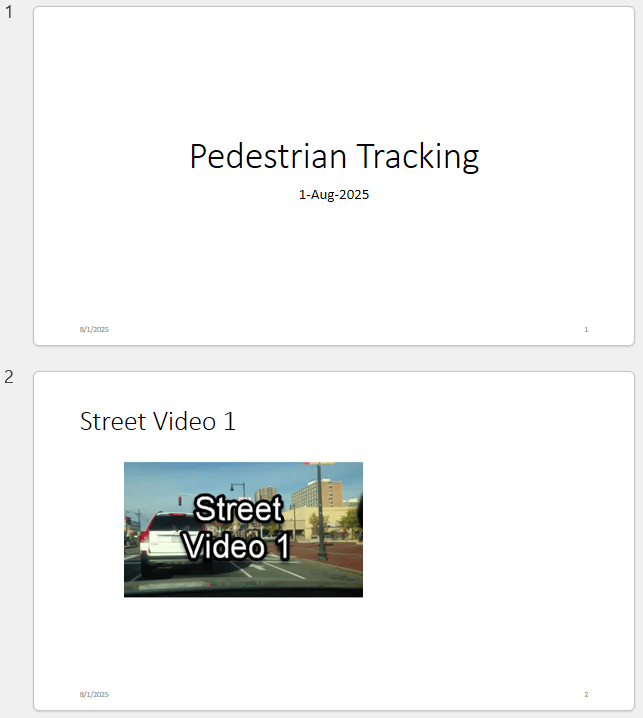
Two Powerpoint slides showing the title on the first slide and the street video embedded on the second slide.

Tips

  • When setting the Width or Height properties of the Video object, the PPT API will rescale the dimensions of the Video object to fit the placeholder containing the video.

Version History

Introduced in R2026a