Register Custom Toolchain and Build Executable
R2026bA toolchain is a collection of tools required to compile and link code for a specified platform. The tools can include compilers, linkers, and archivers. You can configure the tools in a toolchain with multiple options, and group tool specifications into types of configurations.
This example shows how to create, register, and use a toolchain to build an executable file using the Intel® compiler for 64-bit Windows® with the Microsoft® compatible compiler driver. The Intel compiler uses syntax that is compatible with Microsoft Visual Studio tools, and it builds the executable for a 64-bit Windows target machine. However, the concepts and programming interface demonstrated in the example apply for all toolchains, including those that cross-compile for target hardware.
Prerequisites and Limitations:
This example can only be run on a Windows machine.
To run the example, you need to have Microsoft Visual Studio installed.
To run the example, you need to have Intel OneAPI installed in its default location.
Open Model
Open the CounterModel model.
modelName = "CounterModel";
open_system(modelName)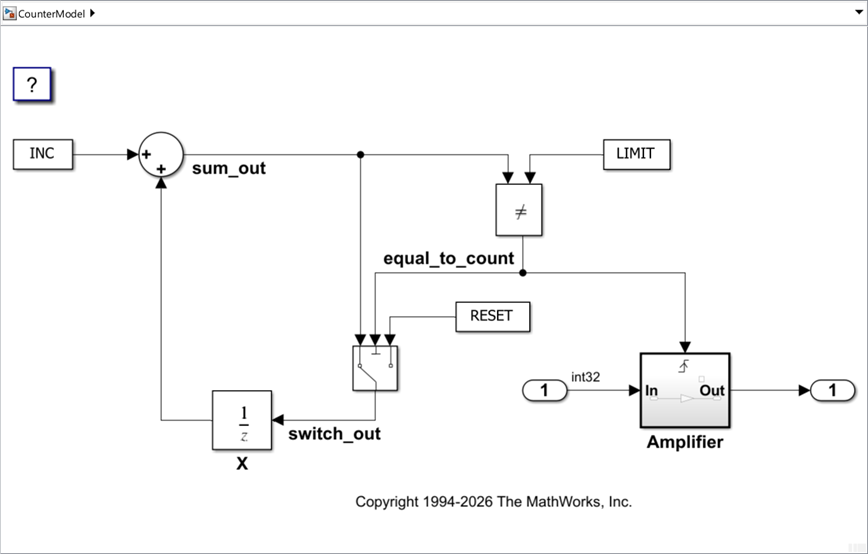
Create Toolchain Object
Create a target.Toolchain object with definitions suitable for an Intel compiler on a 64-bit Windows platform, and add it to the internal database so that it can be used by your model.
Retrieve from the internal database all the target.Processor objects compatible with Intel compiler on a 64-bit Windows platform. Store the retrieved array in the variable processorObjs.
processorObjs = [target.get("Processor",Name="x86-64 (Windows64)"), ...
                 target.get("Processor","Custom Processor-MATLAB Host Computer")];
Create a skeleton toolchain object using the necessary name-value arguments.
toolChainObj = target.create("Toolchain", ...
  Name="Intel OneAPI - using Microsoft Compatible Compiler Driver", ...
  MakeToolType="NMake", ...
  MakeTool="nmake", ...
  HardwareSupport=processorObjs, ... % Previously created object array.
  CCompiler="icx", ...
  CppCompiler="icx -EHs", ...
  Linker="link", ...
  CppLinker="link", ...
  CompilerFlags="-nologo", ...
  LinkerFlags="-nologo", ...
  Archiver="lib -nologo", ...
  ObjectExtension=".obj", ...
  ExecutableExtension=".exe", ...
  SharedLibraryExtension=".dll", ...
  StaticLibraryExtension=".lib", ...
  CommandFile="@");
Use the CCompiler, CppCompiler, Linker, and CppLinker arguments to specify C and C++ compilers and linkers in the toolchain. In the value for CppCompiler, note the flag -EHs, which is only used by the C++ the compiler. The specified CompilerFlags and LinkerFlags are common flags, used for both C and C++ compilers and linkers.
For the HardwareSupport argument, use the target.Processor object array, previously retrieved from the internal database.
These arguments specify extensions for derived files generated by the toolchain tools:
ObjectExtension=".obj"ExecutableExtension=".exe"SharedLibraryExtension=".dll"StaticLibraryExtension=".lib"
Compilers, linkers, and archivers can read multiple command-line flags from a text file, instead of directly from the command line, helping the build process avoid exceeding the command-line maximum length limitation. Enable this feature with the CommandFile argument. The build process prefixes the text file name with @.
Set preprocessor definitions to be used, by default, when building code with this toolchain. Specifically, in the example, specify the definition that disables some compiler warnings about using ANSI C functions for which newer alternatives are available.
toolChainObj.BuildRequirements.Defines = "-D_CRT_SECURE_NO_WARNINGS";Create a target.Command object to specify a batch file to use for setting up the environment for the toolchain.
When the full path of the batch file contains no white spaces, you can use this format to create the object:
target.create("Command","fullPath")
Here, fullPath is the full path of the batch file. When the full path contains white spaces, use the String property to prevent the spaces from being interpreted as separators between the command and arguments. For the example, use this:
setupCMD = target.create("Command", ...
                          String="C:\Program Files (x86)\Intel\oneAPI\setvars.bat");
toolChainObj.EnvironmentConfiguration.SetupCommand = setupCMD;
Each directive specifies the command line flag to use with the tool (compiler or linker) for controling a specific behavior of the tool. For example, the value of the Debug directive specifies the command line flag that enables debug symbol generation when passed to the compiler. Specifically, compilers in this toolchain enable debug symbol generation when the flag "-Zi" is passed in the command line. So you specify the Debug directive as "-Zi".
Iterate over the compilers in the toolchain, and for each specify the required directives.
tcCompilers = [toolChainObj.getBuildToolOfType("C Compiler"), ...
               toolChainObj.getBuildToolOfType("C++ Compiler")];

for curCompiler = tcCompilers
  curCompiler.setDirective(CompileFlag="-c")
  curCompiler.setDirective(Debug="-Zi")
  curCompiler.setDirective(DisableOptimization="/Od")
  curCompiler.setDirective(EnableOptimization="/O2")
  curCompiler.setDirective(IncludeSearchPath="-I")
  curCompiler.setDirective(OutputFlag="-Fo")
  curCompiler.setDirective(PreprocessFile="-E")
  curCompiler.setDirective(PreprocessorDefine="-D")
end
Iterate over the linkers in the toolchain, and for each specify the required directives.
tcLinkers = [toolChainObj.getBuildToolOfType("Linker"), ...
             toolChainObj.getBuildToolOfType("C++ Linker")];

for curLinker = tcLinkers
  curLinker.setDirective(Library="")
  curLinker.setDirective(LibrarySearchPath="-L")
  curLinker.setDirective(OutputFlag="-out:")
  curLinker.setDirective(Debug="")
  curLinker.setDirective(Shared="-dll")
  curLinker.setDirective(DefFile="-def:")
end
The last directive in the loop, DefFile, is necessary when you configure the Simulink® Coder™ to build a shared library from your model instead of an executable file. In this case, the directive DefFile is used to include a module definition file with information about the exported variable and function symbols. To have the Simulink Coder build a shared library, use one of these methods:
Before building your model, specify its system target file as
ert_shrlib.tlc.Use the
slbuildfunction to build your model, and specify the build output type asSharedLibrary:
slbuild(modelName,BuildOutputType="SharedLibrary")
Specify the OutputFlag directive to indicate the prefix of the static library to be created by the archiver of the toolchain.
tcArchiver = toolChainObj.getBuildToolOfType("Archiver");
tcArchiver.setDirective(OutputFlag="-out:")
Add Toolchain Object to Internal Database
Use the target.add function to add the toolchain and associated objects to the internal database. Store the added in the variable addedObjects so that you can remove them later from the database.
addedObjects = target.add(toolChainObj,SuppressOutput=true);
Use Toolchain Object
To use the newly created toolchain object, configure the model to use the hardware specifications of the toolchain object, and then specify it as the toolchain for the model to use:
1. Open the Configuration Parameters dialog box of the model.
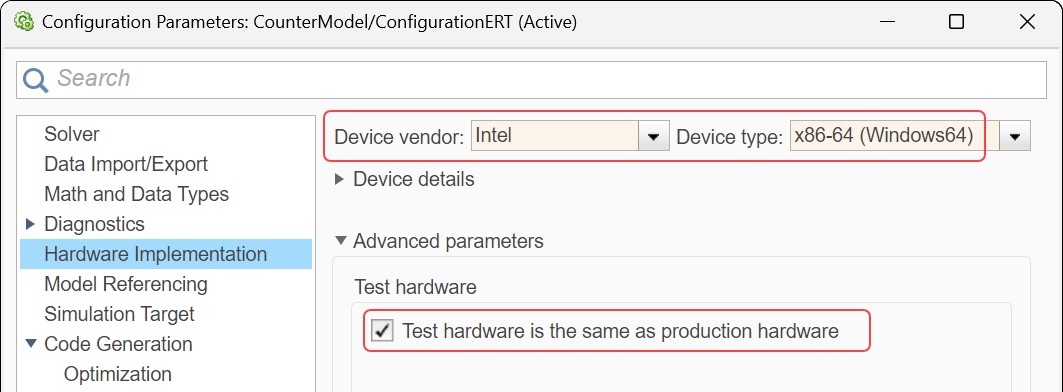
2. On the left pane, navigate to Hardware Implementation.
3. On the right pane, from the Device vendor list, select Intel.
4. The parameter Device type becomes available. From its drop-down list, select x86-64 (Windows64).
5. Under Advanced parameters, make sure that Test hardware is the same as production hardware is selected. When this parameter is selected, the list of available toolchains is determined by the values of the Device vendor and Device type parameters (which you just specified).
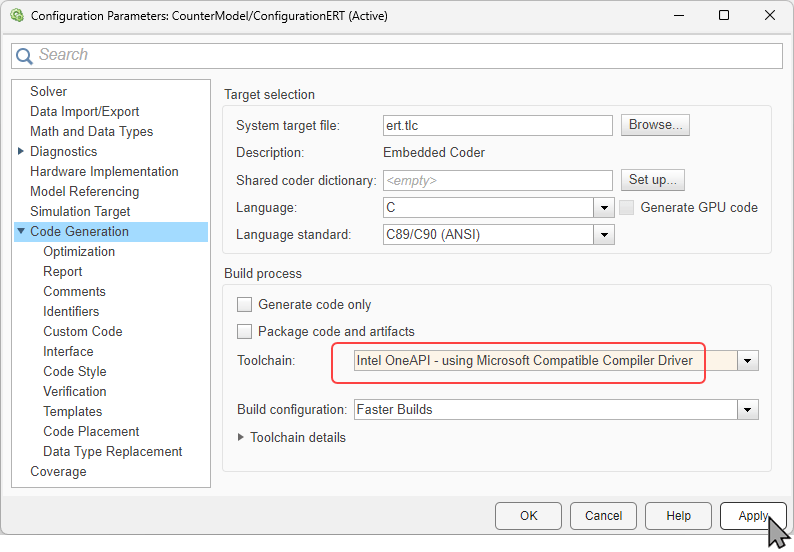
6. On the left pane, navigate to Code Generation.
7. From the Toolchain list, select the newly created toolchain, Intel OneAPI - using Microsoft Compatible Driver.
8. Click Apply.
Alternatively, configure the parameters programmatically by entering these commands in the Command Window:
set_param(modelName,ProdHWDeviceType="Intel->x86-64 (Windows64)")
set_param(modelName,Toolchain=toolChainObj.Name)
Build Model with Custom Toolchain
Now build the model with the new custom toolchain.
If you do not have Microsoft Visual Studio or Intel OneAPI installed, enter this command in the Command Window to only generate code without building the executable.
set_param(modelName,GenCodeOnly="on")Use the function slbuild in the Command Window to build the model (or just generate code if you configured it to only generate code).
slbuild(modelName)
### Searching for referenced models in model 'CounterModel'.
### Total of 1 models to build.
### Starting build procedure for: CounterModel
### Successful completion of code generation for: CounterModel

Build Summary

Top model targets:

Model         Build Reason                                         Status           Build Duration
==================================================================================================
CounterModel  Information cache folder or artifacts were missing.  Code generated.  0h 0m 52.46s

1 of 1 models built (0 models already up to date)
Build duration: 0h 0m 55.59s
If you built the model, use the system function in the Command Window to run the generated executable:
system(modelName);
Remove Added Objects from Database
To remove the objects you added to the internal database, use the target.remove function.
target.remove(addedObjects,SuppressOutput=true)

