Partition a Model By Using a Network Coupler Block
R2026bThis example shows how to partition a Simscape model by using a network coupler block. When you partition a model, you divide it into smaller, more manageable sections. Partitioning improves solver performance because it allows the solver to process independent or weakly coupled components separately, which reduces the complexity of each time step. Each Simscape model partition requires its own Solver Configuration block, which you can use to assign the solver properties for that partition. In this example, you:
Obtain baseline results from the non-partitioned model.
Add a network coupler block at the location you want to partition. Then, add a Solver Configuration block and a domain properties block to the new partition.
Configure the network coupler block.
Obtain results for the partitioned model and compare them to the baseline results.
To learn about ungrouping a partitioned model, see Configuring an EV Simulation for Multirate HIL.
Obtain Baseline Results
First, obtain baseline results for the non-partitioned model that you can compare to the partitioned results. Open the model. The PartitionAModelUsingANetworkCouplerBlock model represents a flow source that moves water from a reservoir through a pipe and to another reservoir. The model is configured for fixed-step, fixed-cost simulation.
open_system("PartitionAModelUsingANetworkCouplerBlock")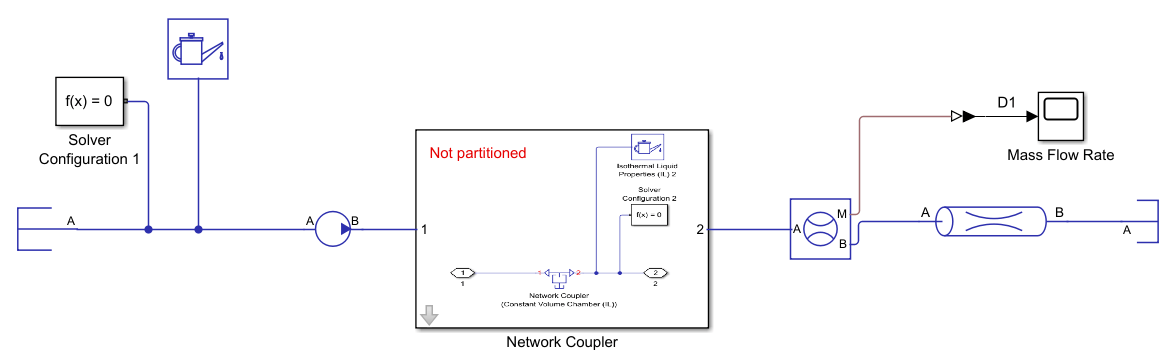
This model contains a subsystem, Network Coupler. By default, the blocks in this subsystem are commented out, and the subsystem displays the text Not partitioned. The model functions as a non-partitioned model.
Simulate the model and view the baseline mass flow behavior in the Mass Flow Rate block.
sim("PartitionAModelUsingANetworkCouplerBlock");
open_system("PartitionAModelUsingANetworkCouplerBlock/Mass Flow Rate")
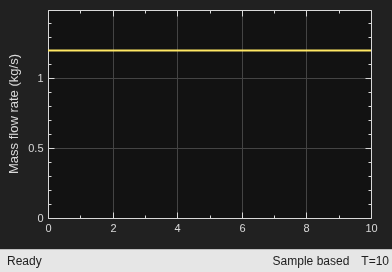
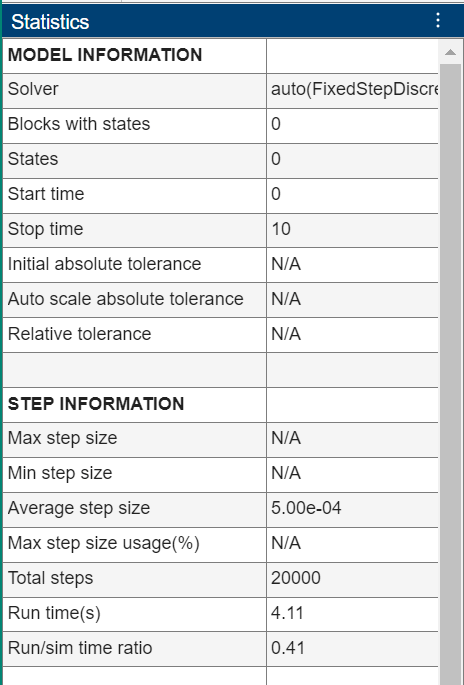
To evaluate the baseline solver performance, use the Solver Profiler tool. In the Debug tab, set the button in the Performance section to Solver Profiler. In the Solver Profiler window, click Run to obtain the solver performance data. The run time is 4.11 seconds.
Partition Model
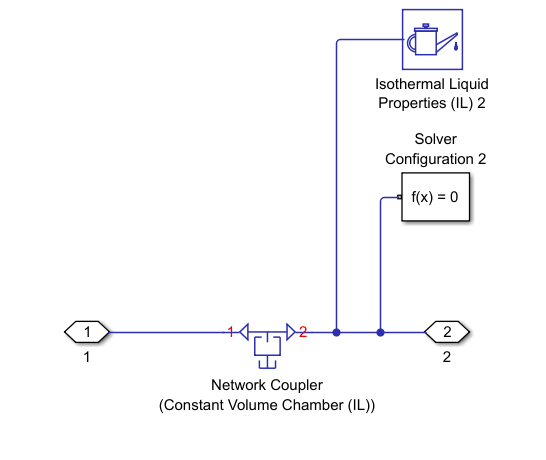
You can use network coupler blocks to partition your Simscape model at the location of the block. In this example, the Network Coupler subsystem splits the network between the flow source and the flow resistance. The subsystem contains a Network Coupler (Constant Volume Chamber (IL)) block, an Isothermal Liquid Properties (IL) block, and a Solver Configuration block. By default, these blocks are commented out.
To look under the mask, click the arrow badge  on the block icon.
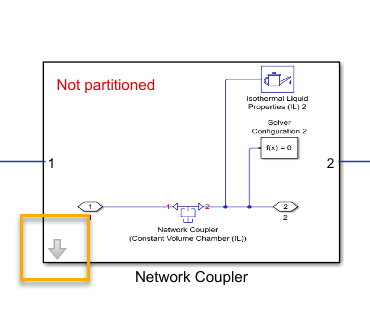
When you partition a network, both sides of the network coupler block must include a Solver Configuration block. Because this example partitions an isothermal liquid network, each network also requires an Isothermal Liquid Properties (IL) block. Both networks must use the same fluid properties.
To uncomment the subsystem blocks and partition the model, double-click the Network Coupler subsystem and select Partition network. Alternatively, enter:
NetworkCouplerPath = "PartitionAModelUsingANetworkCouplerBlock/Network Coupler";
set_param(NetworkCouplerPath,PartitionOption="on")
The figure shows the subsystem when the model is partitioned.
Configure Network Coupler
Network coupler blocks are subsystems that contain multiple blocks. You configure the network coupler by modifying these blocks. In this example, double-click the Network Coupler (Constant Volume Chamber (IL)) block.
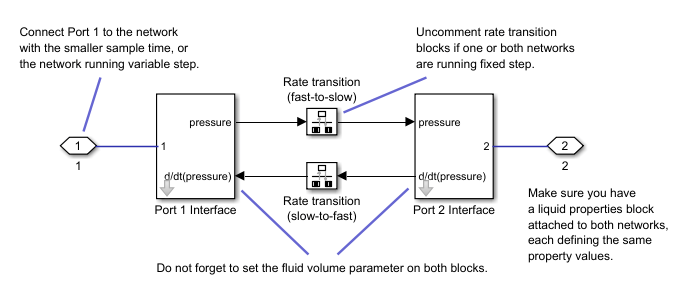
In this example, the Rate transition (fast-to-slow) and Rate transition (slow-to-fast) blocks are uncommented to support fixed-step simulation. The table shows the parameter values of the Port 1 Interface block.
Volume (m^3) |
|
Sampling type |
|
Port 1 network discrete sample time (s) |
|
The Volume (m^3) parameter must be the same for the Port 1 Interface and Port 2 Interface blocks. In this example the value must be large enough to ensure there is always liquid in the chamber for a given time step.
Obtain Partitioned Results
Run the simulation and compare the mass flow rate to the baseline.
sim("PartitionAModelUsingANetworkCouplerBlock");
open_system("PartitionAModelUsingANetworkCouplerBlock/Mass Flow Rate")
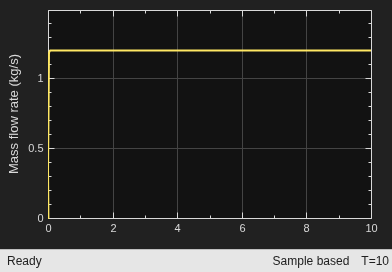
Run the Solver Profiler again. The new run time is 0.86 seconds, which is an improvement over the initial 4.11 second run time.
See Also
Discrete Transfer Fcn | Unit Delay | Zero-Order Hold
Topics
- Define Step Size and Number of Nonlinear Iterations for Simscape Real-Time Simulation
- Estimate Computation Costs
- Configuring an EV Simulation for Multirate HIL
- Implicit and Explicit Partitioning of Models
- Multicore Programming with Simulink
External Websites
- Concurrent Execution on Simulink Real-Time (Simulink Real-Time)

