Customize Tables for Masked Blocks
R2026bA Custom Table is a mask parameter that displays multi-column data on the mask dialog box. It enables you to enter and manage data as rows and columns instead of using separate individual parameters. Each column supports multiple mask parameter types, such as edit, checkbox, popup, and combobox and includes properties such as width, visibility, evaluation, and dropdown options. You can access and modify the contents of the table programmatically and through mask callbacks.
Add Custom Table Parameter
Open a Simulink® model.
Add a block that you want to mask to the model. Right-click the block and select Mask > Create Mask. The Mask Editor opens.
In the Parameters & Dialog tab, click Custom Table to add it to the mask as a parameter. Specify a name and prompt for the parameter, as required.
In the Property Editor pane, click the Columns field to enter the column properties, such as the name of each column, type of column, visibility and expression evaluation. The available column types are
edit,checkbox,comboboxandpopup. Use the Add button to add a column and Remove button to remove an existing column.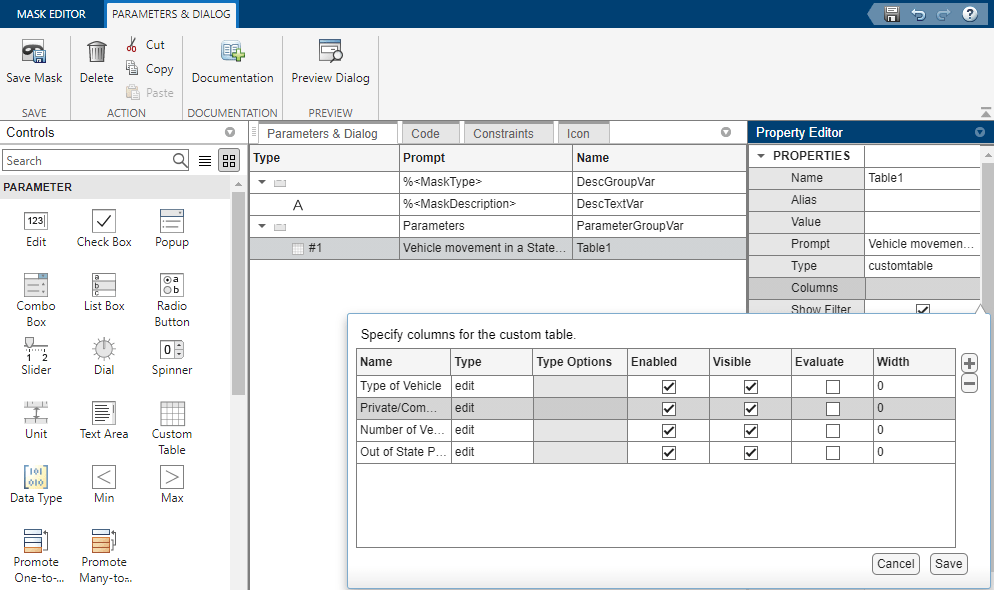
In the Property Editor pane, click the Value field and add the required number of rows by clicking
 . If required, enter default values in the newly added
rows. Click Save to save your changes.
. If required, enter default values in the newly added
rows. Click Save to save your changes. Click Save Mask to save the changes to the mask. Double-click the block to view the custom table.
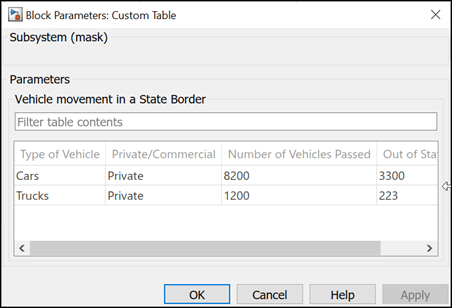
To edit the custom table, right-click the block and select Edit Mask.
Search and Sort Custom Table Contents
To allow filtering, sorting, and multi-selection of table contents within the mask dialog box, enable the Show Filter, Sortable, and Multiselect options in the Property Editor pane of the Mask Editor.

