Create MATLAB Function Block Variables
R2026bMATLAB Function blocks use variables to manage data that you input from or output to the Simulink® model, or that you only use inside the MATLAB Function. Use these variables to manage your simulation data.
Create Variables That Use Data Only Inside the Block
Local variables use data only inside the MATLAB Function block. To create local variables:
Double-click the MATLAB Function block to open the MATLAB Function Block Editor.
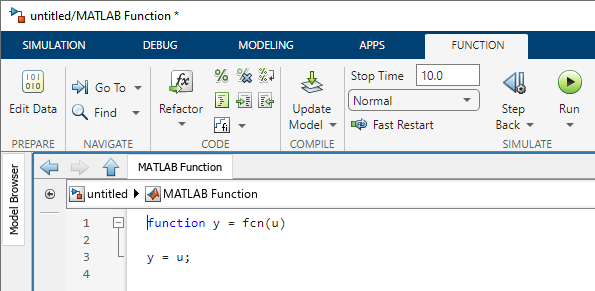
Create local variables below the function declaration statement by using MATLAB® function syntax.
For example, entering this code after the function declaration statement creates a
variable named myNumber that only the MATLAB Function
block can read and write, and initializes it to a value of 10.
myNumber = 10;
Local variables inherit their properties from their assigned values. To delete the variable, manually delete the code that creates it.
To create local variables that retain their value in memory between time steps, you can create persistent variables. See Initialize Persistent Variables in MATLAB Functions.
Create Variables That Access Model Data
To create variables that access and modify simulation data, add them to the function declaration statement, use the Symbols pane, or use the Model Explorer.
Create Variables by Adding Them to the Function Declaration
To create variables by using the function declaration statement, double-click the MATLAB Function block to open the MATLAB Function Block Editor. Enter the variables as input or output arguments in the function declaration statement. The variables that you add to the input arguments are input variables and the variables that you add to the output arguments are output variables.
When you create input and output variables, the MATLAB Function block
assigns each argument to a respective input or output port. For example, if you define the
block function mySum to have two input arguments and one output
argument:
function sum = mySum(x,y)The MATLAB Function block automatically associates the variables to ports with the same name.
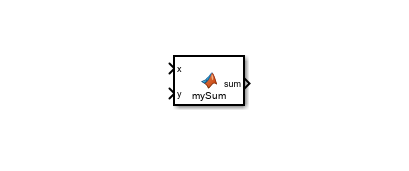
Output variables pass data only through their associated output ports. Assigning a value to an output variable inside the block does not modify model workspace variables that have the same name.
To delete these variables, delete them from the function declaration statement, then exit the block, update the model, or save the model.
Create Variables by Using the Symbols Pane
Since R2022a
To create variables by using the Symbols pane, open the block. Then, open the Symbols pane by using one of these approaches:
In the Function tab, click Edit Data.

In the Modeling tab, in the Design section, click Symbols Pane.

Create variables by clicking the Create Data button
 . When you use this method, the block creates input
variables. You can delete variables by right-clicking the variable in the
Symbols pane and clicking Delete.
. When you use this method, the block creates input
variables. You can delete variables by right-clicking the variable in the
Symbols pane and clicking Delete.
If you do not use these variables in the block code, the Symbols
pane shows the Unused Symbol icon  next to the variable name.
Create Variables by Using the Model Explorer
To use the Model Explorer, in the Modeling tab, in the Design section, click Model Explorer. In the Model Hierarchy pane, expand the model tree view and select the MATLAB Function block.
Add variables by clicking Add > Data or the Add Data button  . When you use this method, the block creates input
variables. Delete variables by selecting the variable and clicking Edit > Delete or the Delete button
. When you use this method, the block creates input
variables. Delete variables by selecting the variable and clicking Edit > Delete or the Delete button  .
.
Specify Data Source and Variable Properties
To change the source of the data after defining the variables, rearrange them in the function declaration statement or set the Scope property of the variable. For more information, see, Set Properties for MATLAB Function Block Variables.
In addition to defining variables that correspond to input and output arguments, you can
also create variables that access other sources of data. To access workspace data or
Simulink.Parameter objects in MATLAB Function block
variables, create parameter variables. See Access Workspace Data in MATLAB Function Blocks by Using Parameter Variables. To
access data store data, create global variables in the function code. See Access Data Store Data in MATLAB Function Blocks.
Programmatically Create Variables
You can specify MATLAB Function block variable properties
programmatically by using the Stateflow.EMChart object of the
block. For more information, see Configure MATLAB Function Blocks Programmatically.
See Also
MATLAB Function | MATLAB Function Block Editor

