FDCAN Read
Libraries:
STM32 Microcontroller Blockset /
STM32G0xx Based Boards
STM32 Microcontroller Blockset /
STM32G4xx Based Boards
STM32 Microcontroller Blockset /
STM32H5xx Based Boards
STM32 Microcontroller Blockset /
STM32H7xx Based Boards
STM32 Microcontroller Blockset /
STM32L5xx Based Boards
STM32 Microcontroller Blockset /
STM32U5xx Based Boards
Description
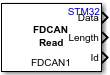
The FDCAN Read block reads messages from a Controller Area Network (CAN) network connected to the hardware.
The FDCAN Read block outputs a CAN data when operation mode is set to
Data. The block outputs values received as [64x1]
array of type uint8 when output type is set to
Unpacked.
The block outputs Simulink® bus signal when output type is set to Packed. To extract data
from Simulink bus signal, connect it to CAN FD Unpack block.
Select the Operation mode and its properties using the block parameters dialog box. Configure the properties of FDCAN module in the configuration parameters.
Examples
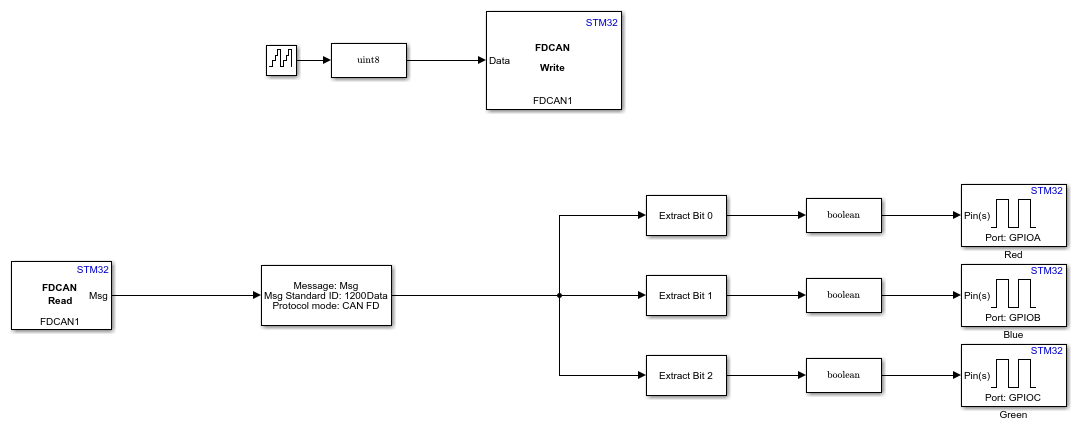
Send and Receive CAN or FDCAN Messages on a STM32 processor
Exchange data between STM32 processor based boards using CAN or FDCAN communication.
Ports
Output
The block outputs messages in uint8 or CAN
Msg format.
The maximum size of the data is [64x1] of uint8 format. The number of bytes defined in the length signifies the valid data of the output.
If Output type is set to
Unpacked, the received message data is an 64-by-1 array of typeuint8.If Output type is set to
Packed, the data port is renamed to Msg and the received message data is output as a Simulink bus signal.
This port outputs 0 if the received CAN message is a remote
frame.
Data Types: uint8 | CAN Msg
The port outputs FDCAN module status.
The status is
1, if FDCAN module in restricted operation mode.The status is
0, if FDCAN module is not in restricted operation mode.
Dependencies
To enable this parameter, set operation mode to Read restricted operation mode status.
Data Types: uint8
The port outputs message read status.
The status is
0, if the block reads new message.The status is
1, if the block reads no new message.
Dependencies
To enable this parameter, select Output Status parameter.
Data Types: uint8
The port outputs FDCAN module status.
The status is
1, if FDCAN module in sleep mode.The status is
0, if FDCAN module is not in sleep mode.
Dependencies
To enable this parameter, set operation mode to Read sleep status.
Data Types: uint8
The CAN receive block outputs the CAN received message in Simulink bus signal. To extract data from Simulink bus signal, connect it to CAN FD Unpack block.
The port outputs message read status.
The status is
1, if the message read is not successfulThe status is
0, if the message read is successful.
Dependencies
To enable this parameter, set Output type to
Packed.
Data Types: CAN Msg
The port outputs the length of the received CAN message in bytes.
Dependencies
To enable this parameter, set Output type to
Unpacked.
Data Types: uint8
The port outputs CAN message identifier.
Dependencies
To enable this parameter, set Output type to
Unpacked.
Data Types: uint32
The port outputs CAN message identifier type
0- if its 11-bit standard identifier1- if its 29-bit standard identifier
Dependencies
To enable this parameter, set Output type to
Unpacked.
Data Types: uint32
Remote message flag. The port outputs 1 if the received CAN
message is a remote frame.
Dependencies
To enable this parameter, select Output remote parameter.
Frame type output message. The port outputs 1, if it receives
FDCAN message frame and 0, if it receives Classic message
frame.
Dependencies
To enable this parameter, select Output frame type parameter.
Data Types: uint8
Bitrate switching output message.
0- when CAN FD frames are transmitted without bit rate switching.1- when CAN FD frames are transmitted with bit rate switching.
Dependencies
To enable this parameter, select Output bitrate switching parameter.
Data Types: uint8
The port outputs the received FIFO fill level.
Dependencies
To enable this parameter, select Output receive FIFO level parameter.
Parameters
Module to which the FDCAN device is connected.
Programmatic Use
Block Parameter:
FDCANModule |
Select the CAN read operation mode.
Data- Data to read FDCAN data/messageRead sleep status- Read the sleep/power status of FDCAN module. In Read sleep status operation mode, the block outputs a logical status if the FDCAN peripheral is in sleep mode.In this operation mode, the block configures an output port
Sleep.Read restricted operation mode status- To read if the CAN module is in restricted mode. InRead restricted operation mode statusoperation mode, the block outputs a logical status if the FDCAN peripheral in restricted operation mode.In this operation mode, the block configures an output port
Restricted mode.Read last error code- Provides the status set by hardware for last message sent or received on CAN bus. In Read last error code operation mode, the block outputs a logical status if the CAN peripheral is in wakeup state.The following are the error codes and there respective status.
000- No Error001- Stuff Error010- Form Error011- Acknowledgment Error100- Bit recessive Error101- Bit dominant Error110- CRC Error111- Set by software
Programmatic Use
Block Parameter:
OperationReadMode |
Select an output type to read message.
Unpacked– In Unpacked output type, the block outputs values received as [8x1] array of type uint8. In unpacked type for the FDCAN Read block, you can enable all the output ports(ID, ID type, Data, Status, Remote, Frame type, bitrate switching, Length, FIFO level).Packed– In Packed output type, the block outputs Simulink bus signal. To extract data from Simulink bus signal, connect it to CAN Unpack block.
Programmatic Use
Block Parameter:
OutputTypeReadMode |
The CAN Read block outputs a CAN message from read source. You can configure read source filter configuration in the configuration parameters.
Programmatic Use
Block Parameter:
ReadSource |
Specify the FDCAN Read block buffer number.
Dependencies
To enable this parameter, set the read source to
Buffers.
Programmatic Use
Block Parameter:
BufferNumber |
When you select the Output Identifier Type parameter, the block configures an output
port, Id Type. The port outputs the standard or extended message
status.
Dependencies
To enable this parameter, set the Output type as
unpacked.
Programmatic Use
Block Parameter:
OutputIdType |
When you select the Output Remote parameter, the block configures an output port, Remote. The port outputs the message remote frame status.
Dependencies
To enable this parameter, set the Output type as
unpacked.
Programmatic Use
Block Parameter:
OutputRemoteFrame |
When you select the Output Remote parameter, the block
configures an output port, Frame Type. The port outputs the
0 (Classic) or 1 (FD) message status.
Dependencies
To enable this parameter, set the Output type as
unpacked.
Programmatic Use
Block Parameter:
OutputFrameType |
When you select the Output bit rate switching parameter, the
block configures an output port, Bitrate switching. The port
outputs the 0 (disabled) or 1 (enabled) message
status.
Dependencies
To enable this parameter, set the Output type as
unpacked.
Programmatic Use
Block Parameter:
OutputBRS |
When you select the Output receive FIFO fill level parameter, the block configures an output port, FIFO level. The port outputs the received FIFO level message.
Programmatic Use
Block Parameter:
OutputRxFifoLevel |
When you select the Output Status parameter, the block configures an output port, Status. The port outputs the status message.
Programmatic Use
Block Parameter:
OutputStatus |
Specify how often the block receives message, in seconds. When you specify this
parameter as -1, Simulink determines the best sample time for the block based on the block context
within the model.
Programmatic Use
Block Parameter:
SampleTime |
Specify the time in seconds to block the FDCAN read. For nonblocking, set to
0. You configure Timeout to be the maximum time (in seconds) to
wait to complete a read operation.
Programmatic Use
Block Parameter:
Timeout |
Extended Capabilities
C/C++ Code Generation
Generate C and C++ code using Simulink® Coder™.
Version History
Introduced in R2023a
MATLAB Command
You clicked a link that corresponds to this MATLAB command:
Run the command by entering it in the MATLAB Command Window. Web browsers do not support MATLAB commands.
Seleziona un sito web
Seleziona un sito web per visualizzare contenuto tradotto dove disponibile e vedere eventi e offerte locali. In base alla tua area geografica, ti consigliamo di selezionare: .
Puoi anche selezionare un sito web dal seguente elenco:
Come ottenere le migliori prestazioni del sito
Per ottenere le migliori prestazioni del sito, seleziona il sito cinese (in cinese o in inglese). I siti MathWorks per gli altri paesi non sono ottimizzati per essere visitati dalla tua area geografica.
Americhe
- América Latina (Español)
- Canada (English)
- United States (English)
Europa
- Belgium (English)
- Denmark (English)
- Deutschland (Deutsch)
- España (Español)
- Finland (English)
- France (Français)
- Ireland (English)
- Italia (Italiano)
- Luxembourg (English)
- Netherlands (English)
- Norway (English)
- Österreich (Deutsch)
- Portugal (English)
- Sweden (English)
- Switzerland
- United Kingdom (English)