sim3d.sensors.FisheyeCamera
R2026bDescription
Use the sim3d.sensors.FisheyeCamera object to create a camera with a fisheye
lens in the 3D environment. The sensor is based on the fisheye camera model proposed by
Scaramuzza [1]. This camera object supports
a field of view of up to 195 degrees. After you create a sim3d.sensors.FisheyeCamera
object, you can modify aspects of the actor object by setting property values.
Note
Simulations using the sim3d.sensors.FisheyeCamera object requires Computer Vision Toolbox™.
Creation
Syntax
Description
creates a default fisheyeCamera = sim3d.sensors.FisheyeCamera()sim3d.sensors.FisheyeCamera object in the 3D environment.
specifies options using one or more optional name-value arguments. For example, to create
a fisheye camera actor with distortion center of [650,340], set
fisheyeCamera = sim3d.sensors.FisheyeCamera(Name=Value)DistortionCenter to [650,340].
Name-Value Arguments
Specify optional pairs of arguments as
Name1=Value1,...,NameN=ValueN, where Name is
the argument name and Value is the corresponding value.
Name-value arguments must appear after other arguments, but the order of the
pairs does not matter.
Example: fisheyeCamera =
sim3d.sensors.FisheyeCamera(ActorName='FisheyeCamera',ImageSize=[768,1024])
These intrinsic camera properties are equivalent to the properties of a fisheyeIntrinsics (Computer Vision Toolbox) object. To obtain the intrinsic properties for your camera,
use the Camera Calibrator app.
For details about the fisheye camera calibration process, see Using the Single Camera Calibrator App (Computer Vision Toolbox) and Fisheye Calibration Basics (Computer Vision Toolbox).
Name of actor, specified as a character array or string. If you do not specify an actor name,
then the software assigns the actor an autogenerated name. Use
this argument to set the name of the
sim3d.sensors.FisheyeCamera object.
Note
If you specify the same name as an actor that already exists, then the software appends actor name you specify with a unique identifier.
Since R2025a
Coordinate system that the actor uses for translation and rotation in the 3D environment, specified as one of these listed values:
Default– Simulink® 3D Animation™ coordinate system. Units are in m and rad.MATLAB– MATLAB® coordinate system. Units are in m and rad.ISO8855– ISO 8855 standard coordinate system. Units are in m and deg.AERO– SAE coordinate system. Units are in m and rad.VRML– X3D ISO standard coordinate system. Units are in m and rad.SAE– SAE coordinate system. Units are in m and rad.
For more details on the different coordinate systems, see Coordinate Systems in Simulink 3D Animation.
Data Types: string
Relative translation
(x,y,z) of the actor object to its
parent actor, specified as a real 1-by-3 vector, in m. Use Translation to
change the position of the sim3d.sensors.FisheyeCamera object in the 3D environment along the
X, Y, and Z axes of the
coordinate system. When you add an actor to the 3D environment, the default parent actor is the
Scene Origin at (0,0,0).
Example: Translation=[1 2 1]
Relative rotation (roll,
pitch, yaw) of the actor object to its parent actor,
specified as a real 1-by-3 vector. When you add an actor to the 3D environment, by default the
actor follows the Simulink
3D Animation coordinate system. The rotation order is about X-axis
(roll), then about Y-axis
(pitch), then about Z-axis (yaw).
When you update any of the three rotation values and leave others unchanged, the software
reapplies all three rotations in the same order. The CoordinateSystem value
specifies how Rotation is applied and the units used for rotation. For more
details on the different coordinate systems, see Coordinate Systems in Simulink 3D Animation.
Example: Rotation=[pi/4 pi/8 pi/2]
Image size produced by the sim3d.sensors.FisheyeCamera
object, specified as a real-valued 1-by-2 vector of positive integers of the form
[m,n], in pixels. m is the vertical
resolution and n is the horizontal resolution. ImageSize
is equivalent to the ImageSize (Computer Vision Toolbox) property of a
cameraIntrinsics object.
Center of distortion, specified as real-valued 1-by-2 vector, in pixels.
Polynomial coefficients for the projection function described by Scaramuzza's Taylor model [1], specified as a real-valued 1-by-4 vector of the form [a0 a2 a3 a4].
Example: MappingCoefficients=[320,-0.001,0,0]
Transformation of a point from the sensor plane to a pixel in the camera image plane, specified as a real-valued 2-by-2 matrix. The misalignment occurs during the digitization process when the lens is not parallel to sensor.
Example: StretchMatrix=[0 1; 0 1]
Output Arguments
Actor object, returned as a sim3d.sensors.FisheyeCamera object.
Properties
Parent of actor, specified as a handle to the parent actor
object. After you add an actor to the sim3d.World object, the default parent
actor is the Scene Origin at (0,0,0). Use
Parent to set any actor in the 3D environment as the parent actor of a
sim3d.sensors.FisheyeCamera object.
This property is read-only.
Children of actor, specified as a structure.
Each field of the structure contains a handle to
the child of a sim3d.sensors.FisheyeCamera
object.
Parent world, specified as a handle to the parent sim3d.World
object. You can use this property only if the sim3d.sensors.FisheyeCamera object is
added to the parent sim3d.World object.
This property is read-only.
Unique ID of the sensor, specified as a real positive scalar.
Data Types: uint32
Since R2025a
Coordinate system that the actor uses for translation and rotation in the 3D environment, specified as one of these listed values:
Default– Simulink 3D Animation coordinate system. Units are in m and rad.MATLAB– MATLAB coordinate system. Units are in m and rad.ISO8855– ISO 8855 standard coordinate system. Units are in m and deg.AERO– SAE coordinate system. Units are in m and rad.VRML– X3D ISO standard coordinate system. Units are in m and rad.SAE– SAE coordinate system. Units are in m and rad.
For more details on the different coordinate systems, see Coordinate Systems in Simulink 3D Animation.
Data Types: string
Relative translation
(x,y,z) of the actor object to its
parent actor, specified as a real 1-by-3 vector, in m. Use Translation to
change the position of the sim3d.sensors.FisheyeCamera object in the 3D environment along the
X, Y, and Z axes of the
coordinate system. When you add an actor to the 3D environment, the default parent actor is the
Scene Origin at (0,0,0).
Example: fisheyeCamera.Translation = [1 2 1]
Relative rotation (roll,
pitch, yaw) of the actor object to its parent actor,
specified as a real 1-by-3 vector. When you add an actor to the 3D environment, by default the
actor follows the Simulink
3D Animation coordinate system. The rotation order is about X-axis
(roll), then about Y-axis
(pitch), then about Z-axis (yaw).
When you update any of the three rotation values and leave others unchanged, the software
reapplies all three rotations in the same order. The CoordinateSystem value
specifies how Rotation is applied and the units used for rotation. For more
details on the different coordinate systems, see Coordinate Systems in Simulink 3D Animation.
Example: fisheyeCamera.Rotation = [pi/4 pi/8 pi/2]
Type of actor mobility to respond to physics, move the actor during simulation, or both, specified as one of these options.
'Static'– Actors do not move or update during simulation, and the software uses precomputed lighting.'Stationary'– Actors do not move or update during simulation, and the software uses dynamic lighting such as casting shadows.'Movable'– Actors can move or update during simulation, and the software uses dynamic lighting.
Example: fisheyeCamera.Mobility ='Movable'
Image size produced by the sim3d.sensors.FisheyeCamera
object, specified as a real-valued 1-by-2 vector of positive integers of the form
[m,n], in pixels. m is the vertical
resolution and n is the horizontal resolution. ImageSize
is equivalent to the ImageSize (Computer Vision Toolbox) property of a
cameraIntrinsics object.
Center of distortion, specified as real-valued 1-by-2 vector, in pixels.
Polynomial coefficients for the projection function described by Scaramuzza's Taylor model [1], specified as a real-valued 1-by-4 vector of the form [a0 a2 a3 a4].
Example: fisheyeCamera.MappingCoefficients =
[320,-0.001,0,0]
Transformation of a point from the sensor plane to a pixel in the camera image plane, specified as a real-valued 2-by-2 matrix. The misalignment occurs during the digitization process when the lens is not parallel to sensor.
Example: fisheyeCamera.StretchMatrix = [0 1; 0 1]
Object Functions
read | Return image data captured with fisheye camera |
Examples
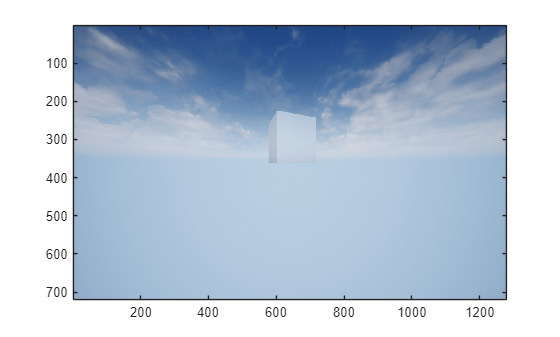
Create a fisheye camera in the 3D environment using the sim3d.sensors.FisheyeCamera object. You can capture images of the 3D environment and display them in MATLAB®. Use the read function to extract image data from the 3D environment.
Create a 3D environment and set up communication with the Unreal Engine simulation environment using the output function OutputImpl and the update function UpdateImpl. The sim3d.World object can send and receive data about the 3D environment to and from the Unreal Engine at each simulation step using output and update functions, respectively. Before the Unreal Engine simulates, MATLAB calls the output function and sends data to the Unreal Engine. Then, the Unreal Engine executes at each time step and sends data to MATLAB in the update function. You can use the update function to read this data or change values after each simulation step.
world = sim3d.World(Output=@outputImpl,Update=@updateImpl);
Create a box actor in the 3D environment using the sim3d.Actor object and add the box to the world.
cube = sim3d.Actor( ... ActorName="Cube", ... Mobility='Movable', ... Translation=[0 0 0.5]); createShape(cube,"box"); add(world,cube);
Create a fisheye camera using the sim3d.sensors.FisheyeCamera object and set the location of the fisheye camera using the Translation property. Add the fisheyecamera to the world.
fisheyecamera = sim3d.sensors.FisheyeCamera( ... ActorName="FisheyeCamera"); fisheyecamera.Translation = [-3 0 0]; add(world,fisheyecamera);
Run the co-simulation.
sampletime = 1/60; stoptime = 2; run(world,sampletime,stoptime);
Output Function
The output function sends data about the actor to the Unreal Engine environment at each simulation step. For this example, the function rotates the Cube about its Z-axis by updating the Rotation property of the Cube at each simulation step.
function outputImpl(world) world.Actors.Cube.Rotation(3) = world.Actors.Cube.Rotation(3) ... + 0.01; end
Update Function
The update function reads data from the Unreal Engine environment at each simulation step. For this example, the update function uses the read function of the sim3d.sensors.FisheyeCamera object to get image data from the FisheyeCamera in the Unreal Engine and uses the image function to display it in MATLAB.
function updateImpl(world) sceneImage = read(world.Actors.FisheyeCamera); image(sceneImage); end
References
[1] Scaramuzza, Davide, Agostino Martinelli, and Ronald Siegwart. "A Toolbox for Easily Calibrating Omnidirectional Cameras." In Proceedings to IEEE International Conference on Intelligent Robots and Systems (IROS 2006). Beijing, China, October 9–15, 2006. https://doi.org/10.1109/IROS.2006.282372.
Version History
Introduced in R2024bScripts containing the sim3d.sensors.FisheyeCamera
object have better frame rate and execution time.
Set the Mobility argument or property of
sim3d.sensors.FisheyeCamera object using one of these options.
'Static''Stationary''Movable'
There are no plans to remove support for existing references to
sim3d.utilis.MobilityTypes.Movable and
sim3d.utilis.MobilityTypes.Static as Mobility
values.
Set the CoordinateSystem argument and
property of the sim3d.sensors.FisheyeCamera object to represent the coordinate system for actor
transformation in the 3D environment.
MATLAB Command
You clicked a link that corresponds to this MATLAB command:
Run the command by entering it in the MATLAB Command Window. Web browsers do not support MATLAB commands.
Seleziona un sito web
Seleziona un sito web per visualizzare contenuto tradotto dove disponibile e vedere eventi e offerte locali. In base alla tua area geografica, ti consigliamo di selezionare: .
Puoi anche selezionare un sito web dal seguente elenco:
Come ottenere le migliori prestazioni del sito
Per ottenere le migliori prestazioni del sito, seleziona il sito cinese (in cinese o in inglese). I siti MathWorks per gli altri paesi non sono ottimizzati per essere visitati dalla tua area geografica.
Americhe
- América Latina (Español)
- Canada (English)
- United States (English)
Europa
- Belgium (English)
- Denmark (English)
- Deutschland (Deutsch)
- España (Español)
- Finland (English)
- France (Français)
- Ireland (English)
- Italia (Italiano)
- Luxembourg (English)
- Netherlands (English)
- Norway (English)
- Österreich (Deutsch)
- Portugal (English)
- Sweden (English)
- Switzerland
- United Kingdom (English)